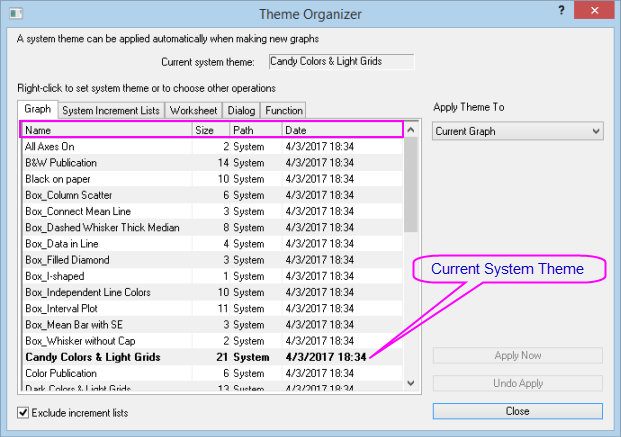
The Theme Organizer is used to organize and operate on your various Themes. Themes are organized by tabs:
Themes are organized by tabs. Built-in Themes are found at Path = System. By default, User-defined Themes are saved to your User Files Folder.
| Name |
The name of a theme file. |
|---|---|
| Size |
The size of a theme file. |
| Date |
The creation date of a theme. |
| Path |
The disk location of the theme file, which is either System (for themes shipped with Origin) or User (for user-created theme files). Please note that themes that shipped with Origin are stored in the Themes folder under the Origin program folder. Themes that were created by users are saved to the Themes folder under the User Files Folder. |
In addition, there is a Close button.
| Close |
Close the Theme Organizer dialog. |
|---|
 | Please note that you can double click on the name of a user-created theme to rename it. But you cannot change the names of the system themes. |
This tab contains a table which lists all the system graph themes and user-defined graph themes. With this tab, you can apply the selected theme to the specified range of graphs.
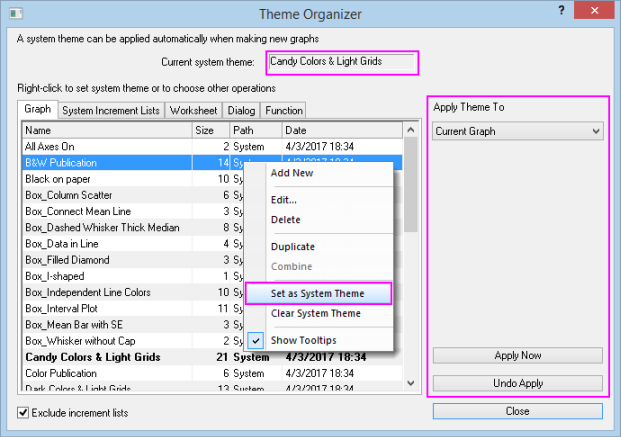
Most of the manipulations related to the graph themes can be found in the context menu which appears when you right-click inside the graph theme list table.
| Add New |
Add a new empty theme. |
|---|---|
| Edit |
It is available only when the selected theme is user-created theme. It will open the Theme Editing dialog to allow you to modify the theme. |
| Delete |
Delete the selected theme. Please note that the deleted theme will be removed from the theme list. However, you can find a back up file of it in the Deleted folder under the User Files Folder. |
| Duplicate |
Duplicate a theme. Please note that if a System theme is duplicated, the newly created theme will be a User theme. System themes cannot be edited. However, you can duplicate them and edit their copies. |
| Combine |
It is available only when multiple themes have been selected. It is used to combine the settings stored in the themes. Please note that you can CTRL/SHIFT select multiple themes. If the selected themes have different values for the same property, for example Arial is selected for column label font face in the first theme while Times New Roman is selected for column label font face in the second theme using, the combined result will be determined by the order of themes in the theme list -- not by the order in which you select those themes. The one that is near the top of the list takes the precedence. |
| Set as System Theme |
Set the selected theme as the system theme, which means that this theme will be applied to every newly created graph. The theme will be highlighted if it has been set as the system theme. |
| Clear System Theme |
It is available only when a theme has been set as system theme. It is used to clear the system theme. |
| Show Tooltips |
Enable/disable the displaying of the tool tips in the Theme Organizer tool. |
This group of controls is used to apply the theme to a specified range of graphs.
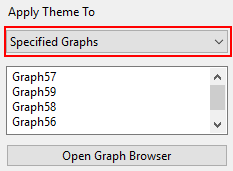
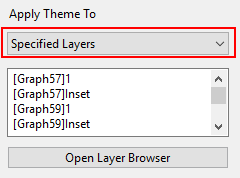
| Apply Theme to drop-down list | It specifies the range of graphs to which the settings stored in the selected theme will be applied. The options include:
|
|---|---|
| Apply Now | Apply the theme to the graphs immediately. |
| Undo Apply | Undo the previous operation. |
| Current system theme |
It is read-only. It shows the current system theme. |
|---|---|
| Exclude increment lists |
This check box is selected by default. If this checkbox is cleared, then Group Incremental Lists are also listed in the table. The incremental lists can only be applied to grouped plots. Note that Incremental Lists cannot be set as System Themes. |
This tab contains a table which lists all the increment lists that used in the system graph theme.
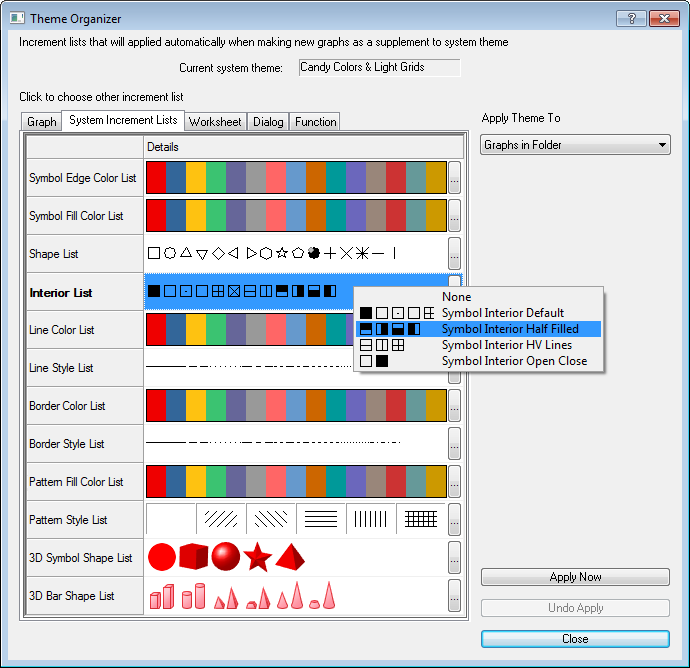
Click on the Increment List to pop-up a drop-down list.
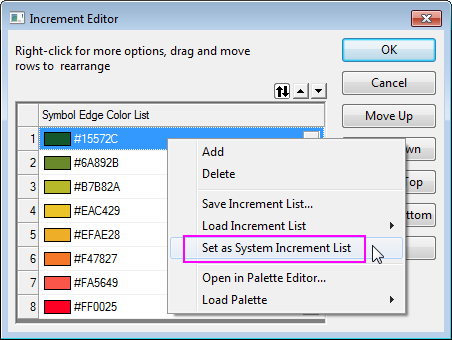
Click the right side  button, you can open the Increment Editor, and edit the each item for the list. Also, in the context menu, you can set this list as System Increment List.
This group of controls is used to apply the theme to a specified range of graphs. The detial control the same as the Apply Theme in Graph Tab
This tab contains a table which lists all the system and user-defined worksheet themes. You can apply the selected theme to a specified range of worksheets.
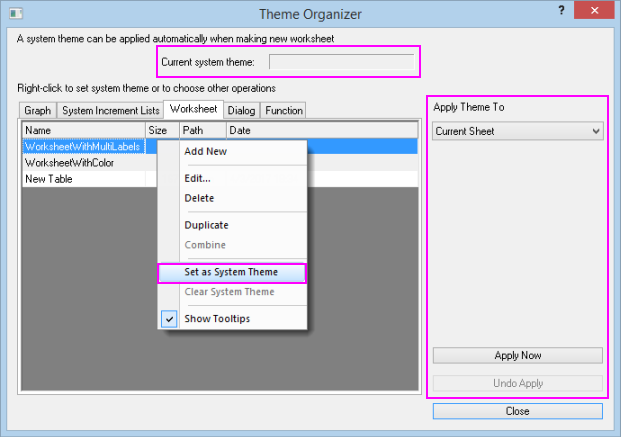
Most of the manipulations related to the worksheet themes can be issued from the context menu which appears when you right-click on the worksheet theme list.
| Add New |
Add a new theme. |
|---|---|
| Edit |
It is available only when the selected theme is user-created theme. It will open the Theme Editing dialog to allow you to modify the theme. |
| Delete |
Delete the selected theme. Please note that the deleted theme will be removed from the theme list. But a backup file of it will be saved to the Deleted folder under the User Files Folder. |
| Duplicate |
Duplicate a theme. Please note that if a System theme is duplicated, the newly created theme will be set as a User theme, which can be edited. |
| Combine |
It is available only when multiple themes have been selected. It is use to combine the settings stored in the themes. Please note that you use the CTRL/SHIFT key to select multiple themes. If the selected themes have different values for the same property, for example Arial is selected for column label font face in the first theme while Times New Roman is selected for column label font face in the second theme using, the combined result will be determined by the order of themes in the theme list -- not by the order in which you select those themes. The one that is near the top of the list takes the precedence. |
| Set as System Theme |
Set the selected theme as the system theme, which means that every new created worksheet will have the same properties as the theme has. The theme will be highlighted if it has been set as the system theme. |
| Clear System Theme |
It is available only when a theme has been set as system theme. It is used to clear the system theme. |
| Show Tooltips |
Enable/disable the displaying of the tool tips. |
This group of options is used to apply the theme to a specified range of worksheets.
| The drop-down list | It specifies the range of graphs to which the selected theme is applied to. The options include:
|
|---|---|
| Apply Now | Apply the theme immediately. |
| Undo Apply | Undo the previous operation. |
| Current system theme |
It is read-only. It shows the current system theme. |
|---|
The dialog themes are based on different analysis tools. Thus, they do not have uniform settings. So the context menu on this tab only has three options: Delete, Duplicate and Show Tooltips. And the table in this tab only contains user-created themes.
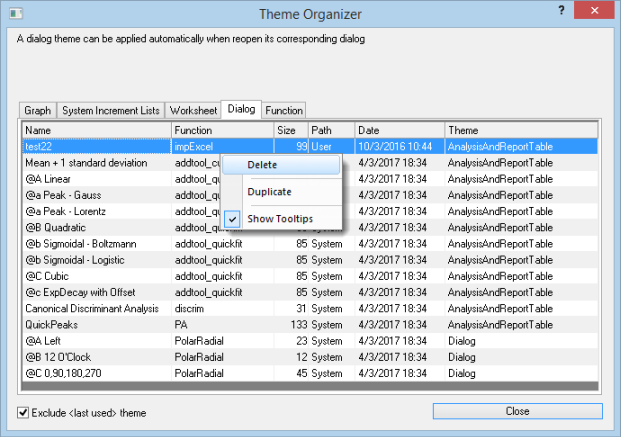
| Delete | Delete the selected theme. Please note that the deleted theme will be removed from the theme list, but its back up file will be stored to the Deleted folder under the User Files Folder. |
|---|---|
| Duplicate | Duplicate a theme. |
| Show Tooltips | Enable/disable the displaying of the tool tips in the Theme Organizer tool. |
| Exclude <last used> theme |
The <last used> theme is automatically updated according to the settings that are used last time you click OK in the dialog of the tool. This check box is selected by default. If this checkbox is cleared, all the <last used> themes will be listed in the table. |
|---|
This table is used to store the function themes create by function plot tools.
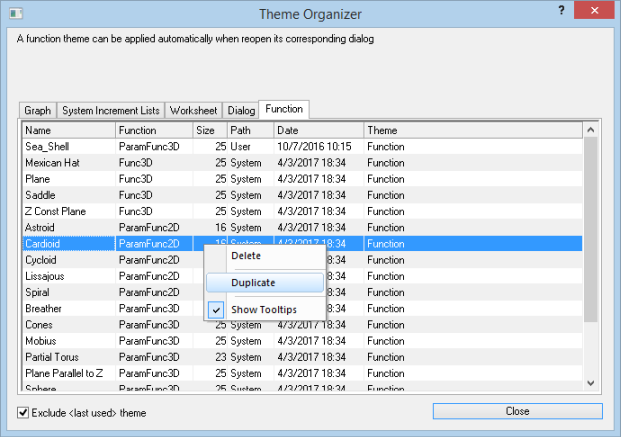
| Delete | Delete the selected theme. Please note that the deleted theme will be removed from the theme list, but its back up file will be stored to the Deleted folder under the User Files Folder. |
|---|---|
| Duplicate | Duplicate a theme. |
| Show Tooltips | Enable/disable the displaying of the tool tips in the Theme Organizer tool. |
| Exclude <last used> theme |
The <last used> theme is automatically updated according to the settings that are used last time you click OK in the dialog of the tool. This check box is selected by default. If this checkbox is cleared, all the <last used> themes will be listed in the table. |
|---|