 See more related video:Dialog Theme
See more related video:Dialog Theme
Most of Origin's analysis and data processing dialog boxes have a Dialog Theme feature. Dialog Themes are a means of saving analysis dialog box settings to an external disk file for future use. What's more, you can save multiple theme files for a given dialog box. This allows you to specify different combinations of input, analysis and output options for different datasets or for different end-users.
When such dialog boxes are menu accessible, these user-defined themes can appear as custom menu items in a fly-out menu alongside the dialog box menu command. Additionally, these analysis themes can also be selected from the Dialog Theme list at the top of the dialog box (see below).
Advanced users should also know that saved themes can be accessed programmatically. This allows you to incorporate themes into your analysis scripts. For more information, see the LabTalk Script Programming portion of the Programming Help file (Help: Programming).
There are two special-case Themes for every tool:
You can save settings as <Default>. Then each time you open this tool from Origin menu, the settings saved in this theme will be loaded when the dialog opens. Note that the <Default> theme can be removed by resetting (Click the triangle button to the right of Dialog Theme and then pick Reset from the short-cut menu). Once the <Default> theme is removed, the factory default settings will be loaded when you open the dialog.
The <Last used> theme is automatically updated according to the settings that are used last time you click OK in the dialog of the tool. When you open the tool from the "Most Recent Command" menu in future, the settings in this theme will be loaded.
To save your theme, customize dialog box settings in the dialog of the tool. Then do the following:
 to the right of Dialog Theme.
  | You can also save Themes after an operation has run by clicking on the green lock icon |
There are different ways to apply a dialog theme.
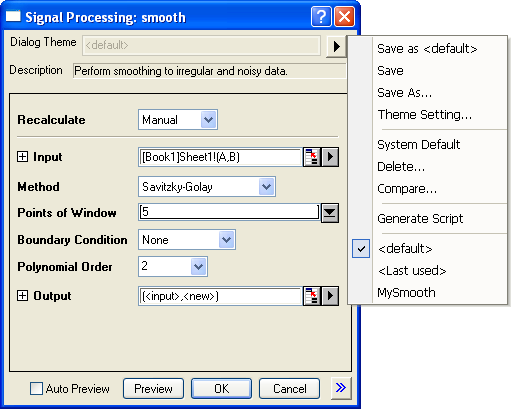
You can select a theme from the dialog theme list that appears when you click the triangle button to the right of Dialog Theme. Then the settings in it will be loaded. Note that the theme list also includes the special themes mentioned above.
When a dialog theme is saved, it also becomes a menu command, allowing you to run an analysis routine with pre-defined settings. Suppose you have already saved a few dialog themes for the smoothing tool. You can see them in the fly-out menu of the tool:
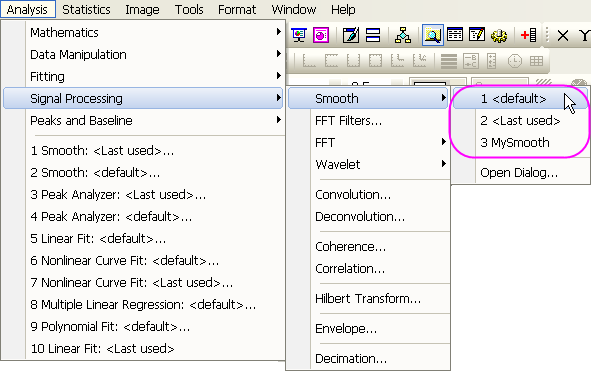
To use a theme to run the analysis without opening the dialog of the tool, highlight your input data and then click the dialog theme in the fly-out menu of the tool. If you wish to open the dialog and load the theme in it, click the dialog theme in the fly-out menu with the SHIFT key down.
If you have saved a theme for an X-Function that is LabTalk accessible, you can use the -t command option to apply the theme from the Command Window. Suppose you have saved a theme name ""Mytheme" for the smooth X-Function. You can use the theme to apply smoothing to the data in column B of the active worksheet, with the following script command:
smooth Col(B) -t MyTheme;
For more information issuing LabTalk commands from the command prompt, please read the LabTalk Script Programming Guide (Select Help: Programming from the Origin menu to open it).
