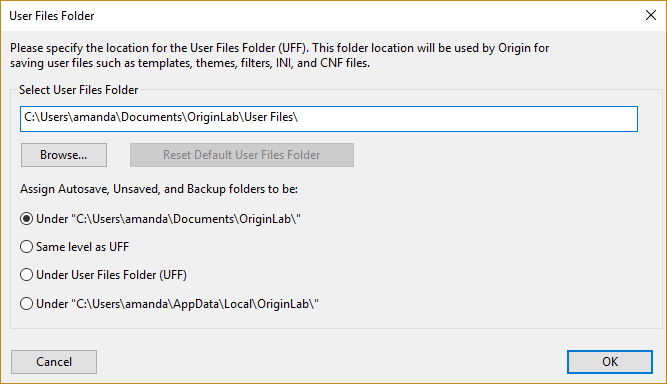
The first time that you run Origin, you are presented with this dialog box in which you are asked to specify a default folder for saving your customized files -- the User Files Folder (UFF). You will always have a chance to save files to a different location, but this folder serves as a default location to store custom graph templates, themes, curve fitting functions, Origin Import Filter (OIF) files, etc. and must be writable given the User's login permissions.
The default location is a folder named Origin User Files created under current user's Documents folder.
Note:
|
It is not recommended to set the User Files Folder to a removable device (e.g. a USB stick) or a cloud-synced folder (e.g., OneDrive). To share Origin files and customization among different machines a group folder should be used. |
To open/get your current UFF,
cd 1; in the Script Window.If you decide to change the location of the User Files Folder,
changeUFF -d; in the Command Window.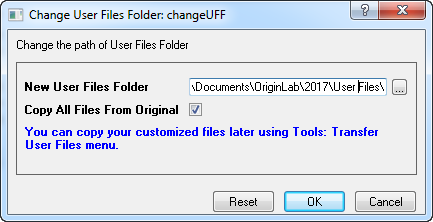
Then you can specify the new User Files Folder or browse a new folder as User Files Folder. You can also decide whether or not to copy all files from the original User Files Folder to the new one. To use the newly specified User Files Folder, restart Origin.
If you don't want to copy all files from the original User Files Folder to the new one, you can un-check the Copy All Files From Original check-box. After restarting Origin to use the new User Files Folder, you can use menu Preferences: Transfer User Files to transfer the desired files to the new User Files Folder.