
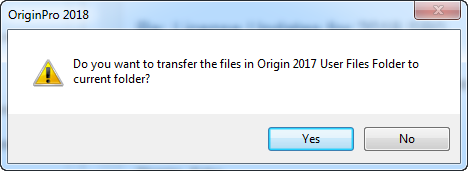
- If you click on Yes, the workspace layout of Origin 2017,such as toolbar customization and dockable windows status, will be copied and applied.
- If you click on No, the default workspace layout will be used.
Since Origin 2018, we have provide a new behavior to transfer the user files from Origin 2017 automatically.
If you have already installed Origin 2017 and upgraded to a higher version (such as Origin 2018), when you started the higher version at first time and set your User Files Folder(UFF), the pop-up dialog below will appear:
Next, another pop-up dialog will appear, and let you decide if you want to transfer the user files from the User Files Folder of Origin 2017 to the User Files Folder of current Origin.
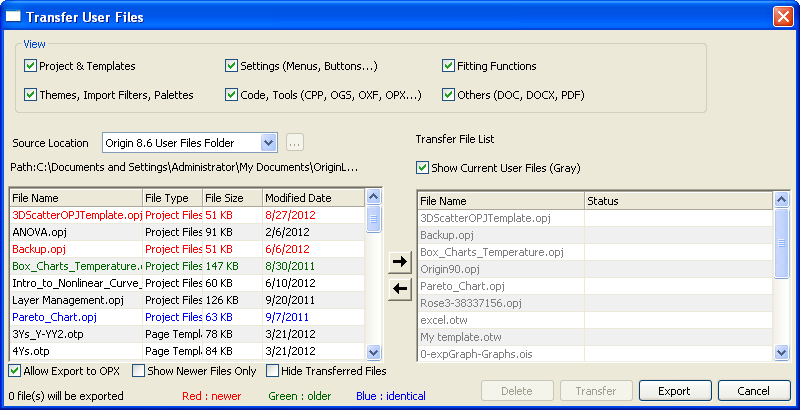
The Transfer User Files dialog is designed for users to manually transfer files from the user files folder for Origin's previous versions to the user files folder for the current version.
Select Preferences: Transfer User Files from the Origin menu.
There are six check boxes in the dialog to specify whether to show certain file types in the lists.
| Projects & Templates | OPJ, OGW, OTW, OTP, OTM |
|---|---|
| Settings (Menu, Buttons...) | OMC, XML, INI, TXT |
| Fitting Functions | FDF |
| Themes, Import Filters, Palettes | OIS, ODT, OTH, OIF, ODQ, ODS |
| Code, Tools | OGS, H, C, CPP, OXF, OPK, OPX |
| Other | DOC, DOCX, PDF |
In this drop-down list, you can select the User Files folder of each Origin version which you have installed or Specified Folder.
To select a specified folder for the panel,
 on the right, and select a desired folder in the opened Browse For Folder dialog.
Show the detailed path of the selected Source Location folder.
This panel lists detailed information (including File Name, File Type, File Size and Modified Date) for the files which meet the current criteria of file type and source location.
The up-to-date status of the listed files comparing to their counterparts in current version is marked by the color of file names.
| Color | Means |
|---|---|
| Green | The file is older than its counterpart in the current version's User Files folder. |
| Red | The file is newer than its counterpart in the current version's User Files folder. Note: If the Show Newer Files Only check box is selected, only the files newer than their counterparts in Current User Files Folder will show. |
| Blue | The file is identical to the one with the same name in the other folder. |
| Black | The file is new. The file only exists in Source folder and Origin fails to find its counterpart in the current version's User Files folder. |
In this panel, you can select specified files in the source location and click the Add button  to add them to the Transfer File List.
To open the containing folder for a specified file:
When the Show Current User Files (Gray) check box is selected, this list displays the files of current version's User Files Folder in Gray.
There is a temporary list for the files which will be transferred to the current version's user files folder, and it displays the files added from the source files list. You can tell whether the listed files are newer or older than their counterparts in the current version's User Files folder by the color of their file names.
| Color | Means |
|---|---|
| Green | The file is older than its counterpart in the current version's User Files folder. |
| Red | The file is newer than its counterpart in the current version's User Files folder. |
| Blue | The file is identical to the one with the same name in the current version's user files folder. |
| Black | The file is new. The file only exists in Source folder and Origin fails to find its counterpart in the current version's User Files folder. |
Note: The Transfer button  will be available when there are files with status as Newer than current, Older than current or New File. After the files are transferred to the current version's user files folder, the color of the file names becomes Blue both in Source Files List and Transfer File List. will be available when there are files with status as Newer than current, Older than current or New File. After the files are transferred to the current version's user files folder, the color of the file names becomes Blue both in Source Files List and Transfer File List.
|
Once you transferred file(s) to current version by clicking the Transfer button, the Message Log window will be opened automatically and message will be dumped to it to list all transferred files.
For files selected in the source files list, you can copy them to the Transfer File List by clicking the Add button .
When the files are added to the Transfer File List, they can be removed by clicking the Remove button  , before transferring to the current version's User Files Folder.
For files selected in the Transfer File List panel, you can remove them from the current version's User Files folder by clicking the Delete button  .
.
To export files to OPX:
 , then the files will be exported to an OPX file, and you can share it with others.
| Note: The grayed-out files can't be exported. |