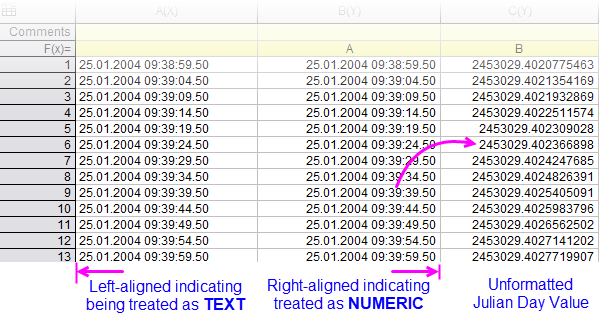
As mentioned, all data in the worksheet is treated as either text or numeric. If data are left-aligned in the worksheet, they are being treated as text; if they are right-aligned, they are being treated as numeric.
It is important to understand these things:
Origin interprets dates based on the Gregorian Calendar and supports a date range of 1/1/0100 to 12/31/9999. Origin's internal system for date-time is based on the astronomical Julian Day, which defines January 1, -4712 (January 1, 4713 BCE), 12 hours Greenwich Mean Time as "time zero" (t0). Origin's default time-keeping system differs in employing a 12 hour offset (see Origin's Default System: Adjusted Julian Date).
Beginning with Origin 2019, Origin gets two new date-time systems that use alternate "time zero" points. One is a "true Julian Date" system that drops the default system's 12 hour offset. The other is a "2018" system for those who deal in fractional seconds and need greater precision than the default system can provide. For more information, see Alternate Date-Time Systems in Origin.
Unless you are making use of Origin's available mechanisms for parsing date-time data (e.g. an import filter) you will likely find that your date-time data are treated as text during import. At this point, the procedure for applying proper date-time formatting to imported worksheet data goes something like this:
Note that you could preset the column to display date-time and then directly enter your date-time data using the keyboard. While there is some advantage in doing this -- for instance, if you set Format = Date and Display = the topmost built-in format (e.g. "10/2/2018") and begin direct keyboard entry, Origin will correctly parse "10/02/2018", "Oct 2, 2018" and "10-2-18" and display these in the chosen format -- most will find themselves having imported a data file and wanting to display the left-aligned (text) date-time data correctly as right-aligned, numeric data with a specific date-time display format.
 | When you define a Custom Display format in the column's Properties dialog box, the custom format is added to the Custom Date Format list in the ASCII Import (impASC) dialog box. Save this file structure option as part of your Theme and you can easily import new files without having to recreate your original settings. |
Once you have properly formatted your date-time string as date-time data (it is right-aligned in the worksheet cell indicating that it is recognized as numeric), you can freely switch between any of the available date-time display formats without any loss of precision. Recall that date-time values are stored internally as numerics of type Double(8) and that what appears in the worksheet is merely a representation of that underlying numeric value. Changing the display format from 9/19/2018 HH:mm:ss to Wed and back to 9/19/2018 HH:mm:ss, does not affect the underlying numeric value.
The following image was made by filling all worksheet columns with the same (numeric) Julian Day value, then setting a different formatting option for each column, using the Column Properties Display list.

If there are gaps in your date-time data, they may appear as missing values ("--"). You can opt not to display the double-dash by changing the value of LabTalk system variable @JM:
@JM = 0; // (default) display missing values as double-dash
@JM = 2; // display missing values as blank
For information on changing the value of a LabTalk system variable, see FAQ-708 How do I permanently change the value of a LabTalk system variable?
The following table lists Origin's supported date-time format specifiers. Use these to interpret available built-in formats or to construct Custom Display formats.
| To signify... | ... use these specifiers |
|---|---|
|
Month |
|
|
Day |
|
|
Weekday |
|
|
Year |
|
|
Quarter of Year |
|
|
Hour |
|
|
Hour |
|
|
Minute |
|
|
Seconds |
|
|
Decimal after seconds |
Note: By default, date-time in Origin (Format = Date, but data include a time component) are stored internally as Julian-day (double) values where the integer part of the value is days and the fractional part is seconds. In this system, assuming contemporary dates, resolution is limited to 0.0001 seconds when rounded at the fourth decimal digit. Beginning with Origin 2019, you can choose a "2018" system in which "time zero" is January 1, 2018 at 00:00. In this system, the integer part is smaller allowing for more resolution for the fractional part. In this "2018" system, measurements to 10-8 seconds can be supported. |
|
Time marker |
|
| Custom date and time formats defined in Column Properties or in the Import Wizard will be saved in the project. In contrast, the two global custom date-time formats defined in Preferences: Options are locked to the Origin installation on which they were defined. |
When the structure of date-time data in your worksheet does not match one of Origin's built-in or available custom format options, you will need to define your own custom format. As mentioned in Formatting Date and Time Data, you can use Origin's Date and Time Format Specifiers to:
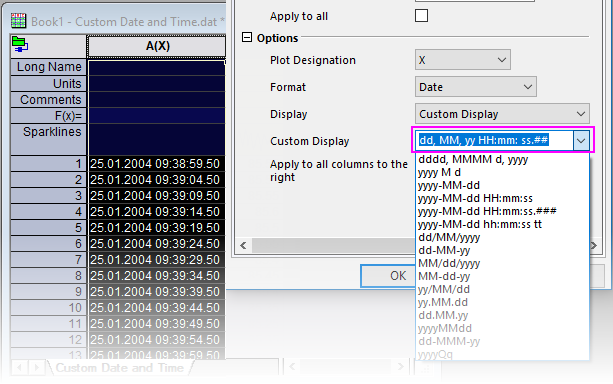
For instance, to create a custom date selection that displays the format ...
Saturday, September 5, 1998
.... you need a specifier for full day name (dddd), full month name (MMMM), day of the month (d) and full year (yyyy).
Hence, you would type:
dddd, MMMM d, yyyy
| Notes: Single-quote can be added when a character is reserved character and you do not want to convert it, like yyyy-MM-dd'T'HH:mm:ss, |
The IRIG (Inter-Range Instrumentation Group) time format is used in government, military, and commercial fields. The most common version of the IRIG Time Format is IRIG-B, which sends day of year (0 - 365/366), hour, minute, seconds/fractional seconds data on a 1000 Hz carrier with an update rate of one second.
Origin supports import and display of IRIG time in the worksheet, by drag-and-drop, ASCII import (Data: Import from File: Import ASCII) or Import Wizard (Data: Import from File: Import Wizard). While your files with IRIG times should import as numeric data (no need to convert from text to numeric), you may want to adjust the Column Properties Display drop-down to display your data in a particular format. The following Display formats are reserved specifically for IRIG time, when Format = Time, where ...
with the option of displaying the following components:
Origin supports custom display of IRIG time, as long as you use these format specifiers. In addition, you may display your IRIG time data in any of the standard (e.g. hh mm ss'.'##) or custom time formats built using the time format specifiers listed in the table above.