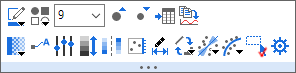
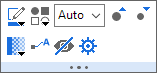
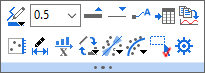
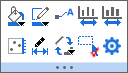
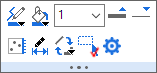
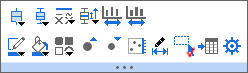
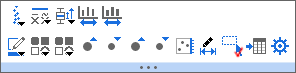
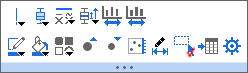
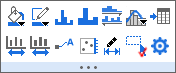
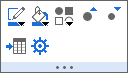
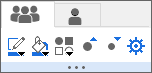
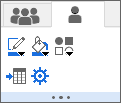
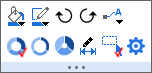
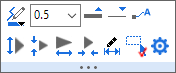
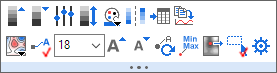
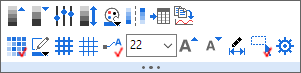
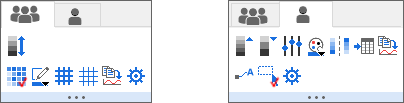
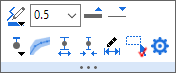
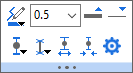
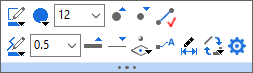
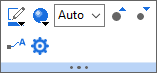
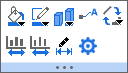
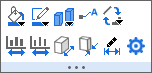
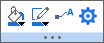
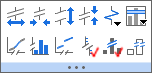
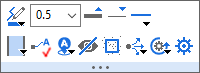
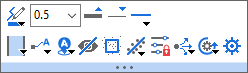
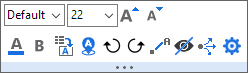
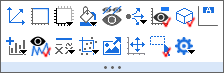
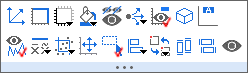
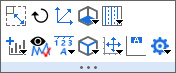
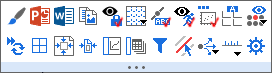
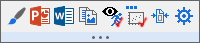
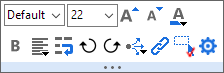
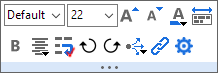
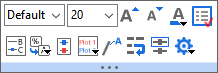
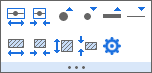
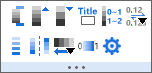
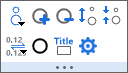
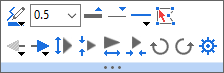
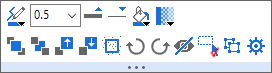
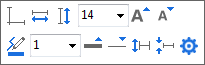
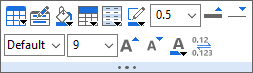
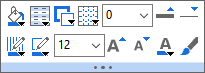
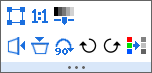
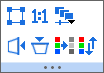
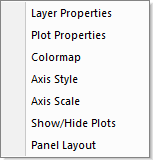
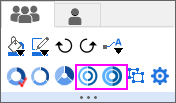
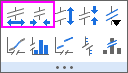
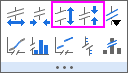
By default, Mini Toolbars will appear when you select an object or click in certain key areas inside the page.
To hide the Mini Toolbars, you can uncheck the View:Mini Toolbars menu.
Press Shift after the Mini Toolbar has faded away to make it re-appear.
To find the exact button in the Mini Toolbar, you can use the Search tool
in the main menu.
For example: If you want to use the Mini Toolbar button to freeze the rows in Worksheet, enter the key word freeze in the Search tool. Then you will find it lists all the related button under Mini Toolbars section. When the mouse hover on one of them, it will shows the detail hint of this button.

When you click the item in the Object Manager, it also will show the corresponding Mini Toolbars of the object. |
For the Group plot, you can custom the plots properties togethter by the buttons under the Group tab.
| Ungroup |
Also, you can custom one plot properties by the buttons under the Single tab.
| Symbol Edge Color | Symbol Fill Color | ||
| |
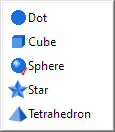
Plot Symbol Style | |
Symbol Size |
| |
Increase Symbol Size | |
Decrease Symbol Size |
| |
Symbol Transparency | |
Show Data Labels |
| |
Set Levels | |
Rescale Colormap |
| |
Flip Colormap | |
Copy Plot.
Then paste (Ctrl+V) into other layer as new plot.
|
| |
Plot on Right Y | |
Plot on Left Y |
| |
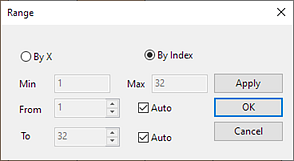
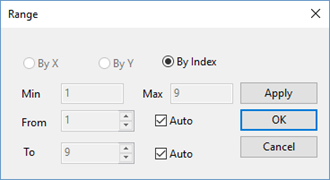
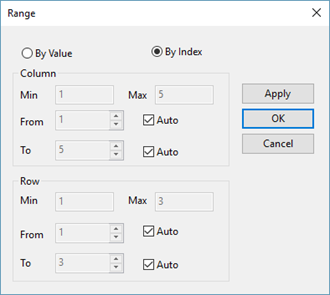
Edit Range | |
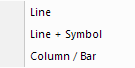
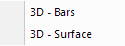
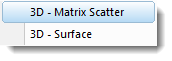
Change Plot to |
| |
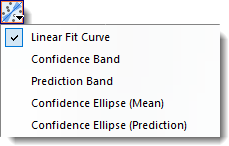
Add Fitted Curves
|
|
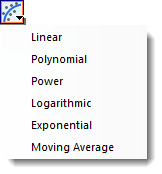
Add Trend Line.
|
| |
Selectable | |
Hide Data Point |
| |
Open Plot Details |
| Line/ Border Color | Line Thickness | ||
| |
Increase Line Thickness | |
Decrease Line Thickness |
| |
Show Data Labels | |
Go to Source Sheet |
| |
Copy Plot
Then paste (Ctrl+V) into other layer as new plot.
|
|
Sort X |
| |
Plot on Right Y | |
Plot on Left Y |
| |
Edit Range | |
Change Plot to |
| |
Add Fitted Curves
|
|
Add trend line.
|
| |
Selectable | |
Open Plot Details |
| Line/ Border Color | Fill Color | ||
| Line Thickness | |
Open Plot Details | |
| |
Increase Line Thickness | |
Decrease Line Thickness |
| |
Plot on Right Y | |
Plot on Left Y |
| |
Edit Range | |
Change Plot to |
| |
Selectable | |
Open Plot Details |
Interval Plot:
Grouped/Stacked Dot Plots
| Group tab | Single tab | ||
|
|
| |
Major Level +1 | |
Major Level -1 |
| |
Set Levels | |
Rescale Colormap |
| |
Palettes
Click the button to select palettes in the dropdown list |
|
Flip Colormap |
| Go to Source Sheet | |
Copy Plot
Then paste (Ctrl+V) into anther layer as new plot. | |
| |
Contour Style | |
Enable Cell Border (Only for Heatmap)
Note: Click this button,
|
| |
Increase Grid Line Thickness | |
Decrease Grid Line Thickness |
| |
Show Contour Labels / Show Data Labels |
|
Label Font Size |
| |
Increase Font Size | |
Decrease Font Size |
| |
Reposition Labels | |
Annotate Min&Max Value
To annotate the data points at max and min Z values. |
| |
Extract Data Points
Click this button, you can open the dialog to specify the data points to be extracted. |
|
Edit Range (Only for Heatmap) |
| |
Selectable | |
Open Plot Details |
| Fill Color | Border Color | ||
| |
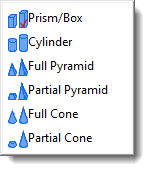
Bar Shape: | |
Show Data Labels |
| |
Larger Gap | |
Smaller Gap |
| |
Change Plot to | |
Edit Range |
| |
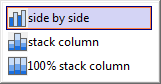
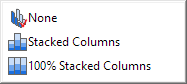
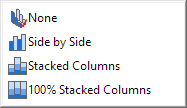
Column Stack
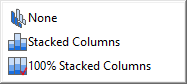
Click this button, you can select the stack methods in the list:
|
|
Open Plot Details |
One plot in the graph:
Single Bar
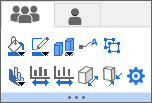
Multiple plots in the graph:
|
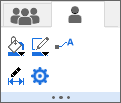
|
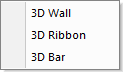
One plot in the 3D Ribbon & Wall graph:
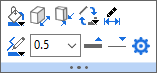
Multiple plots in 3D Ribbon graph:
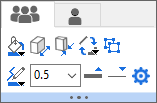
|
Multiple plots in 3D Wall graph:
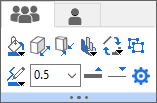
|
| |
Major Level +1 | |
Major Level -1 |
| |
Set Levels | |
Rescale Colormap |
| |
Palettes
Click to select palettes in the dropdown list |
|
Flip Colormap |
| |
Enable Mesh Lines | |
Change Plot to |
| |
Open Plot Details |
Clicking on the reference Lines will bring up the following mini toolbar for customization:
Especially, if the reference line is a fitted curve/trend line (which can be added to scatter or line plot by Fitted Curves button
or Trend Line button
), selecting the line will pop-up the following mini toolbar:
| Specify line color. | Select or type in line thickness in pt. | ||
| |
Increase line thickness | |
Decrease line thickness |
| |
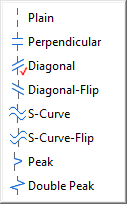
Specify line style. | |
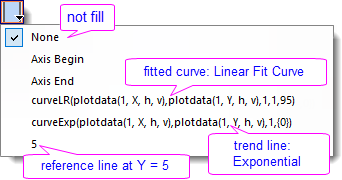
Specify whether to fill color to area between the current line and the selected reference line. If yes, you can select from the drop-down list the desired reference line to which the color is filled.
Note that fitted curves, trend lines, other reference lines added from the Axis dialog, and begin and end axes will be listed in the drop-down. |
| |
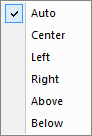
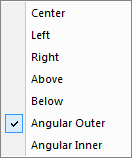
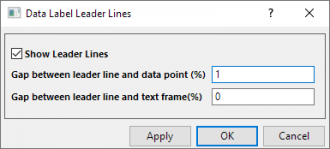
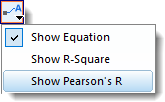
Show Labels
Add label of reference value. For fitted curves and trend lines (available when Trend Type is not set to Moving Average), you can choose to show the fitted equation/trend line equation and/or R-Square value. For linear fitted curves (when Trend Type is set to Linear), you can also show the Pearson's R..
|
|
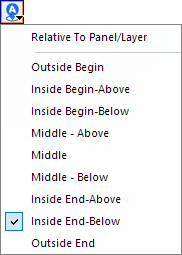
Label Position
Once a label is added, choose from the drop-down list to specify the label position or relative the label to Panel/Layer.
|
| |
Hide selected fitted curve/trend line.
Notes:
|
|
Click this button to push the selected reference line back to the data plot. |
| |
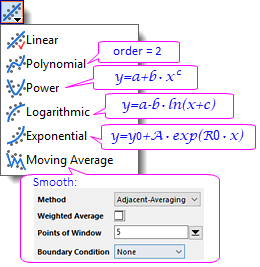
Available for fitted curves and trend lines. Change the trend type.
|
|
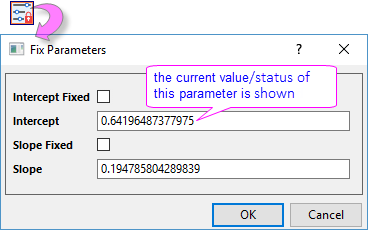
Clicking this button will pop up the Fix Parameters dialog to specify which parameter(s) to be fixed and the value to fix to. |
| |
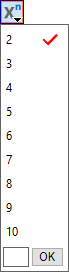
Available when Trend Type is set to Polynomial. Specify order value from 2 to 10, or enter the order number in the last edit box. | |
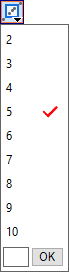
Available when Trend Type is set to Moving Average. Specify the number of points in a moving window. Value from 2 to 10, and you can manually enter the number in the last edit box. |
| |
Apply format settings of the current reference line to reference lines in the active layer or window. | |
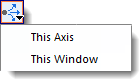
Set current formattings of selected reference line as default for other reference lines created later. |
| |
Open the Reference Lines dialog. |
If you choose Fill to button
to fill color between reference lines, clicking on the fill color will bring up following mini toolbar for customization.
The color filled between reference lines
| |
Fill Color. | |
Drag the slider to change the transparency. |
| |
Show Line for Begin | |
Show Line for End |
| |
Push filled color in front of the data plot. | |
Open the Reference Lines dialog. |
Click the space area within the layer frame to pop up the mini toolbar for graph layer:

When multiple layers are selected:

| |
Rescale | |
Layer Frame
Hide / Show Layer Frame |
| |
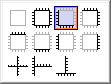
Axes Arrangements
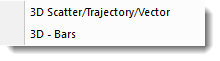
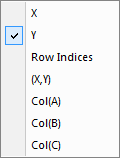
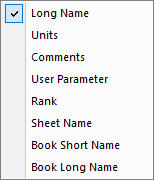
Click this button, you can select the Axes Arrangements in the list:
|
Layer Background Color | |
| |
Hide Other Layers | |
Add Stats Reference Lines |
| |
Legend | |
Set XY axis scale to have the same length in pixels for the same linearized scale range. |
| |
Add Layer Title | |
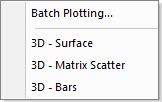
Add Plot |
| |
Clip Data to Frame | |
Open dialog |
| |
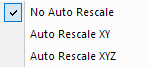
Auto Rescale | |
Selectable |
| |
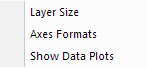
Show Data Plots
Show and Hide Plots in the Layer |
|
Apply Formatting to...
Apply Formatting of this object to other objects of this type
|
| |
Hide selected object. | |
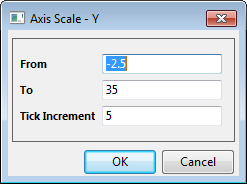
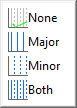
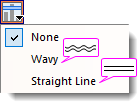
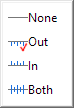
Axis Tick Style
Click this button, you can define the Axis Tick Style in the list:
|
| |
Align the selected layers. Available only when multiple layers are selected. | |
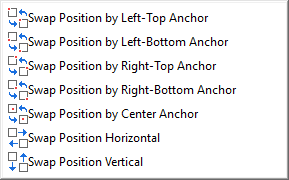
Swap the position of selected layers. Only available when two layers are selected. |
| |
Uniform height of selected layers. Available only when multiple layers are selected. | |
Uniform width of selected layers. Available only when multiple layers are selected. |
| |
Clidk to resize layer frame | |
Click to rotate layer frame |
| |
Rescale | |
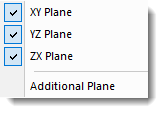
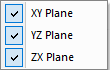
Show/Hide Planes: |
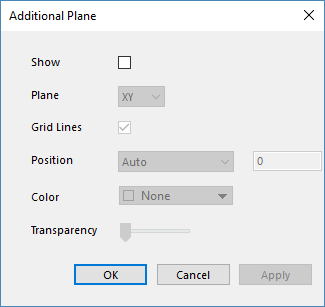
| Show grid lines on following plane(s) | |
Add Plot | |
| |
Show/Hide Plots in the Layer | |
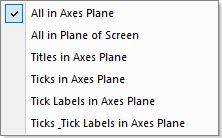
Orientation of axis ticks and lables: |
| |
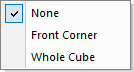
Show/Hide Cube Frame | |
Auto Rescale |
| |
Add Layer Title | |
Open dialog |
Move the cursor to the page edge, click the edge or gray area outside the graph page when the cursor turns to
. The mini toolbar below will appear:
2D (multiple layers in a graph)
| |
Graph Styles
Click this button to open Theme Preview app. |
|
Show Locks
Show Recalculation Locks |
| |
Send graph to PowerPoint without open the dialog.
Send with the following settings:
|
|
Send graph to Word without open the dialog.
Send with the following settings:
|
| |
Show/ Hide Analysis Marker | |
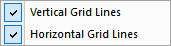
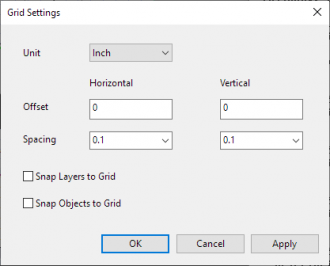
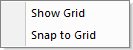
Show Grids |
| |
Increase Grid Spacing | |
Decrease Grid Spacing |
| |
Toggle data point or data plot tooltip | |
Show/ Hide Speed Mode Banner |
| |
Show/ Hide Layer Icons | |
Set Active Layer by Layer Icon Only |
| |
Show Active Layer Only | |
Show/ Hide Axis Icons |
| |
Show Active Layer Indicator | |
Copy Graph as Image... |
| |
Add Page Title | |
Select from drop-down list to hide or show the masked data points from current graph. Available only when where is masked data in the graph.
|
| |
Dense Data Plot
Cache data plots as an image to allow quick changes to labels etc. Refresh graph to update images. |
|
Window View |
| |
Center Layer(s) to Page | |
Fit Page to Layers
Click this button to open Fit Page to Layers dialog |
| |
Column Switching Browser Graph | |
Sheet/Book Switching Browser Graph |
| |
Arrange Layers
Click this button to open Arrange Layers dialog |
|
Highlight plot when mouse over |
| |
Data Slicer
Click this button to add Data Slicer to Graph. See details here. |
|
Add filter condition to Layer Title for all layers in the graph page.
This button is available when graph has Data Slicer. |
| |
Check following properties to apply customizations to all layers: | |
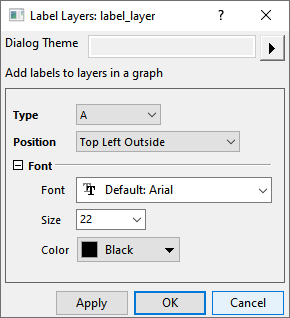
Add Label for Layers
Open the dialog to add labels to layers in a graph.
|
| |
Reverse Colors | |
Tick Style |
| |
Show/ Hide legend for all layers | |
Open Properties Dialog |
Move the cursor to the page edge, click the edge or gray area outside the page when the cursor turns to
. The mini toolbar below will appear:
| Show Grids | |
Turn on/off Slide View (no border shown) | |
| |
Increase grid spacing | |
Decrease grid spacing |
| |
Enable/Disable embedded graph selection | |
Open Properties Dialog |
|
Set Font |
|
Font Size |
| |
Increase Font Size | |
Decrease Font Size |
| |
Font Color | |
Bold |
| |
Wrap Text
Adjust width to see the wrapping effect |
|
Alignment |
| |
Rotate Clockwise | |
Rotate Counterclockwise |
| |
Apply Formatting to...
Apply Formatting of this object to other objects of this type
|
|
Link to Substitution |
| |
Selectable | |
Open Properties Dialog |
|
Set Font |
|
Font Size |
| |
Increase Font Size | |
Decrease Font Size |
| |
Font Color | |
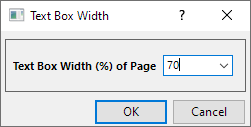
Box Width |
| |
Bold | |
Wrap Text
Adjust width to see the wrapping effect |
| |
Rotate Clockwise | |
Rotate Counterclockwise |
| |
Alignment | |
Apply Formatting to...
Apply Formatting of this object to other objects of this type
|
| |
Link to Substitution | |
Open Properties Dialog |
|
Set Font |
|
Font Size |
| |
Increase Font Size | |
Decrease Font Size |
| |
Font Color | |
Frame |
| |
Reconstruct Legend | |
Data Plot Legend Translation Mode
|
| |
Reverse | |
Arrange in Horizontal |
| |
Show/Hide | |
Attach to Plots |
| |
Wrap Text | |
Indicate Active Dataset |
| |
Hide Selected Object | |
Open Properties Dialog |
| |
Larger Symbol Width | |
Smaller Symbol Width |
| |
Increase Scatter Symbol Size | |
Decrease Scatter Symbol Size |
| |
Increase Line Thickness | |
Decrease Line Thickness |
| |
Larger Pattern Block Width | |
Smaller Pattern Block Width |
| |
Larger Pattern Block Height | |
Smaller Pattern Block Height |
| |
Open Properties Dialog |
| |
Show Head and Tail Level | |
Show Title |
| |
Major Level +1 | |
Major Level -1 |
| |
Range Label | |
Decimal Places |
| |
Separate Layout | |
Reverse Order |
| |
Arrangement | |
Max&Min Levels |
| |
Open Properties Dialog |
| |
Add Level | |
Delete Level |
| |
Larger Symbol Gap | |
Smaller Symbol Gap |
| |
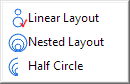
Layout | |
Digits |
| |
Bubble Style | |
Show Title |
| |
Open Properties Dialog |
| |
Line/ Border Color | |
Line Thickness |
| |
Increase Line Thickness | |
Decrease Line Thickness |
| |
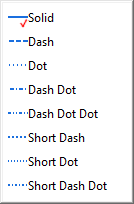
Line Style | |
Open Properties Dialog |
| |
Begin Arrow Shape | |
End Arrow Shape |
| |
Larger Arrow Width | |
Smaller Arrow Width |
| |
Larger Arrow Length | |
Smaller Arrow Length |
| |
Rotate Clockwise | |
Rotate Counterclockwise |
| |
Arrow on Arc | |
Edit Points |
| |
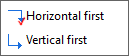
Direction of Elbow Arrow |
Including: Polyline, Curve, Freehand Draw, Rectangle, Circle, Polygon and Region object.
| |
Line/ Border Color | |
Line Thickness |
| |
Increase Line Thickness | |
Decrease Line Thickness |
| |
Fill Color | |
Transparency |
| |
Edit Points | |
Isosceles Trapezoid
(For the Trapezoid object) |
| |
Front | |
Back |
| |
Forward | |
Backward |
| |
Back (data) | |
Rotate Clockwise |
| |
Rotate Counterclockwise | |
Open Properties Dialog |
Asterisk brackets added by the Add Object to Graph toolbar, can be edited using the Mini toolbar buttons.
Click on the bracket, the Mini toolbar below will show:
| |
Line/ Border Color | |
Line Thickness |
| |
Increase Line Thickness | |
Decrease Line Thickness |
| |
Top (Orientation) | |
Bottom (Orientation) |
| |
Left (Orientation) | |
Right (Orientation) |
| |
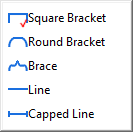
Bracket Type | |
Begin Arrow Shape |
| |
End Arrow Shape |
When select multiple Text or Draw objects, you can use this Mini Toolbar to these objects. If the selected objects are the same type, they can be changed the setting in sync by Mini Toolbar.
| Ungroup | Group | |
|---|---|---|
| Select Text and Draw objects |
|
|
| Select two Text objects |
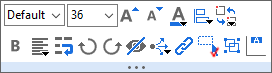
|
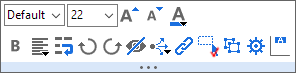
|
| Select three or more Text objects |
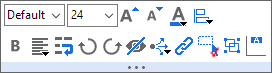
| |
| Select two Draw objects (lines) |
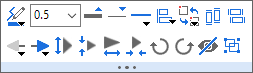
|
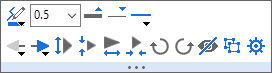
|
| Select three or more Draw objects (lines) |
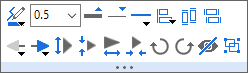
| |
| Select two Draw objects |
|
|
| Select three or more Draw objects |
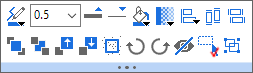
|
Besides the basic buttons for Text Object or Draw Object, there are two specific buttons:
| |
Left Alignment | |
Right Alignment |
| |
Top Alignment | |
Bottom Alignment |
| |
Horizontal Alignment | |
Vertical Alignment |
| |
Uniform Width (rectangles, ellipses, and UIM objects) | |
Uniform Height (rectangles, ellipses, and UIM objects) |
| |
Distribute Horizontally | |
Distribute Vertically |
| |
Group | |
Ungroup |
| |
Front | |
Back |
| |
Forward | |
Backward |
| |
Back (data) | |
Hide Selected Object |
| |
Align the selected objects. | |
Swap the position of selected objects. Available only when two objects are selected. |
| |
Scales |
|
Font Size |
| |
Factor of X increment | |
Factor of Y increment |
| |
Increase Font Size | |
Decrease Font Size |
| |
Line/ Border Color | |
Line Thickness |
| |
Increase Line Thickness | |
Decrease Line Thickness |
| |
Larger Arrow Width | |
Smaller Arrow Width |
| |
Open Properties Dialog |
| |
Zoom In Axis Range | |
Zoom Out Axis Range |
| |
Zoom In Scroll Range | |
Zoom Out Scroll Range |
| |
Reset | |
Open Properties Dialog |
| |
Set Display Range | |
Remove Selector |
| |
Copy Data for All Selectors | |
Copy Data |
| |
Delete Data |
| |
Marker Size |
| |
Table Style | |
Column Label |
| Quantities in Table | |
Header Fill Color | |
| |
Cell Fill Color | |
Color for Banded Row |
| |
Border Color | |
Border Width |
| |
Increase Line Thickness | |
Decrease Line Thickness |
|
Set Font |
|
Font Size |
| |
Increase Font Size | |
Decrease Font Size |
| |
Font Color | |
Digits |
When the cursor is on Pointer mode
, select a rectangle region (red border) inside a graph layer, then this Mini Toolbar will show.
| |
Scale In | |
Enlarge to Separate Graph |
| |
Copy Data
To copy all data in the rectangle as multiple columns. |
|
Copy Data as One Set
To copy all data in rectangle as one XY column |
Go to the last column in current worksheet, move the cursor to the edge of the worksheet, click the gray area when the cursor turns to
. The mini toolbar below will appear:
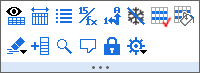
| |
Unhide Columns | |
Resize column width to show all contents. It skip hidden column(s) by default. |
| |
Column List View | |
Show cell formulas/linked syntax.
Same as View: Show Formula ( Ctrl + ` ) |
| |
Show Category Indices | |
Unfreeze panes in the Worksheet. Availabe if there is frozen column in the worksheet. |
| |
Turn on banded rows | |
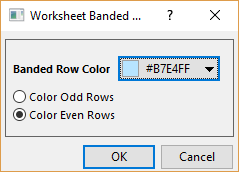
Open the Worksheet Banded Rows Color dialog. Available only when banded rows is turned on |
| |
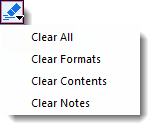
Select from sub-menu to clear formats (bold, fill color, etc.), contents, inserted notes, or all above in the worksheet. | |
Add Column |
| |
Open simple dialog to search in worksheet | |
Open Sheet Notes dialog to add comments and tab color to current sheet |
| |
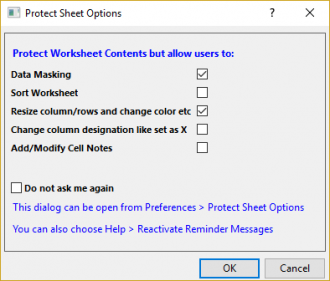
Open the Protect Sheet Options dialog | |
Open Properties dialog |
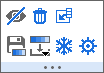
Click the column header to select the column. The mini toolbar below will appear:
| Text | Text & Numeric / Numeric |
|
|
| Date | Time |
|
|
| Color | |
|
| |
Hide Column(s) | |
Resize to Show All |
| |
Sort Worksheet Ascending | |
Find |
| |
Add Sparkling | |
Categorical |
| |
Add data filter | |
Delete |
| |
Sampling Interval
Set begin and increment x value so separate X column will not be needed. |
||
| |
Insert | |
Copy for Plotting |
| |
Set as X | |
Set as Y |
| |
Set as Z | |
Set as Disregard |
| |
Set_as X Err | |
Set as Y Err |
| |
Set column format from the drop-down list | |
Select from the dorp-down list to set the number of digits for numeric display |
| |
Date | |
Define named range |
| |
Time | |
Fix Time Wrap Around |
| |
Save As Increment List | |
Load Color |
| |
Freeze the selected column | |
Unfreeze panes |
| |
Convert cell formula and cell link to plane value. | |
Select from sub-menu to clear formats (bold, fill color, etc.), contents, inserted notes, or all above in the worksheet. |
| |
Open Column Properties |
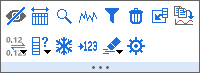
Press the left key of mouse to select the first column and drag-and-drop to select multiple columns. The mini toolbar below will appear:
| |
Hide Columns | |
Resize to Show All |
| |
Find | |
Add Sparkling |
| |
Add data filter | |
Delete selected columns |
| |
Insert the number of columns selected before the first selected column | |
Copy for Plotting |
| |
Select from the dorp-down list to set the number of digits for numeric display | |
Set columns' format from the drop-down list |
| |
Freeze the selected columns | |
Convert cell formula to value |
| |
Clear contents/formats/notes of the selected columns | |
Open the Column Properties dialog |
Click the row header to select the row. The mini toolbar below will appear:
| |
Hide | |
Unhide Row |
| |
Mask/ Unmask Data | |
Delete |
| |
Freeze the selected row | |
Unfreeze panes |
| |
Move to Long Name | |
Move to Units |
| |
Move to Comment | |
Move to User Defined Label |
| |
Insert | |
Delete all data rows before the selected row. |
| |
Move selected row up | |
Move selected row down |
| |
Box of Source Data
Available when a row in result sheet (DescStatsQuantities) of Statistics on Whole Sheet is selected. Click this button to create a box chart from the source data column of the selected row. |
|
Histogram of Source Data
Available when a row in result sheet (DescStatsQuantities) of Statistics on Whole Sheet is selected. Click this button to create histogram from the source data column of the selected row. |
| |
Probability Plot of Source Data
Available when a row in result sheet (DescStatsQuantities) of Statistics on Whole Sheet is selected. Click this button to create a P-P plot from the source data column of the selected row. |
|
Multiple Linear Regression
Available when a row in the Summary sheet of Best Subset Selection app is selected. Click this button to perform Multiple Linear Regression with the model specified by the current row. |
Press the left key of mouse to select the first row and drag-and-drop down to select multiple rows. The mini toolbar below will appear:
| |
Hide | |
Unhide Row |
| |
Mask/ Unmask Data | |
Delete |
| |
Freeze the selected row | |
Unfreeze panes |
| |
Insert | |
Delete all data rows before the selected row. |
| |
Move selected rows up | |
Move selected rows down |
| |
Box of Source Data
Available when rows in result sheet (DescStatsQuantities) of Statistics on Whole Sheet are selected. Click this button to create box chart from the source data columns of the selected rows. |
|
Histogram of Source Data
Available when rows in result sheet (DescStatsQuantities) of Statistics on Whole Sheet are selected. Click this button to create histogram from the source data columns of the selected rows. |
Click on the single cell with value. The mini toolbar below will appear:
Cell contains data 

Cell contains image
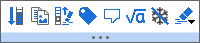
Cell in Color Column

| |
Mask/ Unmask Data | |
Extend selection to last row with data |
| |
Clear rows before selected cell. Available when the selected cell is not in the first row. | |
Define named range |
| |
Insert Note
Note: Note inserted into worksheet cell supports Origin Rich Text syntax, and shows as Render Mode. |
|
Open note in a separated Notes window |
| |
Insert Latex Equation. | |
Copy As Image |
| |
Freeze Panes | |
Unfreeze panes |
| |
Pick New Color | |
Edit Color.
Click this button to open standard Color dialog. |
| |
Convert cell formula or cell link to plane value | |
Select from sub-menu to clear formats (bold, fill color, etc.), contents, inserted notes, or all above in the worksheet. |
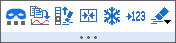
Highlight multiple cells in a column:
Highlight multiple cells in mutiple columns:
| |
Mask/ Unmask Data | |
Copy for Plotting |
| |
Extend Selection to last row with data | |
Clear rows before selected cell. Available when the selected cell is not in the first row. |
| |
Dynamically merge selected cells | ||
| |
Freeze Panes | |
Unfreeze panes |
| |
Convert cell formula or cell link to plane value | |
Select from sub-menu to clear formats (bold, fill color, etc.), contents, inserted notes, or all above in the worksheet. |
When a column label row is selected:

When label row = Long Name is selected:
When a user-defined parameter row is selected:
| |
Rich Text | |
Wrap Text
Adjust width&height to see the wrapping effect |
| |
Insert User Parameters | |
Hide/Show User Parameters |
| |
Set selected label row as categorical. | |
Apply selected User Parameters row (including formual if any) to other sheets. |
| |
Move Row Up | |
Move Row Down |
| |
Extract Units from Long Name | |
Dynamically merge cells in the selected row |
| |
Hide | |
Extract Units from Long Name... |
| |
Select from sub-menu to clear formats (bold, fill color, etc.), contents, inserted notes, or all above in the worksheet. | |
Open Properties Dialog |
| |
Fill Color | |
Color for Banded Row |
| |
Frame Thickness | |
Show Grids |
| |
Gridline Thickness. | |
Gridline Color |
| |
Thicker Gridline | |
Thinner Gridline |
| Frame Color | |||
|
Font Size | |
Font Color |
| |
Increase Font Size | |
Decrease Font Size |
| |
Update of Worksheet |
Click on the left-top corner of the matrix to select the whole matrix object. The mini toolbar below will appear:
| |
Fill color palette for the image thumbnails. Available when Image Selector is turned on. |
|
Missing Value Color. Available when Image Selector is turned on. |
| |
Flip Colormap. Available when Image Selector is turned on. |
||
| |
Show X/Y | |
View Image |
| |
Image Selector | |
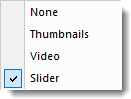
Slider or Thumbnails |
| |
Clear Data | |
Copy for Plotting |
| |
Open Sheet Notes dialog to add notes and tab color for current sheet | |
Open New Name dailog to define a range |
| |
Show Organizer | |
Open Properties Dialog |
Move the cursor to the page edge, click the edge or gray area outside the image page when the cursor turns to
. The mini toolbar below will appear:
| |
Add ROI. | |
Display Actual Size
Check to show actual size of the image. Uncheck will fit image to page size. |
| |
Fill missing values with selected color. Available only when the image has missing values. | |
Grayscale Slider
Click to open a dialog allowing to drag the slider to set gray scale display. Available only for grayscale image with z1 and z2. See this page for details.
Note: one can also run following LabTalk command to open this dialog. run.section(imgfile,grayslider); |
| |
Flip Horizontal | |
Flip Vertical |
| |
Rotate 90 Degree Clockwise | |
Select from following 4 navigation ways: |
| |
Rotate Clockwise.
The increment degree is determined by @IMGR. |
|
Rotate Counter-Clockwise.
The increment degree is determined by @IMGR. |
| |
Gray
Convert color image into gray scale image |
|
Revise Palette
Revise the applied palette |
| |
Set Grayscale Range
Open cvgraymax dialog to set gray scale display range. Available for gray scale image only. |
|
Reset Grayscale Range
Reset the gray scale range to the original values. Available only when the gray scale range of the image has been changed before. |
When open Data Highlighter, this Mini Toolbar will show in the right-top conner of the Graph window or Workbook window.
| |
Create Subset Sheet | |
Create Categories |
| |
Mask/Unmask Highlight Points | |
Mask/Unmask Dimmed Points |
| |
Delete Points | |
Open Properties Dialog |
Click the folders name in the Project Explorer to pop up this mini toolbar:
| |
Folder Notes | |
Duplicate Folder |
| |
Open Folder Properties Dialog |
Move the cursor to the edge of the report sheet, click the edge or blank area outside the report sheet when the cursor turns to
. The mini toolbar below will appear:
| |
Send All Open Branches to Word | |
Send All Graphs to PowerPoint |
Click the graph in the report sheet to pop up this mini toolbar:
| |
Open Graph for Editing | |
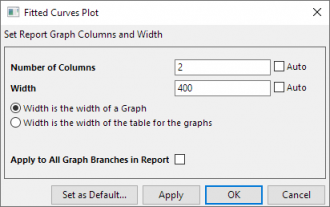
Change Graph Size and Arrangement
Click this button you can change graph size and arrangement in this report sheet.
|
| |
Send to PowerPoint
Send the selected graph to PowerPoint |
|
Send to Word
Send the selected graph to Word |
| |
|
Apply to
Apply Formatting of this object to other objects of this node.
|
Some Mini Toolbar buttons increase or decrease some property by some increment each time you click the button (e.g. font size of text). Control incrementing using the following LabTalk system variables:
You can check the increment value of a particular button by hovering on it. The Status Bar reports the current increment and the LabTalk system variable that you can modify to change the increment.

For information on changing the value of a LabTalk system variable see FAQ-708 How do I permanently change the value of a system variable?.
| Object | Mini Toolbar Buttons | System Variable | Default Increment |
|---|---|---|---|
| Symbol Size |
|
@INCSS | 1 |
| Line Thickness |
|
@INCLT | 1 |
| Font Size |
|
@INCFS | 1 |
| Tick Label Rotation |
|
@INCTLR | 15 |
| Text Object Rotation |
|
@INCTOR | 90 |
| Graph Object Rotation |
|
@INCGOR | 45 |
| Tick Length |
|
@INCTL | 1 |
| Pie Rotation |
|
@INCPR | 10 |
| Doughnut Hole Size |
|
@INCDHS | 5 |
| Spacing Gap (column, doughnut, box) | ![]() (Example from Doughnut Chart) |
@INCSG | 5 |
| Break Length |
|
@INCBL | 1 |
| Break Gap |
|
@INCBG | 15 |