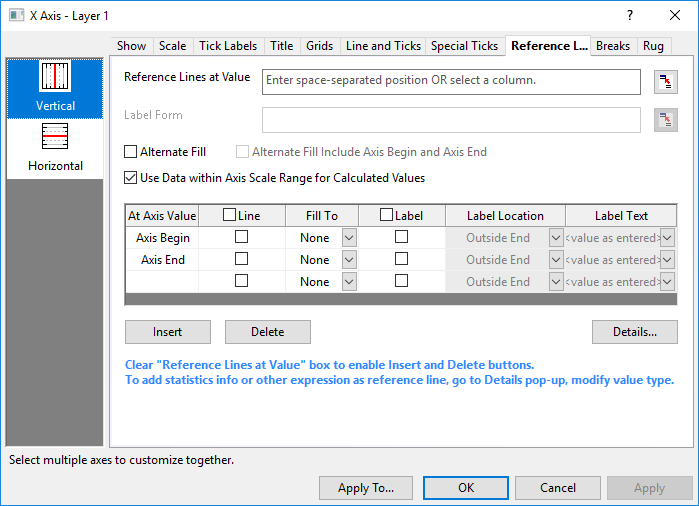
To identify a specific value or range, you can add multiple reference lines at a constant or computed value on the axis and fill the area between paired reference lines .
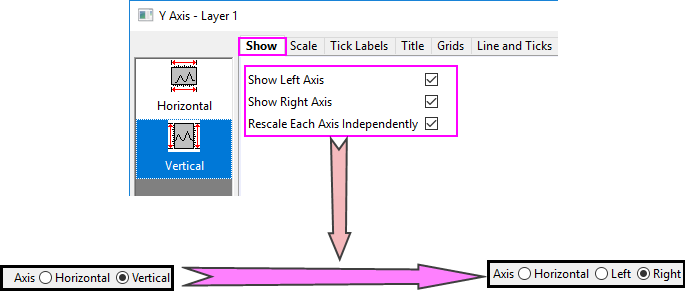
 | Origin allows you to show both right Y and left Y axis for general 2D graphs, and set Rescale Each Y Independently in the Show tab, there will be two seperate vertical icons Left and Right to let you add and cusotmize the reference lines for left Y and right Y axis seperately.
|
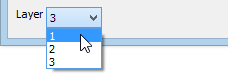
Before customizing the elements of reference lines, you can use the Layer list to switch between layers in a multi-layer graph.
One way to add reference lines is to use this box to enter a space-separated list of values or point to a reference column of values (by clicking the Select Column interactive button  beside this text box) from worksheet.
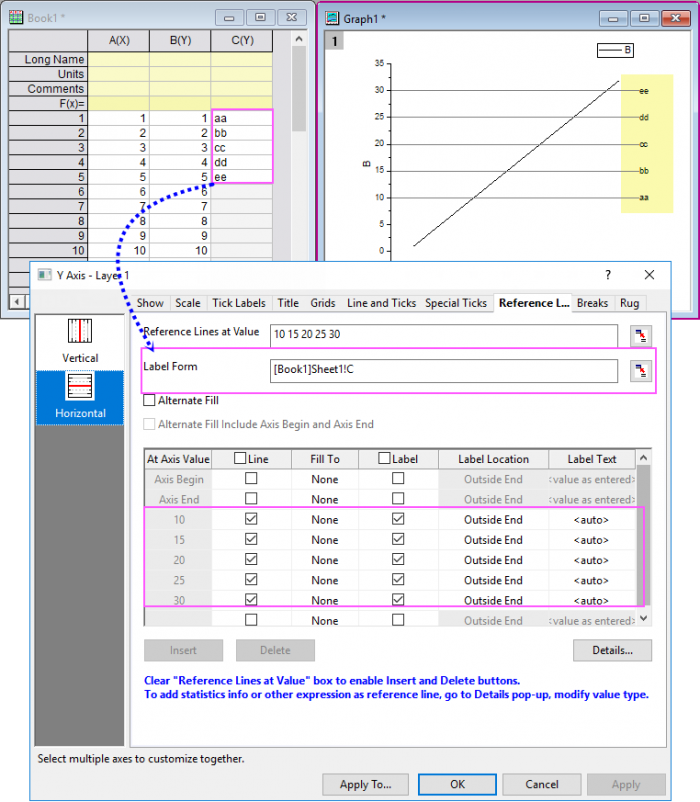
Once you have added reference lines with the option Reference Lines at Value, this option will avaliable to let you set the labels for these reference lines. You are allowed to enter a space-separated list of values or point to a reference column of labels(by clicking the Select Column interactive button beside this text box) from worksheet.
Note: This option is only available when you enter values or select a column for Reference Line at Value option. Labels entered in this option or stored in selected column will be applied as labels to the reference lines you added(except the axis begin/end ). When any label is entered or selected, Label check box for added reference line will be checked, and Label Text is set to <Auto>.
Alternate Fill
Alternate Fill Include Axis Begin and Axis End
When you add a statistical reference line (e.g. the mean value) to a plot, you can check this check box to calculate the statistical value only for the data within the axis range. With this box unchecked, Origin will calculate the statistical values of the whole dataset. By default, this check box is checked.
List of all reference lines. The reference lines Axis Begin and Axis End will listed at top of this table by default. Note that you can also add lines here by entering a value into an At Axis Value cell (see next).
Show the position of added reference lines. See this tip regarding use of named range.
| You can display reference lines behind or in front of your data points. See Data Drawing Options. |
Specify whether to show the reference line at current axis value.
Select a reference line from the drop-down list which current reference line should be filled to. If you've selected any Alternate Fill check box above, this column will show the pairing lines and be not editable.
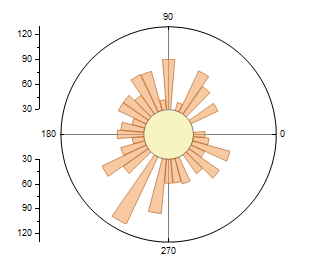
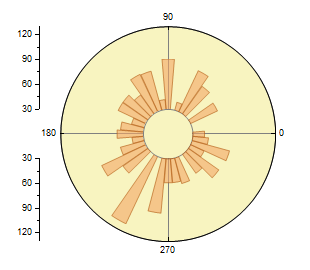
| For Polar plot, to fill the inside center circle, there is extra option for polar reference line.
|
Specify whether to show label for the reference line.
Specify the position of the labels. For both Horizontal and Vertical lines, possible positions are Begin, Middle-Above, Middle, Middle-Below and End of the reference lines.
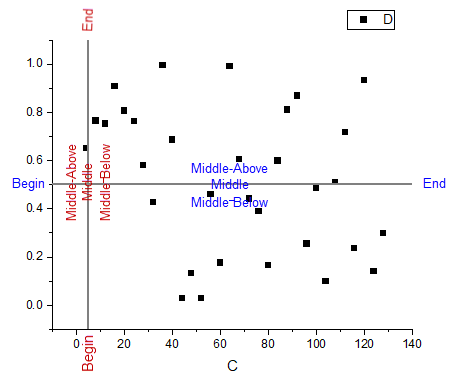
Specify what is to be shown as label for each reference line.
$(v,D99) // v = Julian-Day value in the form "MM/dd/yyyy hh:mm:ss" when Tick Label Type=Date
$(v,T99) // v = Julian-Day value in the form "DDD:hh:mm:ss" when Tick Label Type=Time
By default, the label object has the following properties:
There are three buttons under the display box:
| Insert | Insert a new reference line before the one you selected in display box. |
|---|---|
| Delete | Delete one or more reference lines that are selected in the display box. (i.e. the reference lines other than the Axis Begin and Axis End ones). To select multiple lines, hold down Ctrl key and click on the reference line entries one by one. |
| Details... | Open the Reference Lines dialog for further style customization of the reference lines. |
| Note: To enable Insert and Delete buttons, you should clear Reference Lines at Value at first. |
This dialog can be opened by clicking the Details... button in the Reference Lines tab of Axis dialog. Use the Reference Lines dialog to add lines, set Value Type (e.g. Statistics) and customize formats and styles of each reference line.
| When this dialog is open, the main Axis dialog will be hidden. And you can click Apply button to apply the change in this dialog only, without coming back to the main Axis dialog. When you click the OK button to save settings (or click Cancel) and close this dialog , the Axis dialog will be visible again. |
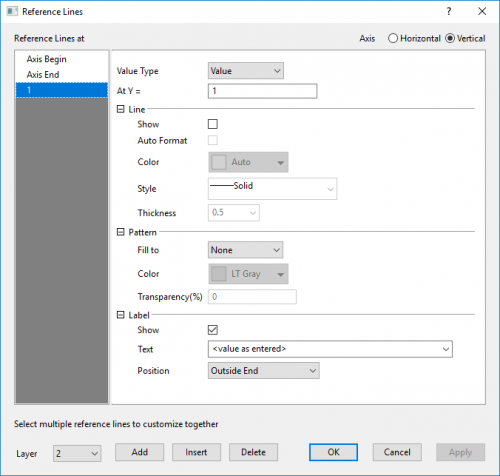
You can choose one axis at the right-top corner to customize reference lines on different axis.
Once you have chosen Left Axis and Right Axis both and checked the Rescale Each Axis Independently check box in the Show tab, the Vertical axis will be seperated into two options Right and Left to let you customize the breaks on two different Y axes independently.
Select the value type that the reference line specifies. It only appears for custom reference lines (excluding Axis Begin and Axis End).
| Beginning with Origin 2022b, you can use a named range in the At Axis Value box, when Value Type = Value or Expression (e.g. as part of an expression). Also, note that when adding reference lines, the named range must have Scope = Project, even in plots of data from the worksheet where the named range is defined (data rows or label rows). |
| Value | Add a reference line at a constant value on the axis. |
|---|---|
| Expression | Add a reference line generated by a formula of curve or at a computed value calculated by an expression. |
| Statistics | Add a reference line at a statistical value. |
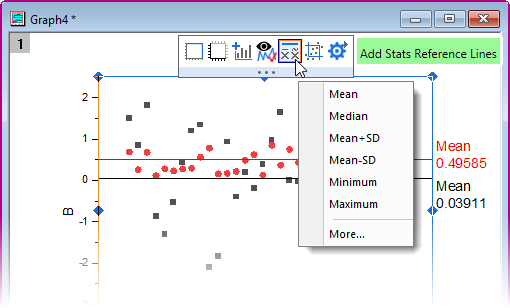
| Note that you can also use a Mini Toolbar button to Add Stats Reference Lines to plots, including Line, Scatter, Line + Symbol, Column/Bar, and Box and graphs:
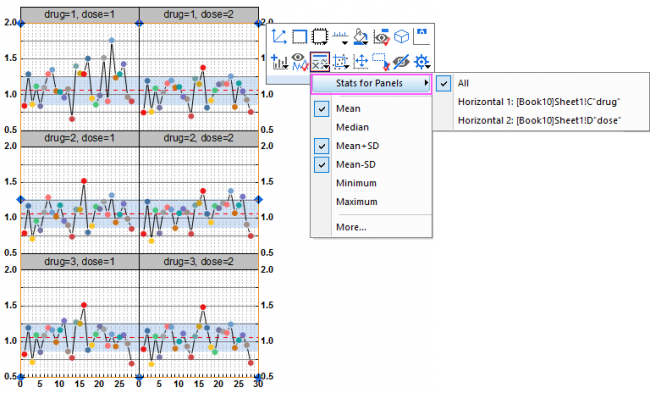
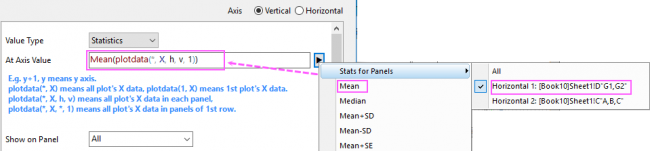
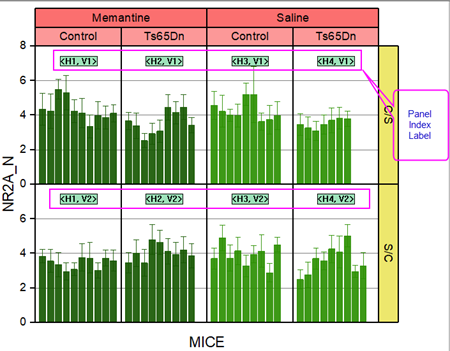
If there are horizontal/vertical panels enabled such as that in a Trellis plot, you can choose different level of the panels to add a reference line at the statistical value. By default, All is selected to add reference lines for all levels of panel. |
Specify the position at which the reference line should be added. It only appears for custom reference lines (i.e. control not available for Axis Begin and Axis End).
| For Value | Enter a constant value or named range. Regarding named range, see tip under Value Type, above. | ||
|---|---|---|---|
| For Expression | Enter a LabTalk expression. Origin offers many built-in functions for building the expression. You can click the fly-out button next to the edit box, then select a function and insert it into the edit box. Note that your expression can also incorporate a named range. See tip under Value Type, above. Note: The letters x and y are the reserved variables that refer to the current x axis and y axis, respectively. If you want to add a line y = x + 1 to the graph, you can directly input “x + 1” in At Axis Value edit box. | ||
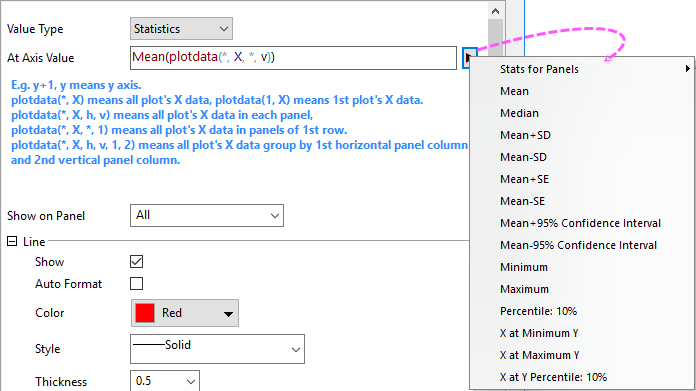
| For Statistics | Enter an expression that incorporates one of Origin's built-in statistical functions. You can click the fly-out button next to the edit box, then select a statistic and insert it into the edit box.
Stats for Panels is only available when there are horizontal/vertical panels. You can choose showing reference line(s) for which level of panels at specified statistical value(s). See the following discussion of statistics syntax. Note:
|
| Note: Apart from the formula including the variable x and y, we should specify a single value in At Axis Value edit box. For dataset, only the first element will be taken account into. For example, the reference line will only show at x/y = sin(1) if we enter “sin(data(1,32))” in At Axis Value edit box. |
Specify on which panel the reference line is shown. It is only available in trellis plot. Use the commas to divide the panel index.
The Show check box is consistent with the Line check box in the Display table. You can use it to show or hide the reference line.
Unchecking Auto Format check box to customize the Color, Style and Thickness of current reference line.
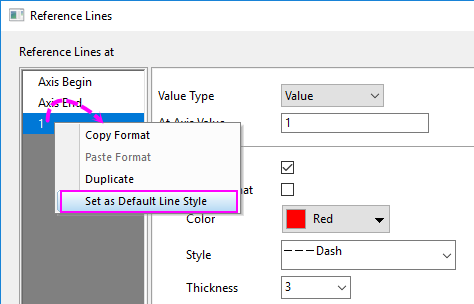
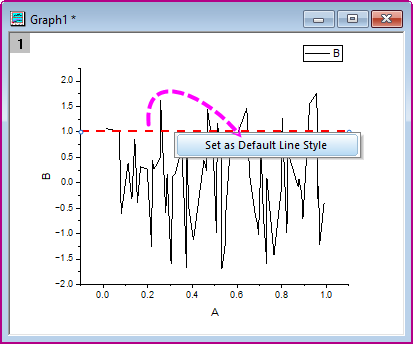
Once you have set the formats for a reference line, you can set the current line style as default. Then next time, when you added a new reference line, this default line style will be applied.
There are two ways to do this:
Customize Fill Pattern between paired reference lines.
Select Fill To line(s) from drop-down list. It is consistent with the Fill To option in the Display table. If the Alternate Fill box is checked, this drop-down list is dimmed (unavailable).
| Note: You can easily copy the style of one reference line to others by Copy Format and Paste Format in this dialog. Right click on a reference line in the left panel Reference Lines at and select Copy Format, and then select the target reference line(s) and right click to Paste Format. What's more, you can select Duplicate in the context menu to create a new reference line with the same style. |
Customize the label for reference line.
| Show | Specify whether to show a label for the reference line. |
|---|---|
| Text | Specify what is to be shown as a label for the reference line. We have talked a lot in aforementioned section. |
| Label Form | Specify which label form is to be shown for the reference line. It only appears for statistics reference lines.
|
| Identity of Plot | Specify which name to be shown on the label to identify the plot. |
| Position | Specify the position of the labels. |
You can switch layers with the Layer drop-down list.
You can click Add, Insert or Delete button to add, insert or delete a reference line.