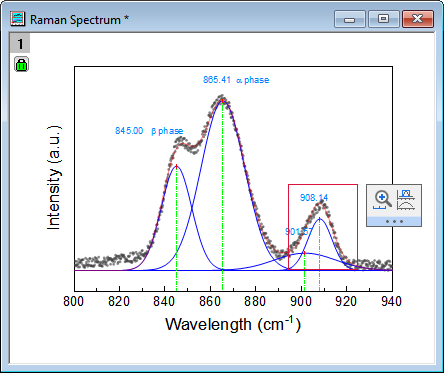
 , select a rectangle region (red border) inside a graph layer, then the Mini Toolbar will show and supply Scale In and Enlarge to Separate Graph tools.
When the cursor is on Pointer mode , select a rectangle region (red border) inside a graph layer, then the Mini Toolbar will show and supply Scale In and Enlarge to Separate Graph tools.
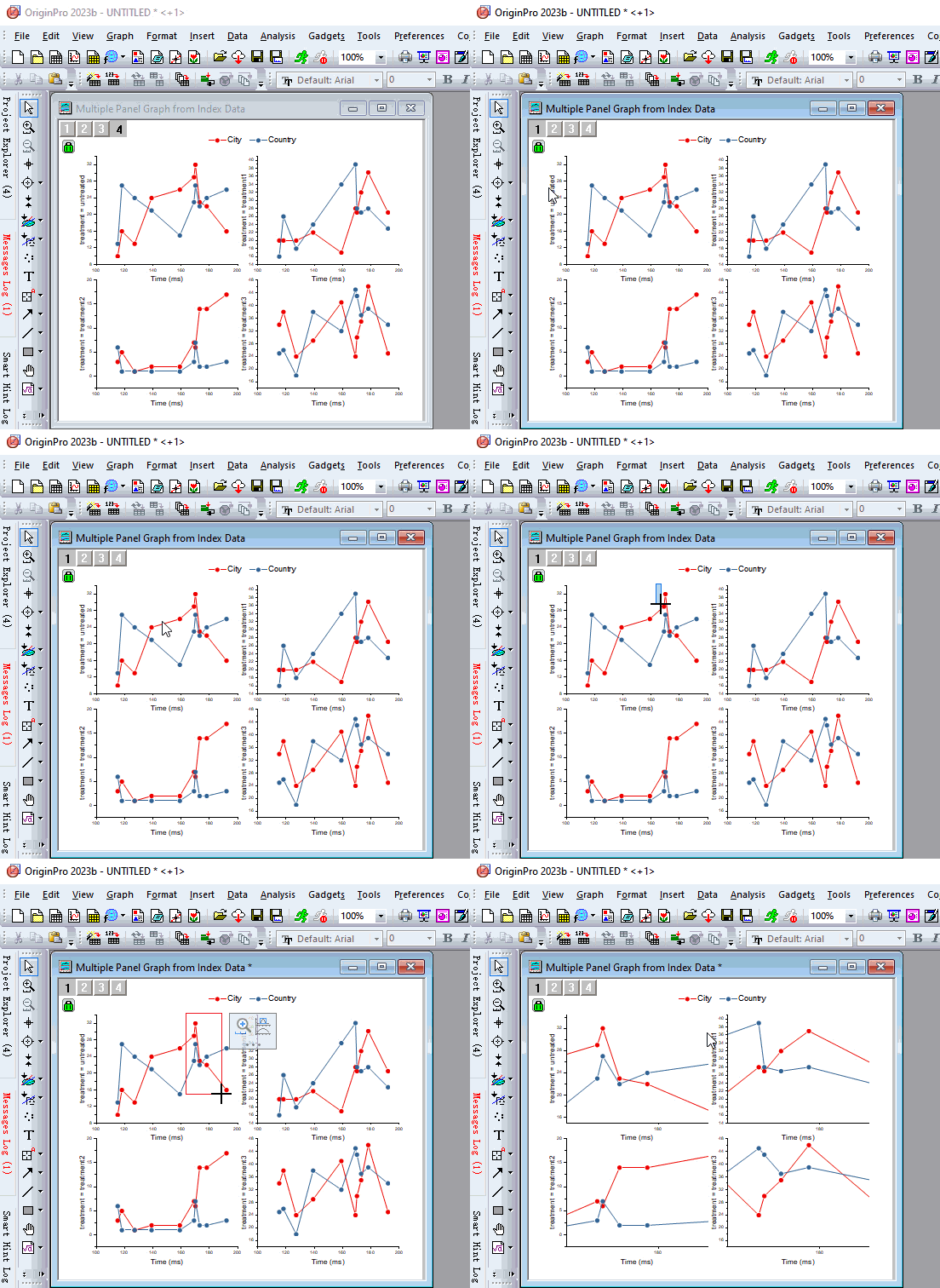
 in the Mini Toolbar, the graph layer will be scaled in the selected region.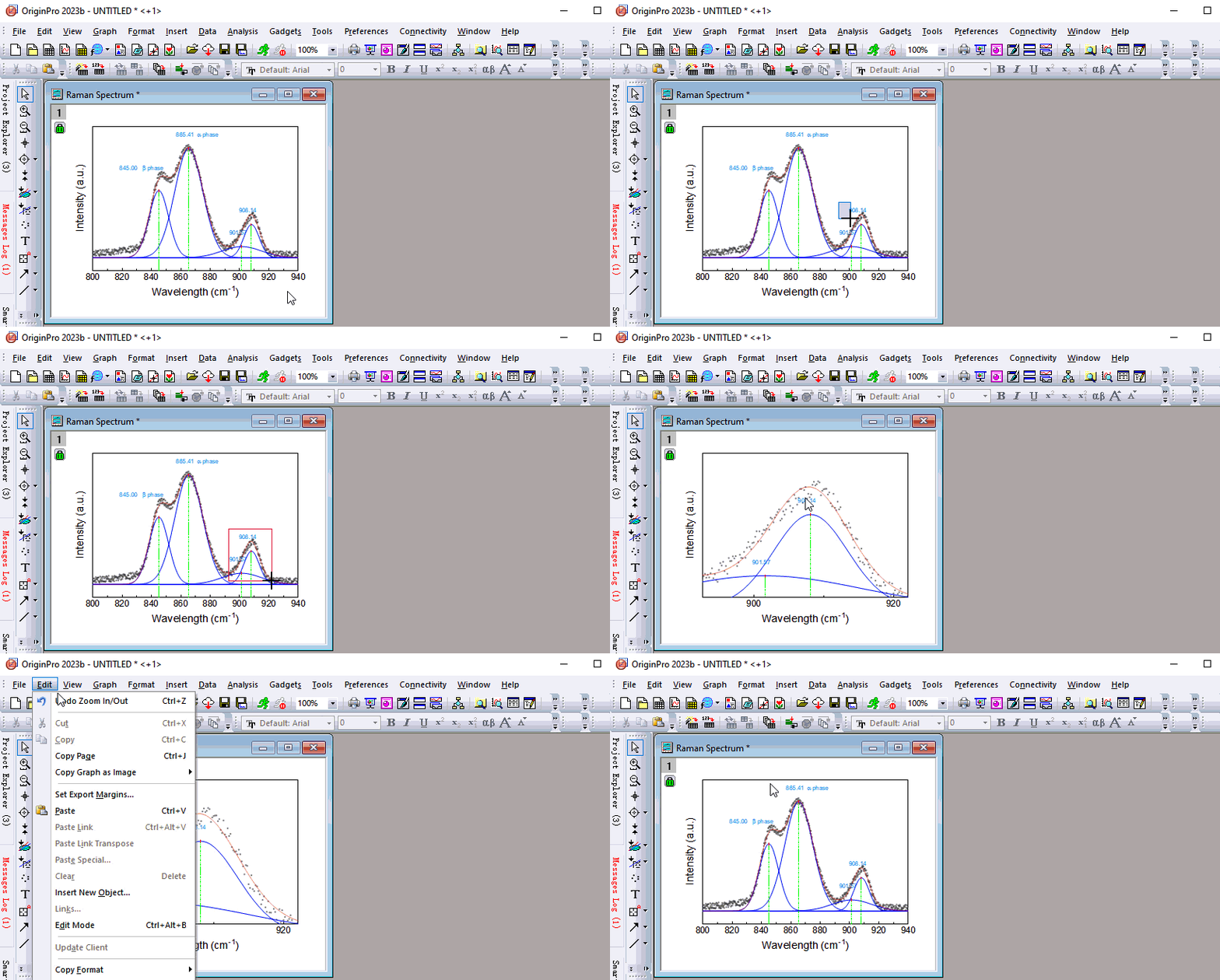
 in the Mini Toolbar, it will add a new graph window named Enlarged for the selected region.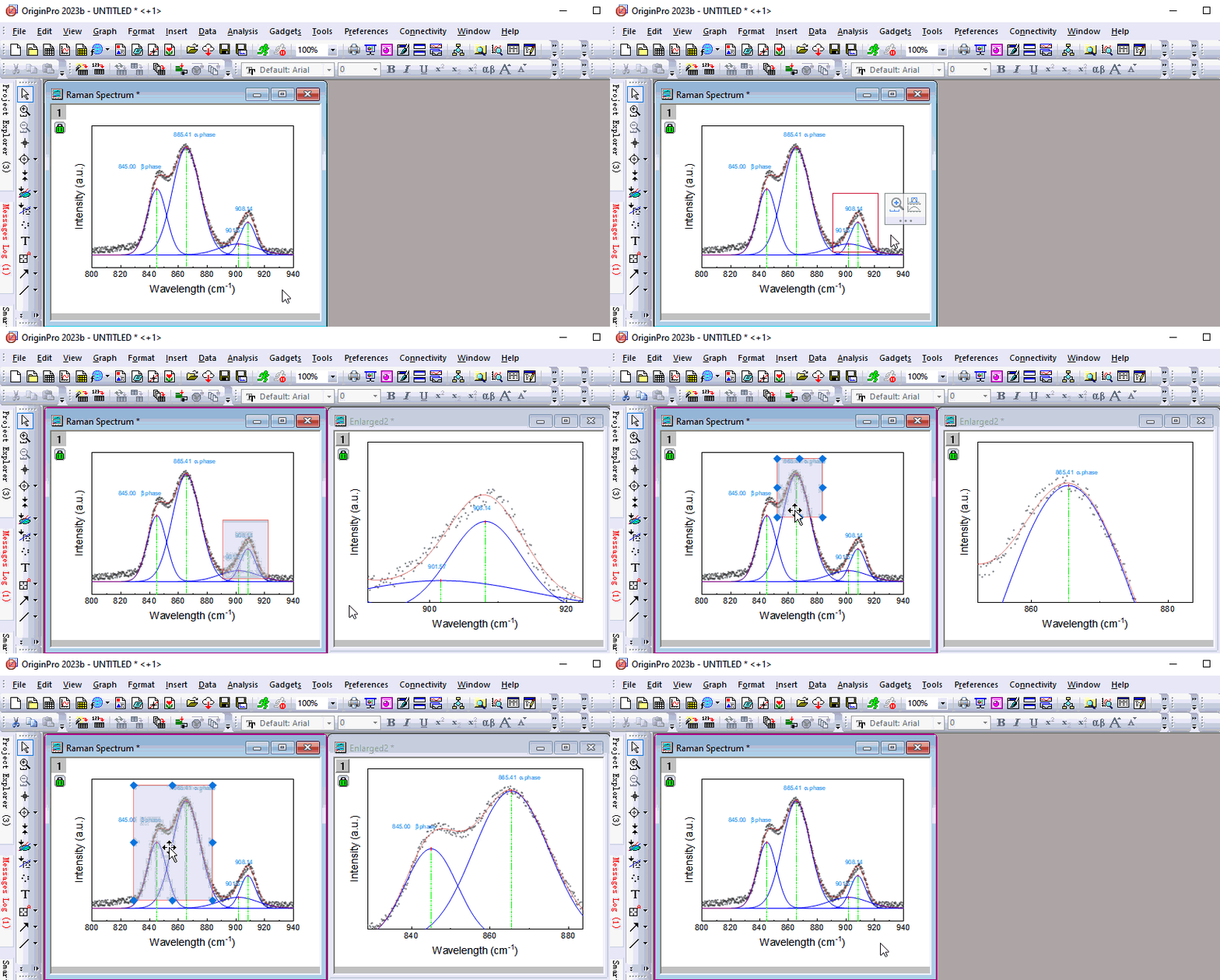
To add one more "Enlarged" graph window for zooming another region: