Text labels can as simple as a static literal text or LabTalk substitution notation string which does run-time string substitution to show a wide variety of project information, such as workbook, worksheet, column, cell values or metadata, data file info, or even data statistics, etc.
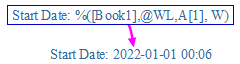
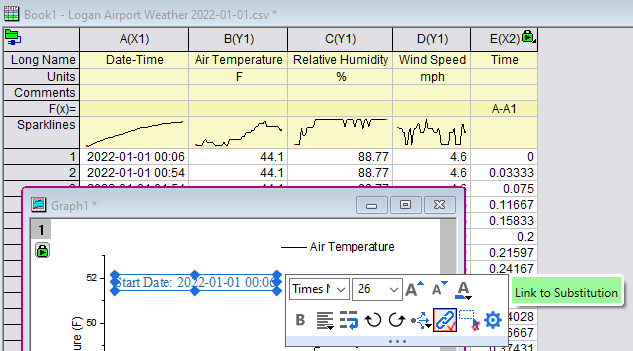
Some of the text labels are auto generated by Origin, such as axis titles, legends, data point labels, while others are manually added by the Text or Annotation tools. For manually added labels, please make sure the Link to Substitution is checked or set to 1 or above on Programming tab of Text Object dialog.
Within the context of the graph window, text labels can be lumped into two groups:
 . We will mainly discuss labels added by Text tool here. See these pages for information on Graph Legends or Axis Titles.
The simplest way to show worksheet cell value in Text Labels is by copy and paste link.
A change to the worksheet cell value will trigger a change to the value shown in your label.
Though paste link is adequate for most users, it's still good to understand the worksheet cell Substitution to know what options there is in Origin.
For substitution to work, please first click on text label and check Link to Substitution on mini toolbar. Or right-click on the text label and choose Properties. On the Programming tab, set Link to (%,$), Substitution Level to 1 and click OK.
| Syntax | Description | Example |
|---|---|---|
|
%(workbookName, Column, row#[, format]) |
column, row of active sheet in workbook |
//book1, active sheet, 2nd column, 5th row, full precision %(Book1,2,5) //book1, active sheet, column B, row, 2 decimal places %(Book1,B,5, .2) |
| %([workbookName]Sheet, Column, row#[, format]) | column, row of specified sheet in workbook |
//book1, sheet1, 2nd col, 5th row, full precision
%([Book1]Sheet1,2,5)
//book1, sheet1, 2nd col, 5th row, 3 significant digits %([Book1]Sheet1,2,5, *3) |
| %(workbookName, @WL, column[row] [,format]) | column, row of active sheet in workbook |
//book1, active sheet, column 2, 5th row, full precision %(Book1, @WL, 2[5]) //book1, active sheet, column B, 5th row %(Book1,@WL, B[5], .2) |
| %([workbookName]sheetName, @WL, column[row] [,format]) | column, row of specified sheet in workbook |
//show value of book1, sheet1, 2nd col, 5th row, full precision %([Book1]Sheet1,@WL, 2[5]) //book1, sheet1, 2nd col, 5th row, same display as worksheet cell %([Book1]Sheet1,@WL, B[5], W) |
| %(plotindex, @WT, column, row[, format]) | column, or of source worksheet of specified plot |
//1st plot's worksheet, column F, row 5 %(1, @WT,F,5) //2nd plot's Y data sheet, 6th col, 5th row, 2 decimal places %(2Y, @WT,6,5, .2) |
Note:
The following graph shows a text label of Start Date with a customized A1 cell value in MM/DD/YYYY format
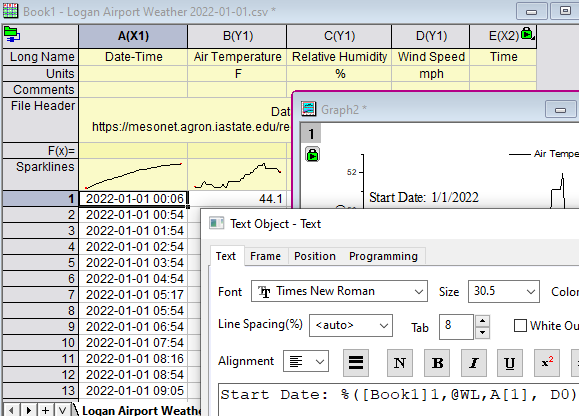
In addition to data row cells, you can substitute values from column label row cells in your text labels. Again, for substitution to work, click on text label and check Link to Substitution on mini toolbar. Or right-click on the text label and choose Properties. On the Programming tab, set Link to (%,$), Substitution Level to 1 and click OK.
There are several syntaxes that will work, depending upon your needs.
The last option uses a Column Label Row Character (LabelRowChar).
| Example | Description |
|---|---|
| %(1, @LD"Mean") | User-defined parameter row value of 1st plot's column |
| %(1, @LF, B) | 1st plot's B column filter condition |
| $(%(2Y, @LC), .2) | comment of 2nd plot's Y column, show 2 decimal places |
| %(1X, @WT, 5, D2) | 5th column's 2nd user-parameter row value on worksheet where 1st plot's X data is located |
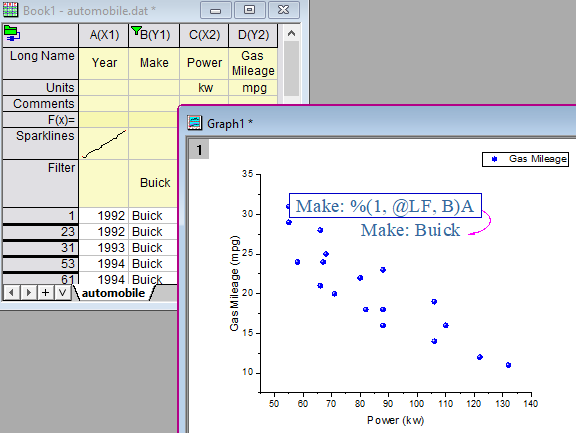
The following graph is plotted with column C and D. Text label shows column B's filter condition.
You can also LabTalk functions to calculate dataset statistics and show the result in text label. Again, for substitution to work, click on text label and check Link to Substitution on mini toolbar. Or right-click on the text label and choose Properties. On the Programming tab, set Link to (%,$), Substitution Level to 1 and click OK.
The syntax is
where
The following table uses LabTalk function total() as an example. $( ) substitution is used to convert the calculation into a string with optional Origin format to customize the display.
| Dataset | Description | Example |
|---|---|---|
| %C | String register for Active Dataset |
$(total(%C)) //total of current dataset $(total(%C), .2) //total of current dataset, show 2 decimal places |
| %(plotindex, @D) | Dataset of specified plot |
$(total(%(1, @D)) //total of 1st plot, for 2D, it refers to Y dataset $(total(%(2X, @D)), *3) //total of 2nd plot's X dataset, show 3 significant digits $(total(%(2.1, @D))) //total of 2nd layer, 1st plot's Y data |
| %(plotindex, @WT, columnNameorIndex) | Dataset of specified plot |
$(total(%(1, @WT, 5))) //total of 5th column on worksheet where the 1st plot is from $(total(%(2X, @WT, E))) //total of column E on worksheet where 2nd X data is from $(total(%(1, @WT, "Decay 2"))) //total of column (long name "Decay 2") on 1st plot's sheet |
| %([book]Sheet, column) | Worksheet Column Substitution |
$(total(%([book1]1, C )) //total of column C on 1st sheet of book1 |
| ds or ra | Dataset or Range variable or expression |
$(total(ds)) //suppose dataset ds={1,2,3};
$(total({2,4,6})) //total of {2,4,6}
$(total(ra), .0) //suppose range ra=[book1]sheet1!B, show 0 decimal places
$(total([book1]1!C[5:0])) //total of range column C of Book1, 1st sheet, 5th row to end
|
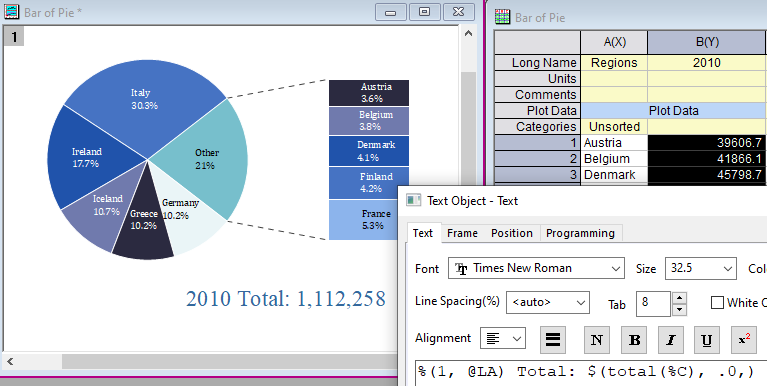
The following text label calculate total value of the plot. The value is customized to use comma separator and 0 decimal places
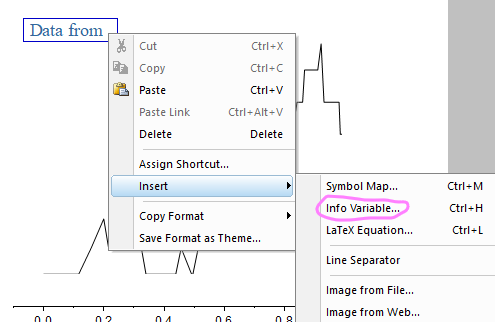
In in-place edit mode of text label, right click and choose Insert: Info. Variable (Ctrl+L) to insert information of plotted data's file, book, sheet, column information.
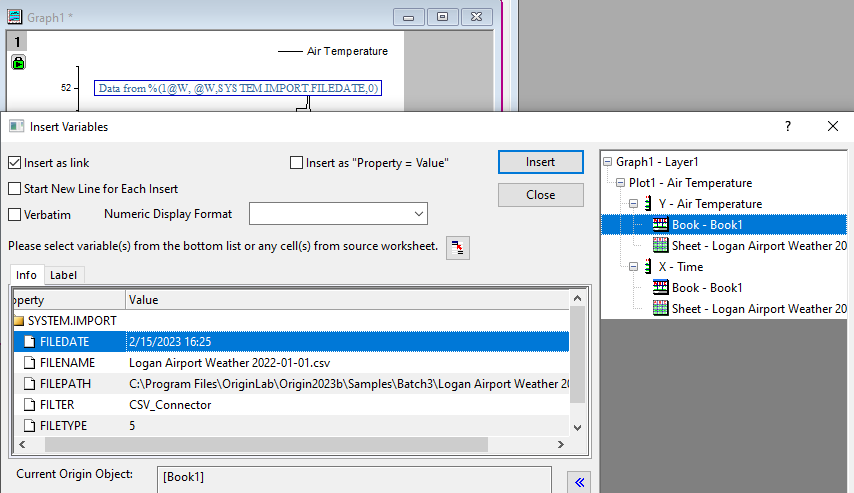
Select book, sheet or plot's X and Y column node on right. Then go to Info or Label tab to pick the info. to insert. By default it will be inserted with substitution notation.
Besides displaying worksheet values, you can include variable values in text labels. Again, for substitution to work, click on text label and check Link to Substitution on mini toolbar. Or right-click on the text label and choose Properties. On the Programming tab, set Link to (%,$), Substitution Level to 1 and click OK.
| Type | Example | Description |
|---|---|---|
| String Register | %X%G.opju | show current project path and file name with .opju at the end |
| String Variable | %(user$) | show string user$ content |
| Numeric Variable | $(myvalue, .2) | show variable myvalue with two decimal place |
String Registers are one means of handling string data in Origin and some are reserved system string registers that holds important information, such as project path %X, project file name %G, current active data %C, etc.
Assume that your current project MYPROJECT.OPJ is saved to C:\MYFILES\.
For information on use of the Verbatim option see Use of the backslash "\" character in the Object Properties dialog box.
Using LabTalk, you can define any number of variables for use in your work. As an introduction to the concepts of "variables" and "scope", we recommend that you read this topic. To illustrate basic numeric substitution, we give the following simple example:
MyVariable=5
MyVariable=$(MyVariable)
 | To see a list of available LabTalk variables, open the Script Window (Window: Script Window) and click Tools: Variables... or type "ed" at the command line. |
We've seen that Origin supports substitution notation when creating text labels using the standard WYSIWYG text editing methods or when editing text in the Object Properties dialog box. You can also use this notation to resolve a mathematical expression to a value in the text label:
In this substitution notation, expression is resolved to a value each time the text label is redrawn. The text label is redrawn whenever you move the label or redraw the graph window.
You may need to click the Refresh button  on the Standard toolbar to see the change.
| When Origin starts, a text file in the program folder named ORGSYS.CNF is read. It is in this file that the value of pi is defined, in exactly the same way as you would define a constant or a variable at in the Script Window or the Set Column Values dialog box: const pi = 3.141592653589793 If you have mathematical constants that you regularly use in your work, the CONST.CNF file under User File Folder is a good place to define them, as they will always be available when Origin runs (the .CNF file is a text file that you can edit in a simple text editor). |
There are a couple of ways to add date-time information as a text label, to your graph, worksheet, etc.
You can add a date and time stamp to the your graph by clicking the Date & Time button  on the Tools toolbar.
Note that this is a static text object and it will keep the current date-time until and unless you click the Date & Time button again.
See this FAQ for more information.
There are a couple of ways to incorporate the current date-time into a text label. Unlike the Date & Time button, such a text label could be saved with your graph template and used to stamp the graph with the date and time of window creation. Note that when you save the template with a text object created using one of the following methods, you are saving the label's underlying code -- not the literal text of the current date-time.
The basic process would go like this:
Use the @D or @T syntax to add a date-time label to the graph:
then click on the graph and enter the following at the cursor:
$(@D, DMM-dd-yyyy HH:mm:ss)
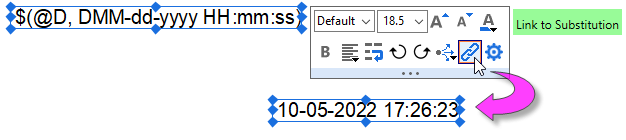
| Note: The particular date-time format used here is just one example. To find out more about formatting for @D and @T, see this section of the LabTalk Reference. |
This method works by adding a short line of script to the text object. That script is triggered on Window Create, thus stamping the graph with date-time that the graph is made.
then click on the graph and enter the following at the cursor:
%(dt$)
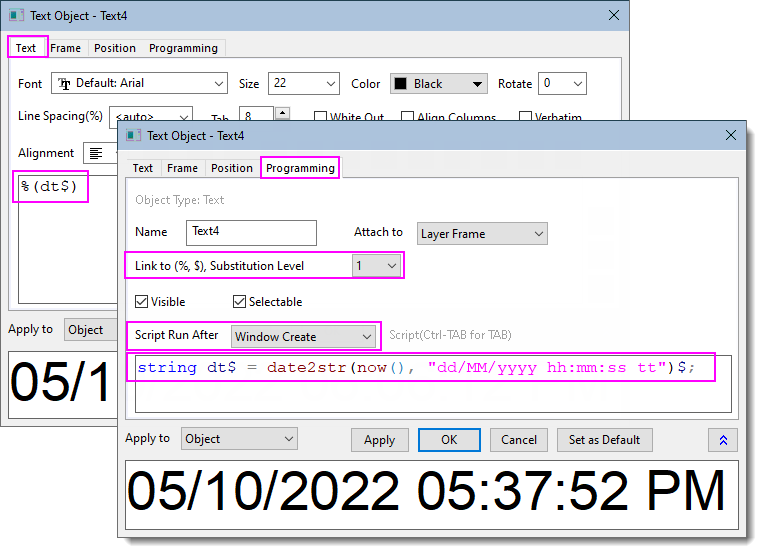
Note: The combination of Origin date-time function and date-time format used here is just one example.
|