 See more related video:Labeling Data Plots Based on Data in any Worksheet Column
See more related video:Labeling Data Plots Based on Data in any Worksheet Column
After creating a graph, you might need to add labels to annotate the plot elements. The dialog/tools below can be used to do this task
You can use the Label tab of the Plot Details dialog to add labels to all points or specified points of a data plot. This Label tab can be found on the right side of the Plot Details dialog when a data plot icon is selected on the left panel.
To add labels using Plot Details controls
For help with specific Label tab controls, see:
| Note: Values in a pre-designated Origin Label column or in an Excel worksheet column can be used to label data points in a graph. Labeling points in this way is an older method and it remains primarily for backward compatibility. In earlier versions of Origin, designated Label columns appeared as a separate dataset in Plot Details. Beginning with Origin 2020b, designated Label columns will simply be treated as a display option of the data plot and will be controlled via a common Label tab. |
Since Origin 2020, we have introduced the context-sensitive Mini Toolbars for faster graph customization. You can also use the controls on it to label the data points:
 , click the Show Data Labels button
  to add and remove labels for all plots in current group. By default, the Y values of data points will show as labels.
 , click the Show Data Labels button to add and remove labels for all plots of current plot. By default, the Y values of data points will show as labels.. By default, the Y value of this data point will show as label. . If you use the Scale In button
  to change the axis scales (i.e. you zoom in), click the Pointer button
  then click again on your contour plot and click Reposition Labels, to redraw labels on the zoomed portion of your plot.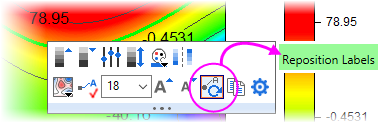
Choose a Label Source
Once you have enabled labels (using either Plot Details Label tab controls or the Mini Toolbar Show Data Labels button), you need to specify a Label Source:
 on the Mini Toolbar, to designate a label source (X, Y, XY, etc.).
 to open Plot Details.
With the Text tool  in Tools toolbar, you can add text labels anywhere in the graph window, only one label at a time.
With the Annotation tool  in Tools toolbar, you can precise pick and label specific points on 2D and Contour plots.