 on top of Project Explorer.
Origin supports a Project Browser tool to navigate Workbooks, Graphs and Sheets. Also, you can search for the string or numeric data in the project, including to the metadata, data cells and graph object.
To open the Project Browser dialog:
or
on top of Project Explorer.or
or
or
| Note: Double-click on empty space of this dialog to close it. |
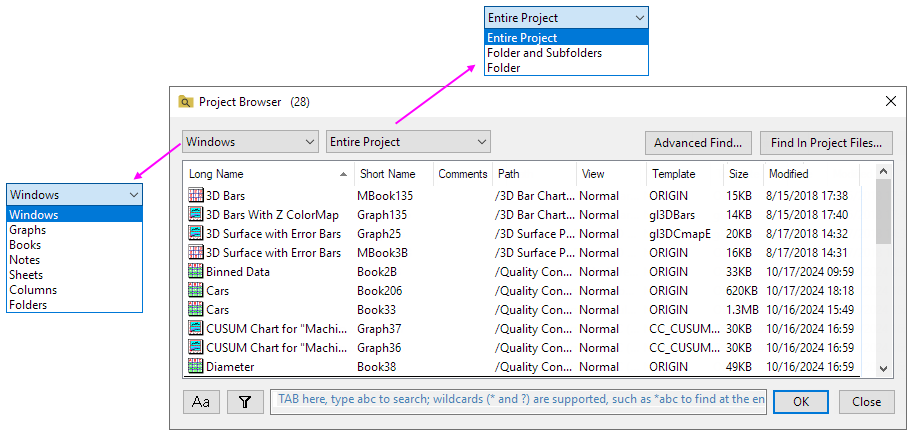
Use the drop-down to specify the Windows/type of Windows/Sheets/Columns/Folder to list in the Project Browser.
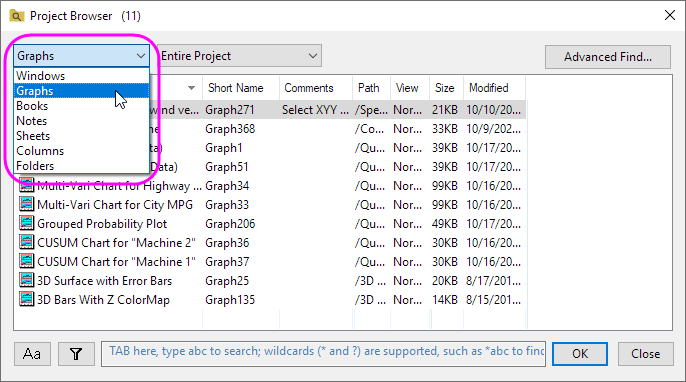
Use the drop-down to filter range of the Windows/Columns/Folders.
| Entire Project | List the Windows/Columns/Folders in the entire project. |
|---|---|
| Folder and Subfolders | List the Windows/Columns/Folders in the active folder and its subfolders. |
| Folder | List the Windows/Columns/Folders only in the active folder. |
Click the Advanced Find... button to open the Find dialog.
Click the Find in Project Files... button to open the Find in Project Files dialog.
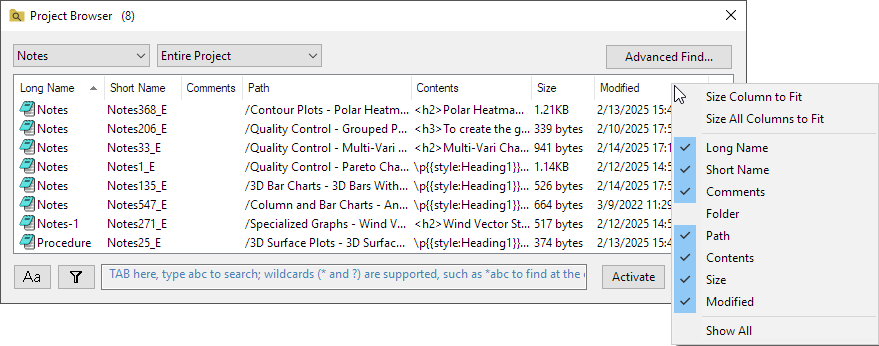
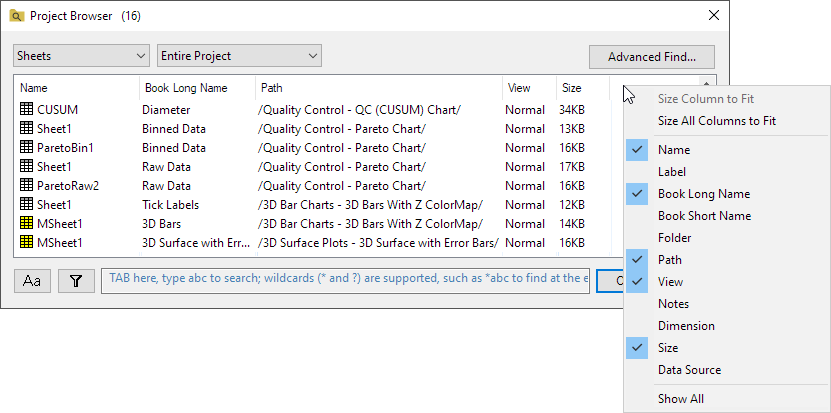
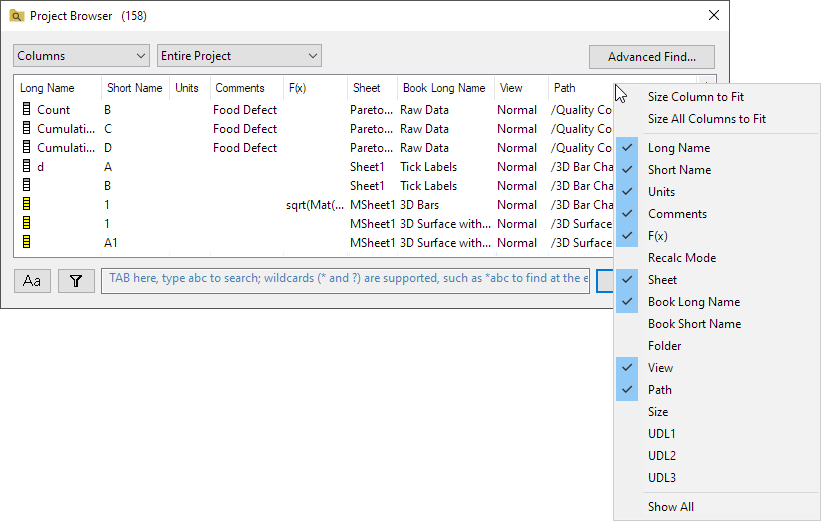
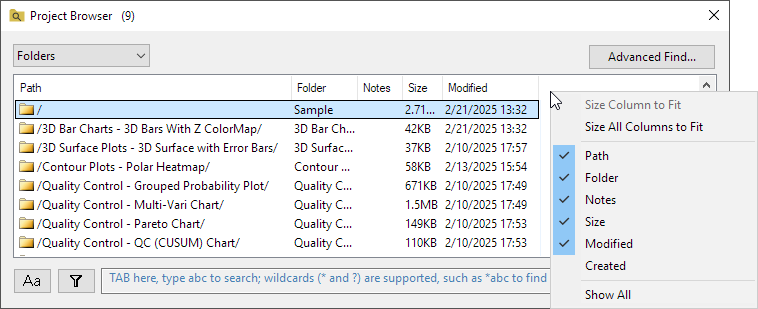
Right click on the column header area of this list to view a context menu:
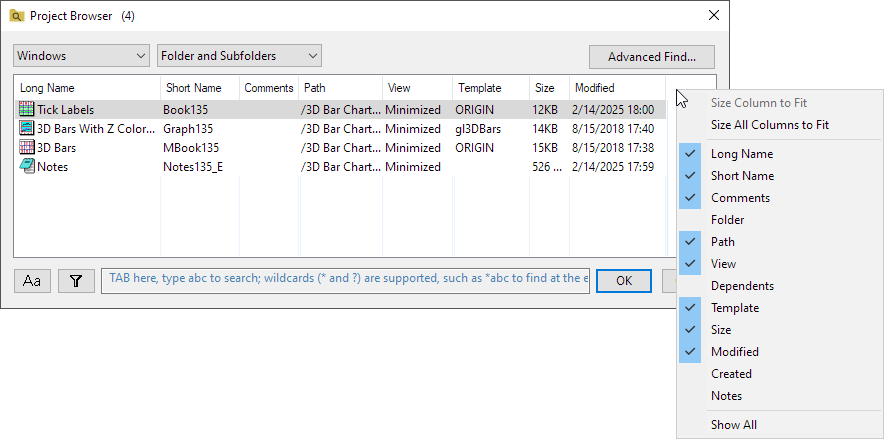
 | Column headers:
|
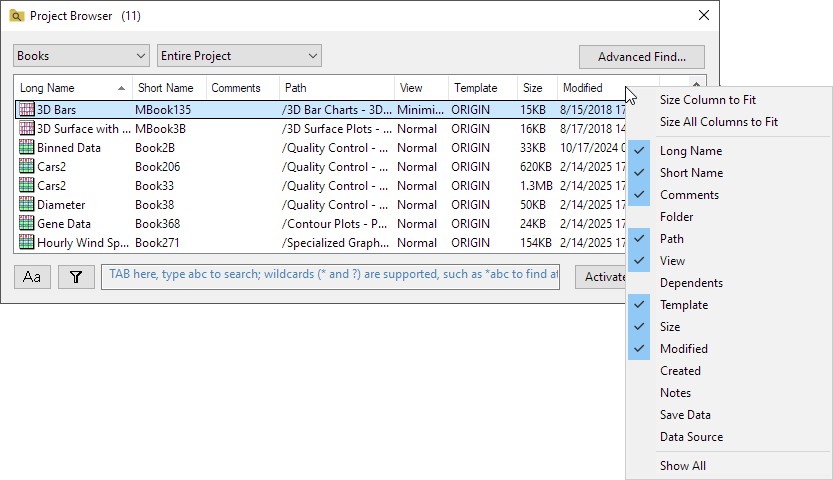
Show the selected Windows/Columns when it is hided.
Hide the selected Windows/Columns.
Delete the selected Windows/Sheets/Columns/Folders.
Rename the Long Name of the Window/Sheet/Column
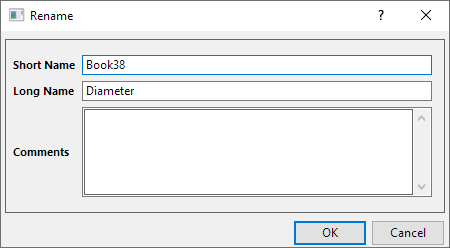
Open the Rename dialog. For the Window/Column, you can customize the Short Name, Long Name and Comments for the selected window.
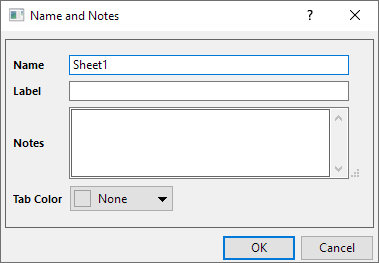
For the Sheet, you can customize the Name, Label, Notes and Tab Color
For the Folder, it will open the Folder Properties dialog.
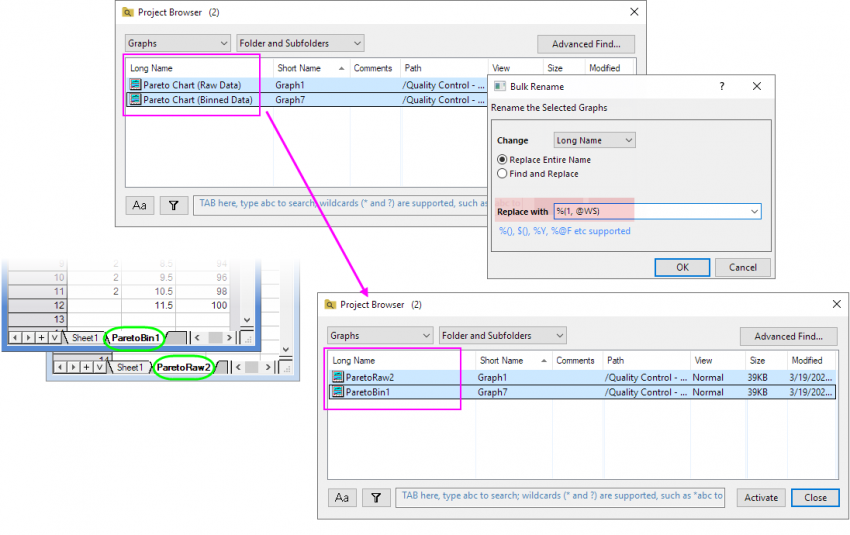
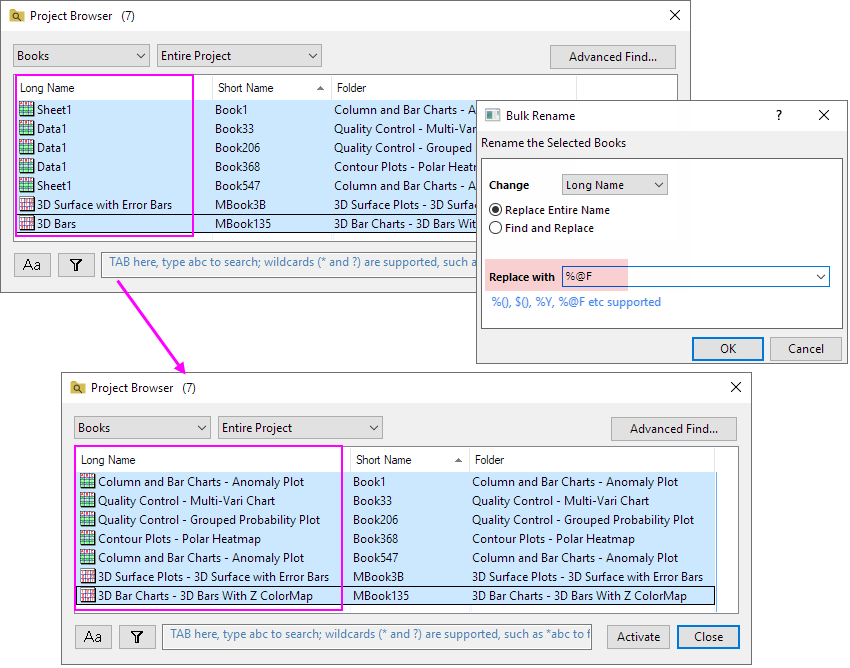
Select multiple rows and right click to select Bulk Rename to open the dialog. You can rename the multiple Windows/Sheets/Columns/Folders by this dialog.
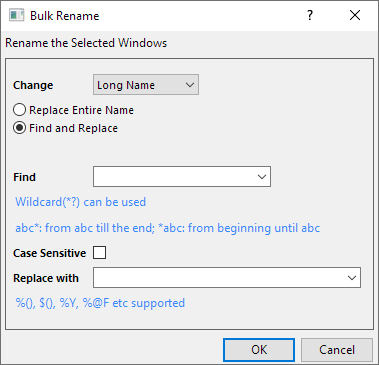
| Change | For the windows, you can select to change Long Name or Short Name.
For the columns, you can select to change Sheet Name or Sheet Label. |
|---|---|
| Replace Entire Name | Replace the entire name of the Windows/Sheets/Columns/Folders. |
| Find and Replace | Find the specified string in the name of the Windows/Sheets/Columns/Folders, then you can replace the specified string. |
| Find | When Find and Replace option is checked, this edit box will show in the dialog. Specify the string to be found.
Note: Wildcard(*?) can be used.
|
| Case Sensitive | Specify whether or not the search is case-sensitive.
For example, when enabled searching for ABC returns ABC but not abc. |
| Replace with |
Note:%(), $(), %Y, %@F etc supported. |
Samples of Bulk Rename with meta data:
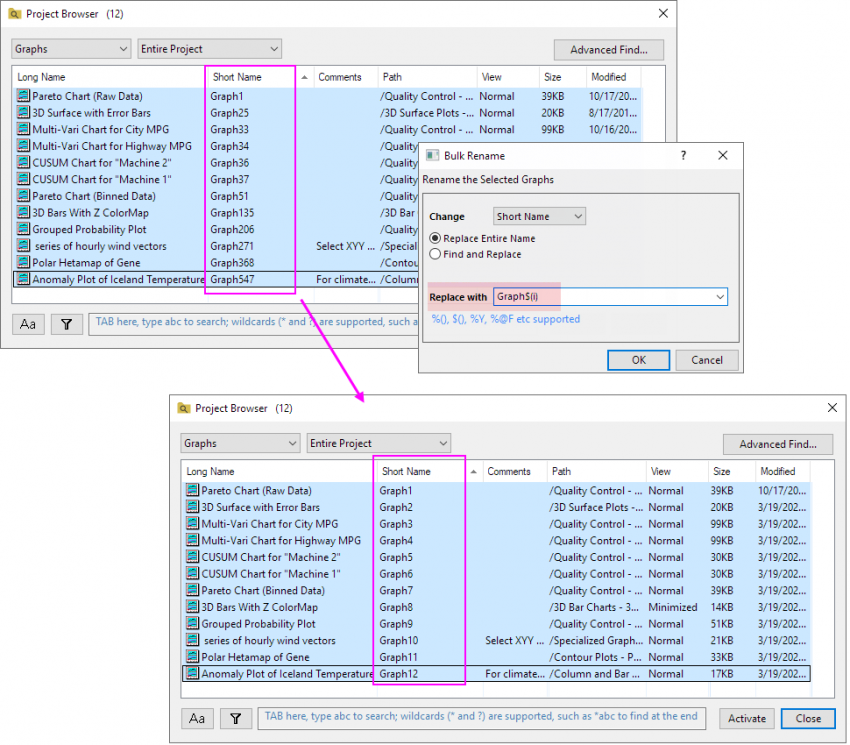
When select shows Columns in this dialog, choose right click on the row(s) in this dialog and right-click to selectChange Formula, you can change the formula for the selected Columns.
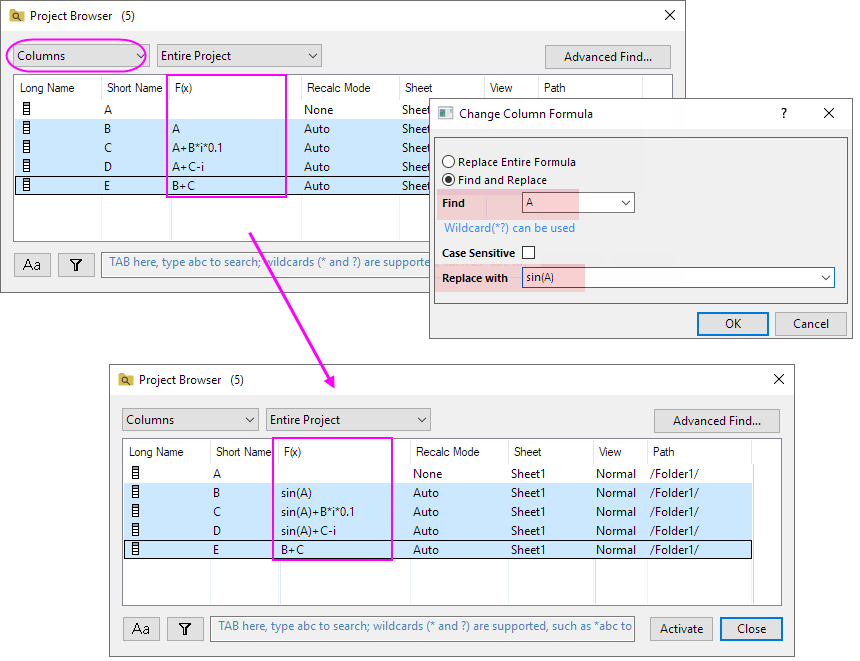
| Replace Entire Formula | Replace the entire formula by the new formula entered in the Replace with edit box. |
|---|---|
| Find and Replace | Find the specified part in the formula, then use the new script entered in the Replace with edit box to replace it. |
| Find | Enter the specified part in the formula that you want to find. |
| Replace with | Enter the new formula (script) for replace the formula or the specified part in the formula. |
Set recalculation to None for the columns in the Worksheet (Remove the green lock). And the Recalc Mode will show None.
In this dialog, you can select multiple rows (multiple columns in the Worksheet) to remove their operation together.
When double click on the row to active the Window/Sheet/Column/Folder, this Project Browser dialog keeps to open.
Hide the embedded windows in the list.
When show the Sheets in the Project Browser, check this option to hide the analysis result sheets.
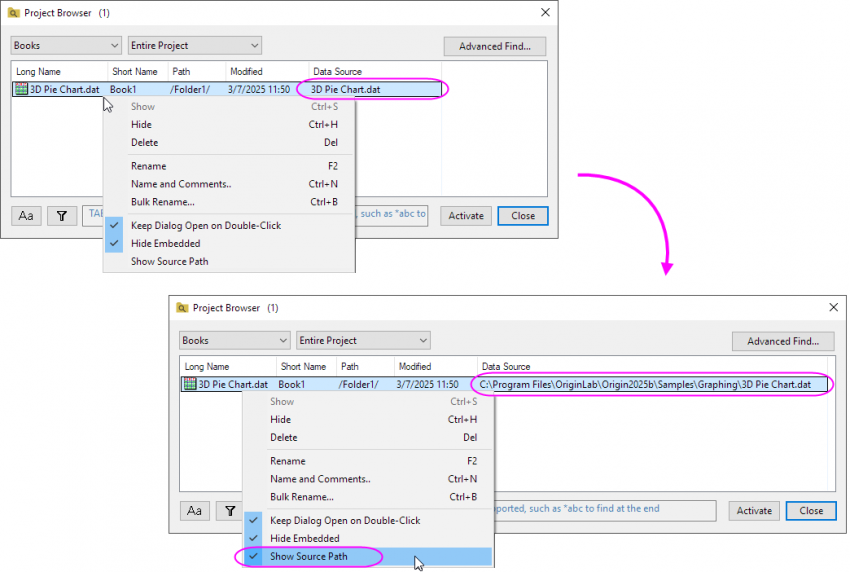
When showing the Books/ Sheets in the Project Browser and the Data Source in the column header, check this option to show the source path in Data Source.
| You can use Ctrl+A key to select all rows in the list. In this dialog, Origin also supports to use Ctrl+Z and Ctrl+Y hotkey to undo and redo operation. |
Select a Window(Book/Graph/Note)/ a Sheet/ a Column in the list and press the key F2, you can enter in-place edit state to edit the Name for it.
If it shows the columns of Long Name and Short Name, you just can edit the Long Name. If it only shows the columns of Short Name, you can edit the Short Name.
Type string or numeric data in the box to search the Windows/Sheets/Columns/Folder listed in the Project Browser. Not only the name you can search the metadata of them.
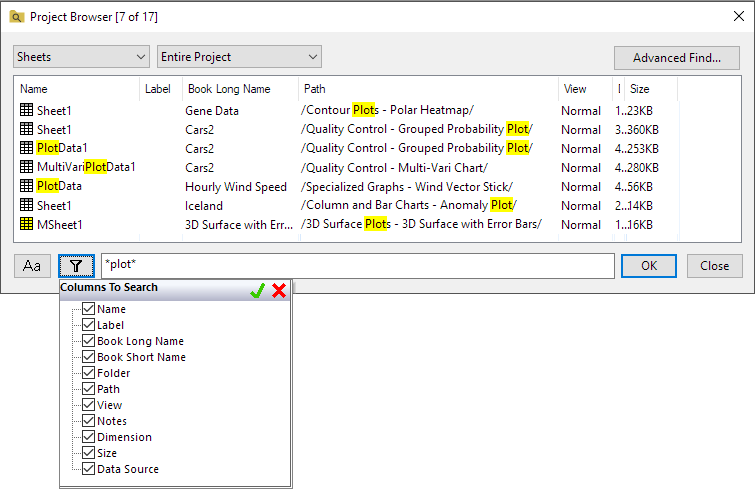
Use this button to specify whether or not the search is case-sensitive.
Specify the columns (metadata) to be searched.
Specify the string or numeric data to be found. The wildcards (* and ?) are supported, such *abc to find a the end.