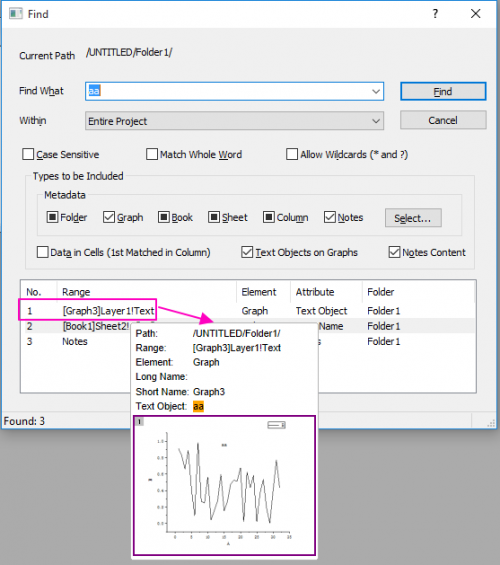
Origin supports a Find feature to search for the string or numeric data in the project, including to the metadata, data cells and graph object.
To open the Find dialog:
or
or
Click the Find button. As the search proceeds, the Find button becomes Stop. Clicking Stop ends the search and the button reverts to Find.
Shows the path of the active folder.
Specify the string or numeric data to be found. Click  to see your search history.
| Entire Project | Search the entire project. |
|---|---|
| Active Folder | Search only the active folder. |
| Active Folder and Subfolders | Search the active folder and its subfolders. |
| Case Sensitive | Specify whether or not the search is case-sensitive. For example, when enabled searching for ABC returns ABC but not abc. |
|---|---|
| Match Whole Word | Find only the entire string entered in Find What.
Note: Only available when Allow Wildcards(* and ?) is disabled. |
| Allow Wildcards (* and ?) |
Specify whether or not the wildcards ? and * are used in the Find What edit box. If enabled, Match Whole Word is disabled.
|
Narrow your search for the Find What value to metadata, data cells, graph objects and/or notes.
Metadata is "data that describes data" and it can be readily visible in the project, as it is in column label row data -- or it can be less visible, as it is in folder comments or sheet notes.
There are five groups for metadata: Folder, Graph, Book, Sheet and Column.
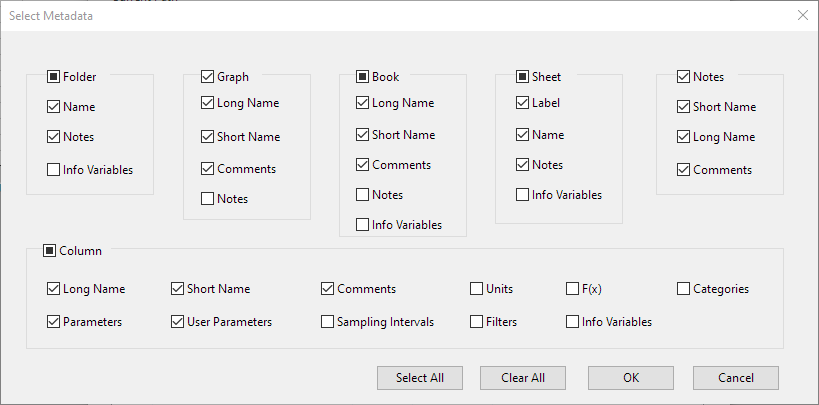
Click on the Select... button to open the dialog for selecting the metadata under the groups. If check the group checkbox in the Find dialog or Select Metadata dialog, that means selecting all checkboxes in the corresponding group. When uncheck some checkboxes under a group in Select Metadata dialog, the group check box will become undefined.
| Groups | Metadata |
|---|---|
| Folder | Name, Comments, Notes and Info Variables |
| Graph | Long Name, Short Name, Comments and Notes |
| Book | Long Name, Short Name, Comments, Notes and Info Variables |
| Sheet | Long Name, Short Name, Comments, Notes and Info Variables |
| Column | Long Name, Short Name, Comments, Unit, F(x), Categories, Parameters, User Parameters, Sampling Intervals, Filters and Info Variables |
| Notes | Short Name, Long Name, Comments |
Specify whether or not to search the value in the cells under the columns. If there are multiple data cells matching the value in Find What, it will just show the one information in the output result section.
Specify whether or not to search the value in the text objects on graphs.
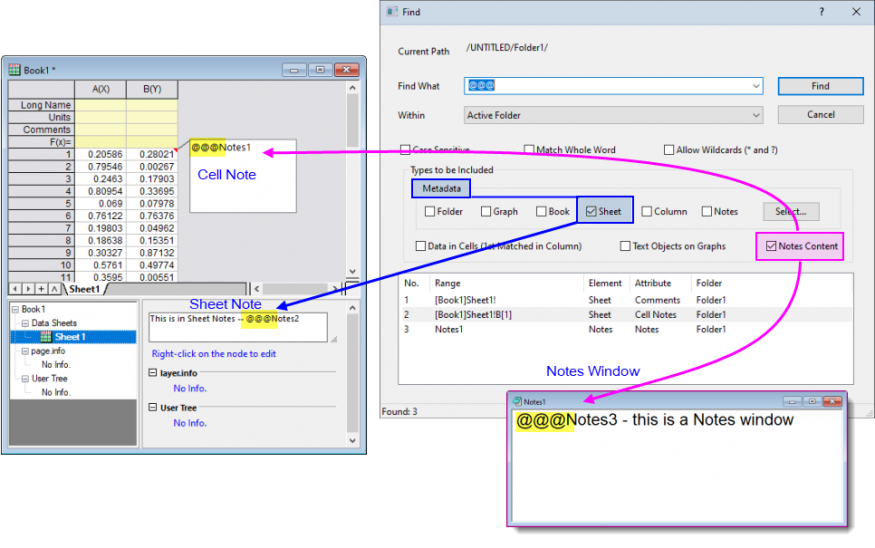
Specify whether or not to search the value in the Notes Content.
As the following image shows, "notes content" can be stored in various places and filtered using different settings:
When click Find button, the searching result will be output in the bottom table of this dialog.
This table includes the Range, Element, Attribute and Folder information.
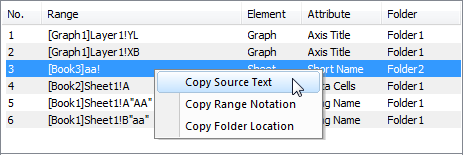
Right-click on the the row of the searching result, the context menu provides three information of this item to be copied.