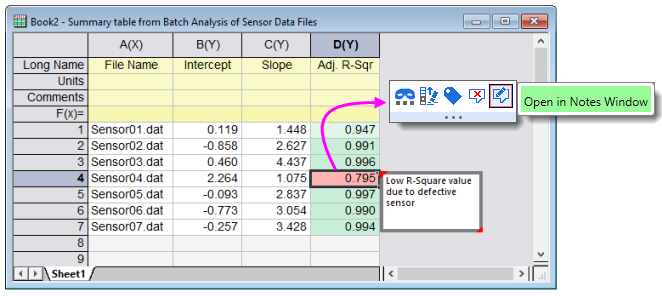
Any worksheet cell -- data row or column label row -- can contain a cell note; even those that contain data or other objects such as images or embedded graphs.
While displaying large quantities of mixed content (i.e. text, linked graphs, images, etc.) in popup notes isn't practical (text works best in popups), you can add any number to a Notes window for viewing or export.
 | To prevent cell note popups, set @NCP = 0. For information on setting the value of a LabTalk system variable, see this FAQ. |
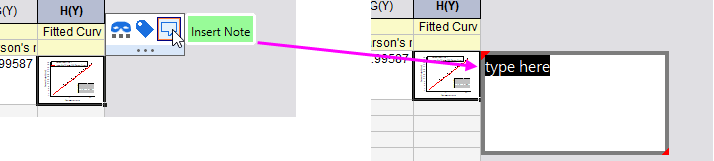
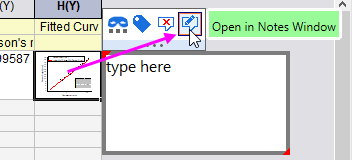
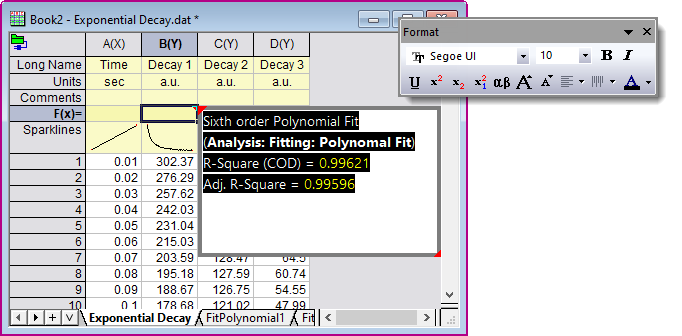
| There are several places in the Origin Project to add your notes. Three of them -- Folder Notes, Cell Notes (described here), and standalone Notes windows -- support mixed objects (e.g. text and images) and complex formatting, such as Origin Rich Text. In addition, you can add plain-text notes to the worksheet. |
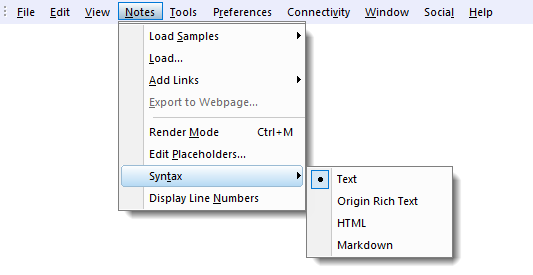
Origin's Notes window supports four syntaxes: Text, Origin Rich Text (default), HTML, and Markdown. Cell notes support Text and Origin Rich Text.
By default, all new cell notes and all new Notes windows (those added by clicking New Notes  on the Standard toolbar) are set to use Origin Rich Text. You can change the default for new cell notes by adding a line of script to \User Files\Origin.ini. This, you can do by indirect edit, using the following values: 0 = Text, 1 = HTML, 2 = Markdown, 3 = Origin Rich Text.
ed -syn 0
This adds a line of text to the [Options] section of \User Files\Origin.ini:
CellNoteSyntax=0
You can confirm that all cell notes will now use Text by default by (1) inserting a new cell note, (2) selecting the cell and clicking the Open in Notes Window Mini Toolbar button and (3) with the Notes window active, choose Notes: Syntax. The Text option should be selected.
| Note: For more information on cell notes, Notes windows and Notes window syntax, see the following topics: |