3.2 Opening, Closing and Backing Up the Origin Project File
OPJ-Open-Close-Backup
To open a project file
- From the menu, choose File: Open.... Make sure the Files of Type is Origin Files (*.opju, *.opj, .og?, *.ot?). Select the project file and click Open. This will close everything in the current workspace and load the selected project file. If modifications to the current project have not been saved, Origin will prompt you to save your work.
- From the menu, choose File: Append. You can select multiple project files. The selected project files will be added to the current workspace. You will be asked to (a) add them as subfolders in the current Project Explorer folder or (b) add them directly to the current folder. Note: Each child window name must be unique within a project, so child windows contained in appended OPJs may be renamed by enumerating.
- Drag-and-drop a project file from Windows Explorer into the Origin workspace. If the workspace is the default Untitled workspace, this will be equivalent to File: Open. If there is a named project file open in the current workspace, the dropped project file will be appended to the existing workspace and you will be prompted to (a) create a new folder or (b) add to the current folder.
- Double-clicking a project file in Windows File Explorer will launch a new instance of Origin with the project file loaded.
To save a project file
- Choose File: Save Project or click Save Project
 on the Standard toolbar. This will save everything in the current Origin workspace to the file name shown in Origin workspace title bar. Note: The Project Explorer folder that is active when saving the OPJ file will be the folder that opens when re-opening the OPJ file.
- Choose File: Save Project As... and specify a path, a File Name and Save as Type of *opju.
- Right-click a folder or subfolder in Project Explorer to save only that folder and its subfolders to a separate project file.
 | You can configure Origin to open a customized project file on startup. Select Preference: Options, click the Open/Close tab and set Start New Project to Origin.opj. Click "Yes" at the prompt. Then, save your customized project to the root of your User Files Folder using the name Origin.opj. Each time you run Origin, your customized project will be loaded automatically.
|
| Origin 2018 includes new file formats for projects, child window files and templates. When you save a file, you will have the option of saving a file with or without a "u" appended to the file type (*.opj or *.opju):
- If you intend to use the file only in the latest version of Origin, save to the new OPJU file type as it offers some performance advantages.
- If you intend to share the project with colleagues using earlier versions of Origin, you should save the project as the older OPJ file type.
- If you wish to have Origin default to saving the older OPJ (and/or OGG graph window file) file type, open the Script Window (Window: Script Window) and change the value of "@" System Variable @OPJ.
|
| From Origin 2023, it will not support to save save Project as *.opj. Old OPJ files can still be opened in 2023.
|
What is (and isn't ) saved with the Origin project file?
To Clone Current Project
Once a saved project has been opened and updated, you can "clone" the project, and then use the cloned project file to repeat the operations involved, with other data or the same data but changed in future. We call this cloned project as an analysis template project, which means it can be used as a working routine just like the general analysis template.
- Select File: Clone current Project.
- In the Data Manipulation: clrAllData dialog,
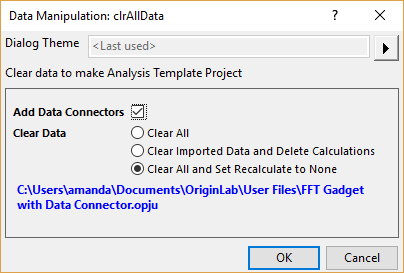
- The current project name and full path are shown if it has been saved. You can choose to
- Add Data Connectors to the worksheets that have not connectors yet. Please note that Add Connectors is available only when the current project has been saved. The data source of the newly-added Data Connector is the current project file, just like you import the source data by selecting Data: Connect to File: Origin File.
- Clear all data or just the imported data (including data imported by selecting the menu Data: Import from File).
- If the current project contains recalculation, you can choose to delete the re-calculable columns or set the recalculation to None.
This will create and open a duplicate of the existing project named UNTITLED.opju, in which all the windows and operations in the original project are kept. At the same time, all the imported data will be cleared but the connection between the data source and the destination worksheet will be kept. You can then simply update the data source, and all the worksheets and graphs are automatically updated.
Project Backup and Recovery
Origin has three different data recovery features which can be enabled or disabled from Preference: Options:
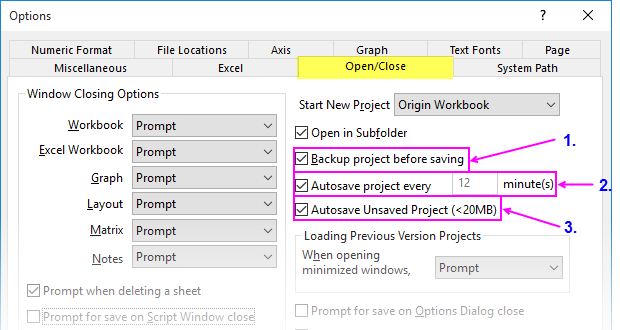
- Backup is the oldest Origin recovery feature and can be useful for recovering data when you have a project file that will not open. This file should contain the project content at the moment of the last successful file save.
- Autosave is useful for recovering from program crashes and power failures. The file is automatically saved at some predefined interval (by default, every 12 minutes).
- Unsaved is useful for recovering data that you declined to save on closing the file or the program (both Untitled and named files).
New Projects
By default when you launch Origin, the Origin window title shows UNTITLED to indicate a blank new project. This file remains named as UNTITLED until you choose File: Save Project or File: Save Project As. In either case, attempting to save UNTITLED will open the Save As dialog box where you can choose a path, a File name and a file type (Save as type).
Autosave Unsaved Project
If you make some modification to an open project - be it a named project or UNTITLED -- a star character ("*") will show next to the file name in the Origin title bar.

Once a file has been modified, attempting to close the file or exit Origin before choosing File: Save Project or File: Save Project as, will trigger a prompt to save changes to the project.
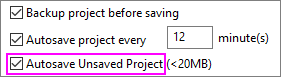
Beginning with Origin 2018, if you say NO and (1) Autosave Unsaved Project is enabled (default) and (2) the project file size is less than the value of LabTalk system variable @USM (default = 20MB), the project file will be saved automatically before closing (see Notes).
- If the project was UNTITLED, project contents are saved to C:\Users\User\Documents\OriginLab\Unsaved\UNTITLED.opj(u).
- If the project was previously saved with a project name, project contents are saved to C:\Users\User\Documents\OriginLab\Unsaved\projectName.opj(u).
To recover an unsaved project:
- Run Origin.
- Click Help: Open Folder: Unsaved Projects.
- Browse the folder for your unsaved file.
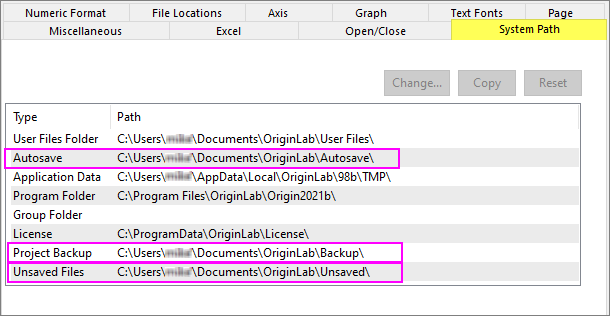
| The other way to locate folders associated with data recovery is to open Preference: Options and click on the System Path tab. Here, you will find paths for Autosave, Backup, and Unsaved files.
|
Notes on Unsaved Projects
- The maximum size for unsaved files is controlled by LabTalk System Variable @USM. By default, @USM is set to 20MB; unsaved files larger than the @USM threshold will NOT be saved if you exit without saving.
- There can be only one \Unsaved\UNTITLED file. If you decide to recover the contents of UNTITLED, you should open and immediately save the file with a meaningful name, as UNTITLED will be overwritten if you start another unnamed project and fail to save on close or program exit.
- By default, Unsaved Files are kept for 7 days, after which they are discarded. The "keeping time" is controlled by LabTalk System Variable @USKT.
Autosave Project Every xx Minute(s)
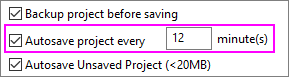
Origin also has an Autosave project every xx minute(s) feature that is turned on by default. When enabled, project contents are saved at a user-controlled time interval, to a temporary file in the user's \Documents\OriginLab\Autosave folder. During the session, named files will list in the \Autosave folder as projectFilenNme-xxxxxxxxx. UNTITLED projects will list as UNTITLED-xxxxxxxxx.
If you save an Origin project and exit the program normally, Origin "cleans up" by deleting these temporary files. If a named and modified project, or an UNTITLED project, is closed without saving, the most recent autosaved file will be saved to Autosave\Last-AutoSave.opj(u).
In the event of a program crash, both named and UNTITLED files should be preserved in their last autosaved state, as projectFilenNme-xxxxxxxxx and UNTITLED-xxxxxxxxx, respectively. By default, these files will be kept for only 12 hours so it is best to try and recover contents immediately (see Notes).
- Autosave is turned on by default for UNTITLED projects as well as named projects.
- If you opt not to save an UNTITLED project, project contents are written to a file named as Last-AutoSave.opj(u). As with \Backup\UNTITLED.OPJ(U), there can be only one file named as Last-AutoSave.opj(u).
- To disable autosave for UNTITLED projects, set @DASU=1.
- Locate the Autosave folder by one of the following:
- Select Help: Open Folder: Autosave menu to open the folder.
- Open Preference: Options.... The System Path tab lists all paths created by Origin, including Autosave (Note that, on this tab, you can modify the location of your Autosave folder by highlighting Autosave and then clicking the Change... button).
- Open Last-AutoSave.opju/opj. by (a) double-clicking on the project icon in Windows File Explorer, (b) use Origin's File: Open... menu command or (c) drag and drop the file onto your Origin workspace.
Controlling Autosave settings
To enable or disable this periodic autosave feature, or to adjust the period of time between autosaves:
- Choose Preference: Options menu to open Options dialog.
- Go to Open/Close tab and check or uncheck the Autosave project every x minute(s) checkbox and adjust the saving period as needed.
Notes on Autosave Projects
- If the current project size exceeds 20MB (by default, and controlled by "@" System Variable @ASC), autosaving will trigger the following attention dialog box:
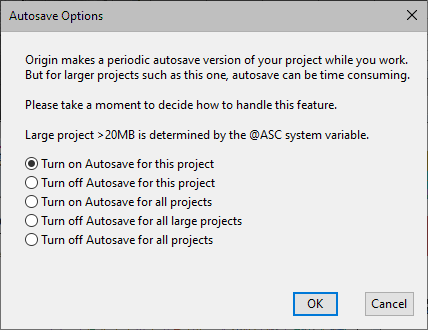
- Since autosaving of files can slow your work, this dialog box serves to allow you to turn off autosave for the current project or for any project larger than the threshold size. Do this only upon careful consideration.
- The time period that an Autosaved (crashed) project is kept is controlled by an "@" System Variable @ASKH. By default those "keeping hours" = 12, but you can change this value in the Script Window (Window: Script Window). If you do not want to automatically purge files from the /Autosave folder, set @ASKH = -1.
Backup Project Before Saving
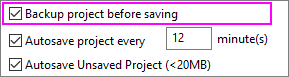
When you manually save a named Origin project file, a copy of the file as it existed at the time of the last save, will be saved to the Project Backup folder as projectName.opj(u). If, for some reason, you find that you cannot open a saved project (or it opens but you find that it is somehow corrupted), you should be able to roll back to the previously-saved version of the file by opening the file at \Backup. This feature is enabled by default and is independent of the "Autosave" and "Unsaved" features.
To open Backup projects:
- Run Origin.
- Choose Help: Open Folder: Project Backup.
or
Open Preference: Options, copy the \Backup path from the System Path tab and paste that path to the address bar in Windows File Explorer.
- Find the project file and open it.
| Note: The \Backup folder was added in Origin 2018b. In earlier versions, Origin will backup the previous version of the current project file by saving a BACKUP.OPJ(U) file to the User Files Folder (UFF). There could only be one BACKUP file so if you later reopened another project then subsequently, you saved that file, the BACKUP would be for the most-recently-saved file. Origin 2018b and later do not have this limitation as each backup is saved with the given file name.
|
To disable Backups:
- Choose Preference: Options... menu to open the Options dialog.
- Go to the Open/Close tab and uncheck the Backup Project Before Saving box.
Notes on Backup Projects
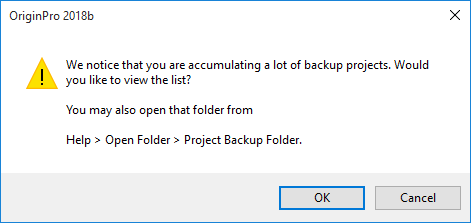
- Beginning with Origin 2018b, Origin can save multiple backup files, one for each named project. As these files are not automatically purged, they will accumulate over time, eventually consuming considerable disk space. By default, Origin displays a periodic reminder message about accumulating backup files. Control of this message is via "@" System Variable @BFS.
To check the Recent Projects
- Select File: Recent Projects to check the project be open in recently.
Or
- Select Help: Open Folder: User Files Folder. Then open OriginProjHistory.txt to check the complete path of the projects be open in recently.
Note: System variable @MHF controls the max number of file entries to keep in OriginProjHistory.txt in UFF. You can turn this off by setting this value (not registry) to be 8 or less.