See more related video:Creating an Analysis Template
See more related video:Creating an Analysis Template
The Origin workbook is capable of storing raw data, metadata, mathematical formulae, scripts and analysis results (including graphs and matrix). Combine this ability to store complex information with Origin's Recalculate analysis feature and you have the potential to create an Analysis Template.
The Analysis Template concept differs from Origin's workbook template concept in at least one very important way: when you save a workbook template (File: Save Template As) and save the file as an OTW(U) file, all data are destroyed. By contrast, when you perform some operation and save an analysis template (File: Save Workbook as Analysis Template) as an OGW(U) file, the workbook will not only retain information on the number of columns and sheets, column designation and order, format and style options -- the sorts of things that are saved with the OTW(U) file -- but you also save information on what sort of analyses you have performed and what sort of output you chose to generate. When supplied with the proper data, an Analysis Template will crunch your numbers and automatically create output in the form of worksheet data, matrix data, and analysis report sheets that summarize your results with a combination of tables and graphs. The Analysis Template can be an integral part of your Origin batch operations.
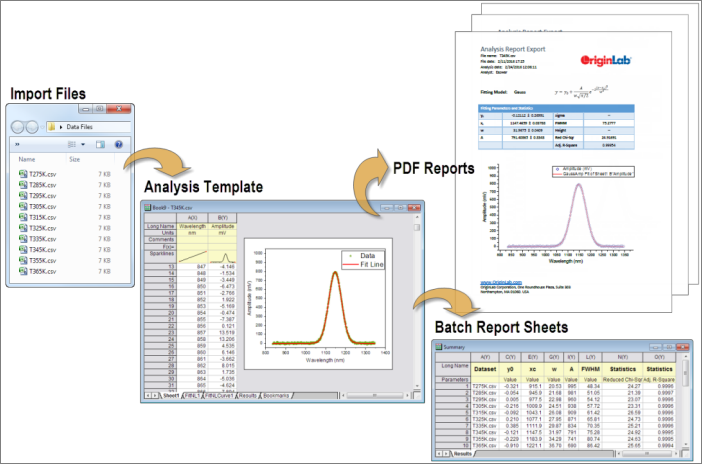
If all your analysis operations are consolidated into one workbook, you can select menu File: Save Workbook as Analysis Template... to save the workbook as an Analysis Template (*.OGW(U) file). You can directly drag this OGW(U) file into Origin to open it, and you will find all analysis related data are cleared but the analysis operations are kept as indicated by the green locks.
If you only want to use a saved template to process another dataset, workbook-as-template works the same as project-as-template where both require importing new data into the template to update all analysis related graphs and results.
The added advantage of the workbook-as-template method is that the Batch Processing dialog, opened by clicking button  or from menu File: Batch Processing, can be used to process multiple files or datasets automatically.
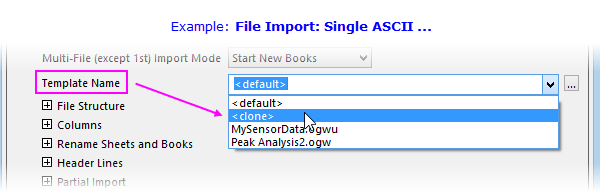
If you have analyzed one of your data files within one workbook, you can easily do the same analysis for all other files by importing them into the workbooks cloned from the active workbook. This is done setting Template Name to <clone> in the file type's import dialog.
To summarize and report analyzed results,
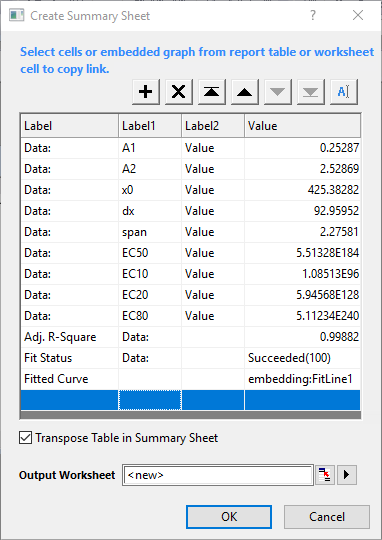
Besides manually copy desired analysis results and paste them as link to the Summary sheet, Origin 2025 introduced an interactive and friendly-used tool to help you quickly build your Summary sheet in the analysis template.
To open this tool:
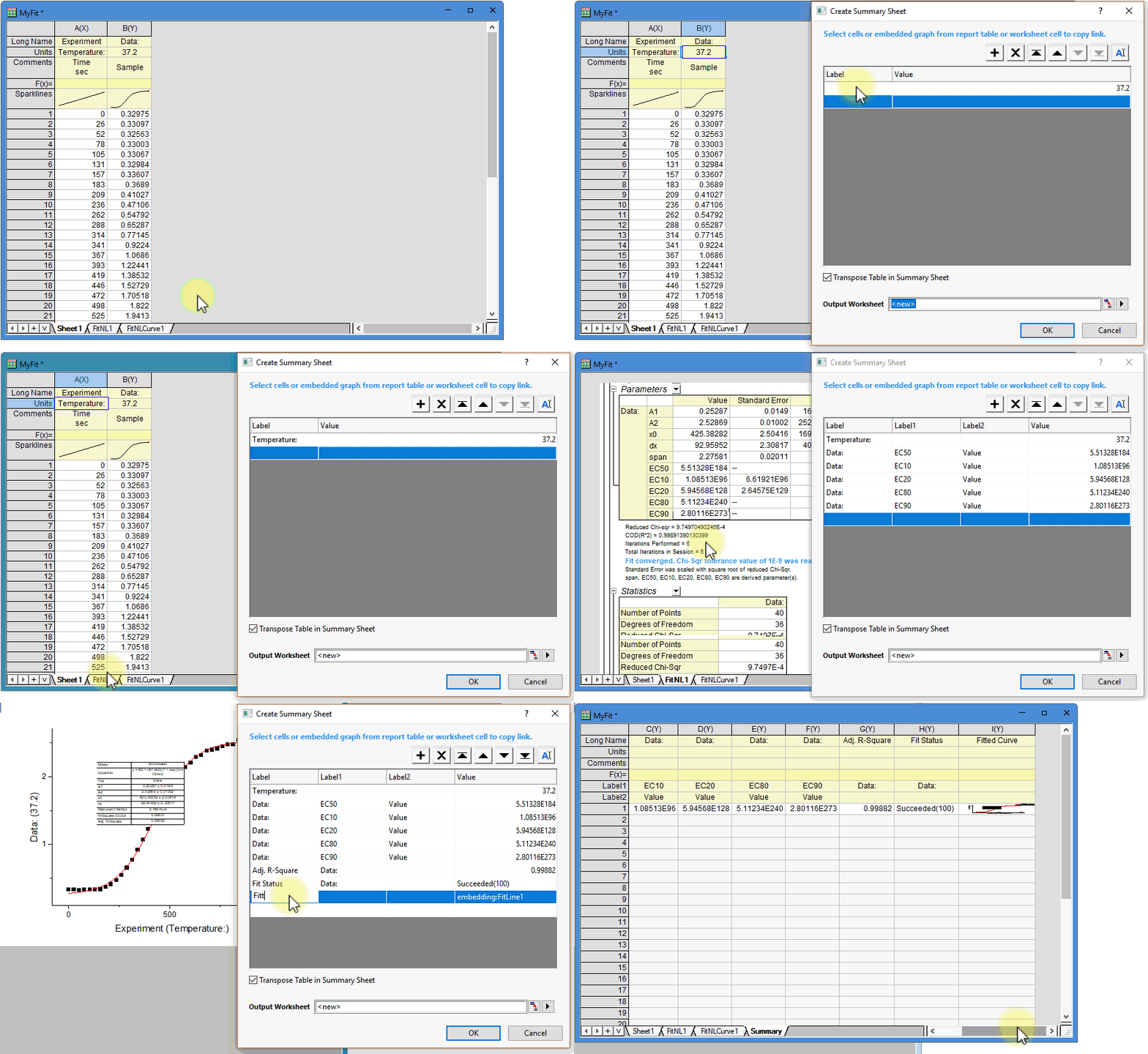
 button to select a desired label cell from worksheet interactively.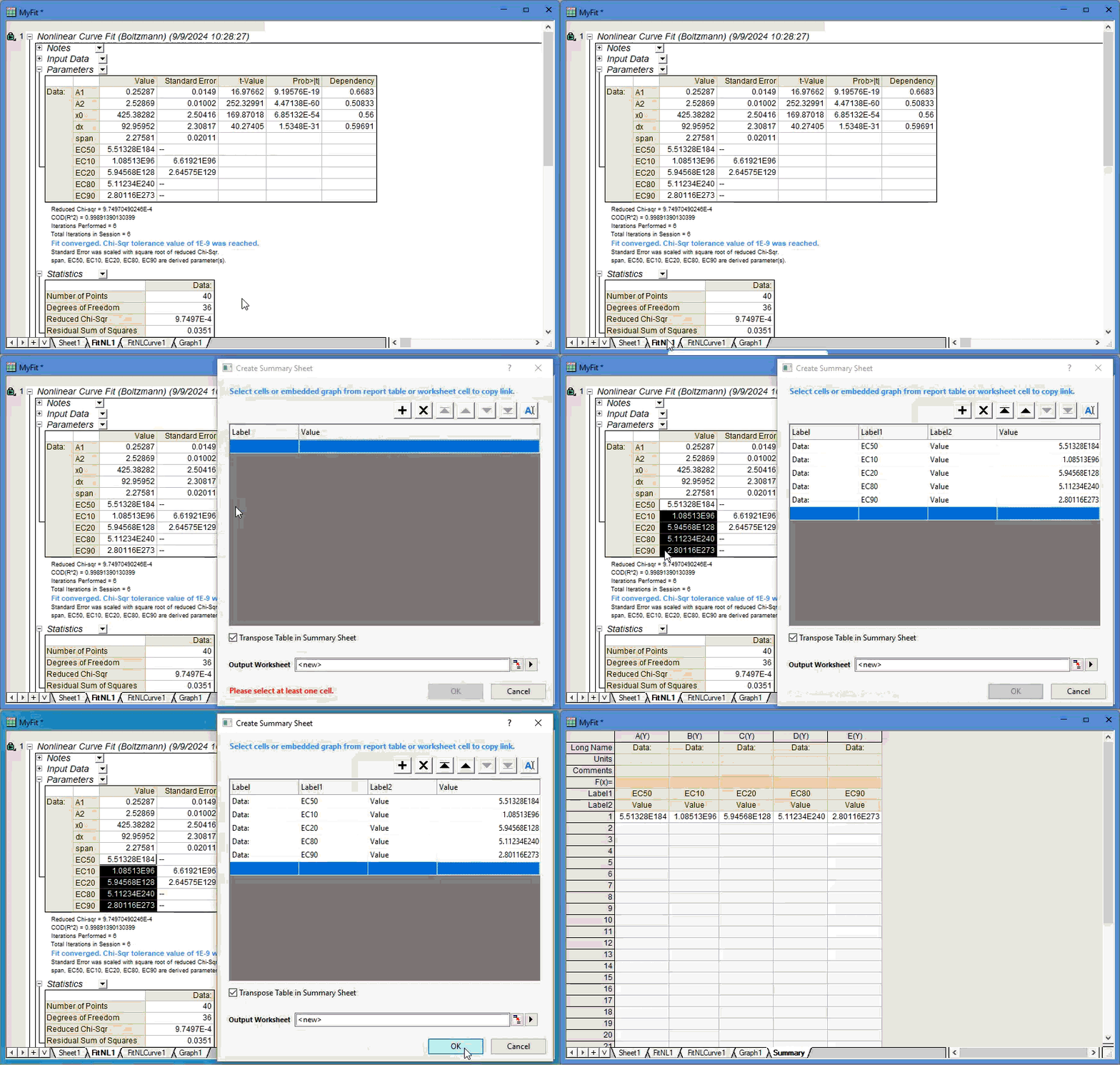
|
|
|
To do so, first you have to prepare a Word template with favorable cells bookmarked. The bookmarks can be added to an analysis template in a special worksheet with name Bookmarks, by selecting menu File:Add Word Bookmarks to Analysis Template to open Add Word Bookmarks to Analysis Template dialog.
To pass analyzed results via Word bookmarks to Word template, you have to copy results from the analysis template and paste them as links to the corresponding cells where Word bookmarks are added. When done, you can re-save current analysis template and use it along with the Word template to export batch analyzed results directly to a Word or PDF file.
This simple example will illustrate the concept:
 and open \Samples\Curve Fitting\Linear Fit.dat. The file is imported into the active worksheet. The sheet is renamed Linear Fit. and re-import \Samples\Curve Fitting\Linear Fit.dat. The file is imported into the active worksheet, the curve fit is performed and the results are written to the FitLinear and FittedValues worksheets.
 |
Note to Advanced Users: If your Analysis Template procedure is performed by a user-defined X-Function and you intend to save the Template as an OGW(U) file and share it with a colleague, you will need to check the Save with Object check box (X-Function Builder > Tree View) when creating your X-Function. |

|
The Importing Multiple Files into Workbooks Cloned from Active Workbook tutorial gives you step by step guidance to use current workbook as analysis template to batch process multiple files. The Creating and Using Analysis Templates tutorial gives you a quick start to use Analysis Template. The Batch Processing with Word Template for Reporting tutorial gives you step by step guidance to use Word template and Analysis Template to make Word/PDF reports.
|