2.1.15 Numbers in Origin
Number-in-Origin
The following provides a general discussion of how numeric values are handled in Origin.
How numbers are stored in Origin
Origin workbooks and matrixbooks support the following Data Types:
| Workbook
|
Matrixbook
|
Bytes
|
Range of Values
|
|
double
|
double
|
8
|
±1.7E±308 (15 digits)
|
|
real
|
float
|
4
|
±3.4E±38 (7 digits)
|
|
short
|
short
|
2
|
-32,768 to 32,767
|
|
long
|
int
|
4
|
-2,147,483,648 to 2,147,483,647
|
|
char
|
char
|
1
|
-128 to 127
|
|
byte
|
char, unsigned
|
1
|
0 to 255
|
|
ushort
|
short, unsigned
|
2
|
0 to 65,535
|
|
ulong
|
int, unsigned
|
4
|
0 to 4,294,967,295
|
|
complex
|
complex
|
16
|
±1.7E±308 (15 digits), each 8 bytes
|
For more information, see these topics:
Displayed cell value vs. actual cell value
When you import or type your data into a workbook or matrixbook, Origin uses a combination of user-specified settings to determine how to display the data in each cell. Note, however, that what displays is merely a visual representation of the data value and that the actual data values are stored with the full precision allowed by the dataset's Data Type, as noted above. When you perform calculations, it is the actual data values that are used and not the displayed values.
For more information, see these topics:
Display of numbers that exceed cell width
 | Prior to Origin 2020b, if the sequence of characters in a sheet cell exceeded what could be displayed at the current cell (column) width, Origin represented cell contents as a series of pound signs (######). This has changed to mimic MS Excel's worksheet behavior:
|
- Text strings will not trigger display of pound signs ###### regardless of column width. To view the full string, you must increase column width.
- Numeric values that exceed column width will first be rounded to the nearest decimal and only if that is not sufficient to display the full integer value, will pound signs ###### display in place of the numeric value.
- This rounding of numeric values affects the displayed value only (see previous section). The internally-stored value does not change.
- To restore the old behavior of displaying pound signs ###### whenever cell contents were not fully displayed, set system variable @WPE = 1. For information on changing the value of a system variable, see this FAQ.
Missing values in the worksheet or matrixsheet
When spreadsheet programs first appeared it was recognized that there was a need for a special number that was Not-A-Number which would - when used in a calculation - generate itself. Origin has such a number and its internal value is:
- -1.23456789E-300
Because Origin recognizes this value as a special value, it can be used to enter a missing value into a worksheet or matrix and it can be used in calculations or scripts (for instance, to return a missing value unless some condition is met). Origin displays missing values in a worksheet or matrixsheet as "--". However, you shouldn't confuse this display (output) with what you enter as a missing value (input).
| Prior to Origin 2019, if you skipped over cells while entering values into a worksheet column, skipped cells were treated as missing values and the "--" symbol was automatically entered into the cell. Additionally, if you selected a worksheet cell and chose Clear from the shortcut menu, the cell was treated as a missing value.
Beginning with Origin 2019, no missing value will be filled into skipped or cleared worksheet cells. They will just be left blank. To revert to the pre-2019 behavior, set LabTalk System Variable @CDB = 0 (for information on changing the value of a system variable, see this FAQ).
|
Other Methods of Entering Missing Values:
- For general purposes, you can manually enter missing values into an entire worksheet column with the NA() function by typing "
Na()" into F(x)=. To manually enter missing values into individual cells enter "=Na()"; or highlight a cell and press CTRL + Delete ( if @CDB=1 (default)).
- To set a missing value in an equation (for example, in the Set Column Values dialog box), divide anything by zero or choose the Na() function (Function: Miscellaneous from the Set Values menu).
- If a worksheet column Format is set to Numeric, typing any text (for example, "missing") will set the cell's value to a missing value. Likewise, for worksheet columns of Format other than numeric, you can manually enter missing values by typing something that Origin recognizes as invalid for that column type (For example, typing "13" into a cell in a column with Format = Month).
|
Note: Only Data Type = Double(8) supports missing values.
|
Decimal, scientific and engineering notation
You can opt to display workbook or matrixbook data in Decimal:1000, Scientific:1E3, Engineering:1k, and Decimal:1,000 notations. Apart from manually choosing to display workbook or matrixbook data using scientific notation, you can also specify that when certain thresholds are crossed, the elected data display option is overridden and numbers are automatically displayed using scientific notation. By default, these scientific notation threshold values are set to 6 (upper) and -3 (lower). When upper and lower values are 6 and -3, respectively:
- Values in the range of 1x10^-3 to 1x10^6 will display using the setting specified in the Display drop-down list in the workbook or matrixbook Properties dialog box (Decimal, Scientific, or Engineering).
- Values that exceed either the lower or upper thresholds (less than 1x10^-3 or greater than 1x10^6) will display in scientific notation, regardless of the setting in the Display drop-down list.
Controls for automatic display in scientific notation are located on the Numeric Format tab of the Options dialog box.
Custom Display Format
It is important to recognize that worksheet data are treated as either numeric data, text data, or missing values, apart from what is superficially displayed in the worksheet. If the stored data are not recognized as numeric, they will be treated as text strings or as missing values. There is no other option:
- If the displayed data are text, the text is stored literally.
- If data are displayed as some type of numeric data, including date-time data that have been properly configured in the worksheet column so that Origin treats them as date-time data and not text strings, these data are stored as a number.
The Origin worksheet supports a variety of custom formats, allowing you to display your numeric data in a form that is meaningful to you (e.g. "0.12" or "12%"), while still preserving the underlying numeric values. These custom formats need to be set or, as previously stated, your data may be treated as text or as missing values.
The following table briefly summarizes the types of custom display format options available for columns of worksheet data with a Format of Text & Numeric, Numeric, or Date and Time. Follow links for more details.
| Format
|
Custom Display Format Options
|
| Text & Numeric, Numeric
|
- Options for display of decimal digits, significant digits, percentages, fractions, exponents, padding or truncating of 0s, custom Engineering or Scientific notations, Degrees-Minutes-Seconds, text prefix or suffix, etc. See Custom Numeric Formats.
|
| Time
|
|
| Date
|
|
Dates and Times in Origin
As previously stated, data in an Origin worksheet are treated either as text values, numeric values, or missing values. Internally, Origin stores date data as a numeric value that is independent of the formatting used to display a date or a time in the worksheet. For instance, the worksheet can easily be configured to display the number "2458283" as "6/14/2018"; or as "Thursday, June 14, 2018"; or as a custom date and time format of your choosing. The point is that any chosen date and time format is merely a visual representation of an underlying numeric value.
Origin's default mathematical system for date and time is based on Astronomical Julian Day Numbers. This defines January 1, -4712 (January 1, 4713 BCE), 12 hours Greenwich Mean Time as zero. Origin uses a 12 hour offset in order to have 0 hours coincide with midnight. No assumptions are made about time zones or any time shifting scheme (such as Daylight Savings).
In this system, for example...
- 11 June 1998 at 21:23:01
... has an Origin Julian Day Number of ...
- 2450975.890984.
Adding 0.5 (Origin's 12 hour offset) gives you the Astronomical Julian Day Number of 2450976.390984.
It is the Origin Julian Day Number that is used internally to store and operate on date and time data. Be aware that when typing or importing "date" or "time" data into the worksheet, Origin will, by default, treat such imported values as text. Your visual cue that date-time values are being treated as text, will be that the date-time data are left-aligned.
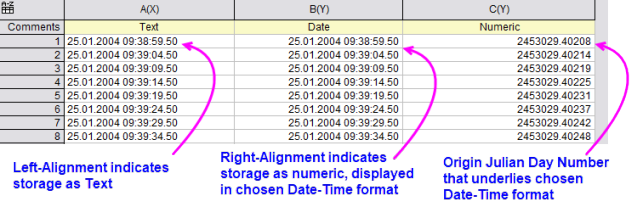
In order for Origin to both display your date and time data in the proper format and store the date time data internally as an Origin Julian Day Number that can be used for math operations or graphing, the worksheet column must be properly configured. For more information, see these topics:
 | Beginning with version 2019, Origin offers two alternate time systems: (1) a true Julian Date value (0 is at noon instead of the following midnight) and (2) a "2018" system in which 0 is defined as 00:00 on January 1, 2018. The 2018 system supports greater precision when, for instance, importing data with the Import Wizard (e.g. Custom Date Format supports "MM'/'dd'/'yyyy HH':'mm':'ss'.'######"). Previously, precision was limited to 0.0001 seconds. For more information, see Dates and Times in Origin.
|