 See more related video:Import Filter
See more related video:Import Filter
The Import Filters Manager, available in the Preferences menu, provides an overview of all import filters, including User-defined filters in the User Files\Filters folder. In this dialog, you can see filter names, categories, supported file types, and whether Origin supports drag-and-drop import for each file type. To modify filter settings with the iwfilter dialog, select a row and click Edit.
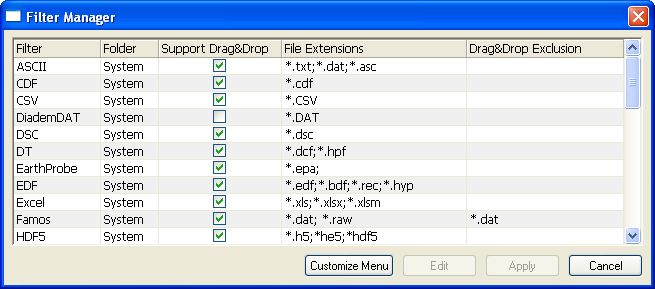
The descriptions of the controls are given as follows:
| Filter | Filter names. |
|---|---|
| Support Drag & Drop | Check to support Drag & Drop import mode. |
| File Extensions | Supported file types for the filter. |
| Folder | Filter location (category), system or user-defined filters. |
| Drag&Drop Exclusion | List the file types or files which don't support Drag&Drop. |
| Customize Menu |
Open the Import Menu Customization dialog. |
|---|---|
| Edit |
Open the iwfilter dialog to edit filters. For detailed information about iwfilter, please read the iwfilter dialog box description below. |
| Apply |
Apply the changes. |
| Cancel |
Cancel and close the dialog. |
Use X-Function iwfilterto make or edit an import filter:
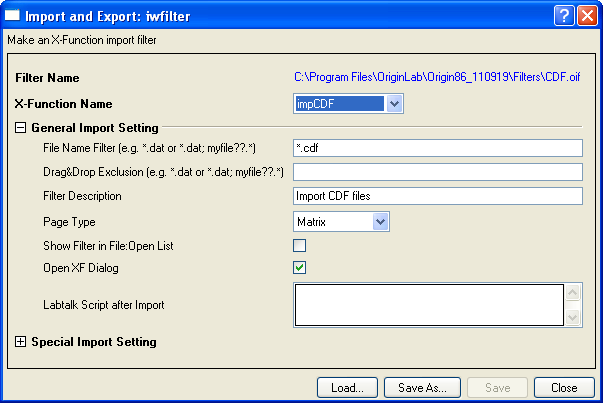
| Filter Name | Show the name and path of the filter which is being edited. It is not editable. |
|---|---|
| X-Function Name | Specify the name of the X-Function for which the filter is used. |
| File Name Filter | Specify supported file types for the filter using wildcards. For example, *.dat imports all files with a .dat extension. |
|---|---|
| Drag&Drop Exclusion | Specify file types that do not support drag-and-drop. |
| Filter Description | Describe the filter's usage or contents. |
| Page Type | Select the type of page to be imported to.
|
| Show Filter in File: Open List | Indicate whether to show filtered file extensions in the Files of type dropdown list when using the Open... dialog. |
| Open XF Dialog | Specify whether to open the X-Function dialog in the process of importing. |
| Labtalk Script after Import | The LabTalk script entered here is executed after importing. For example, you can enter plotxy iy:=(1,2) to plot a graph after importing a data file.
|
The contents of this group vary depending on the X-Function. Please refer to the Options treenode of the specific X-Function's Help document.
The User Defined branch is available when you edit a user-defined import fileter. It has three options:
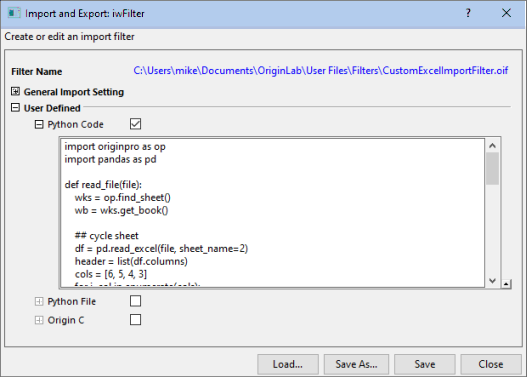
For basic information on programming options in Origin, see the Programming in Origin chapter.
At the bottom of the panel are four buttons:
| Load... |
Open an existing filter and load all its settings. |
|---|---|
| Save As... |
Save the filter with another name. |
| Save |
Save the filter with its current name. This button is not available when you are editing a system filter. |
| Close |
Close the dialog box. |