As mentioned in the previous sections, you can select a file format from the Import from File' menu to run the X-Function that imports files of the specified format. Similarly, the Export menu can be used to export the active matrix, worksheet, or graph to a chosen format.
These two menus are constructed dynamically when Origin starts up, by scanning the X-Functions in following two folders:
1. The \Import and Export subfolder of the \X-Functions folder in the Origin program folder.
2. The \Import and Export subfolder of the \X-Functions folder in the user files folder.
The X-Functions in these two folders are listed in either of the menus, depending on their filenames:
1. Those that begin with "imp" are put in the Data : Import from File menu.
2. Those that start with "exp" are listed in the File : Export menu.
The scanning of the X-Functions is performed every time Origin starts up. Therefore, if the X-Functions in the \Import and Export folder are changed, you will see the updates on the Data : Import from File and File : Export menus next time you start Origin.
| Note: Usage Context of an X-Function can affect whether the X-Function is shown in the menus. For more details on the Usage Context of X-Functions, please refer to the Creating X-Functions topic in the X-Function manual. (Only available in the digital Help document) |
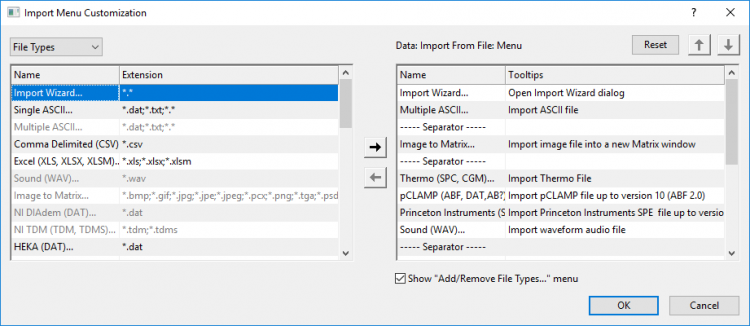
Origin allows you to specify what file types and import themes to show in Data : Import from File menu using the Import Menu Customization dialog, opened from menu Data: Import from File: Add/Remove File Types....
Using this dialog, you can
| Note: Once the Show "Add/Remove File Types..." menu check box is unchecked, you only can open the Import Menu Customization dialog in the Import Filter Manager. |