 See more related video:Insert Graphs
See more related video:Insert Graphs
Origin worksheets can be a container for various types of information, beyond the usual tabulated text & numeric data. For instance:
This topic is concerned only with those things that can be inserted into worksheet cells, either in the header rows (aka "column label rows") or data rows.
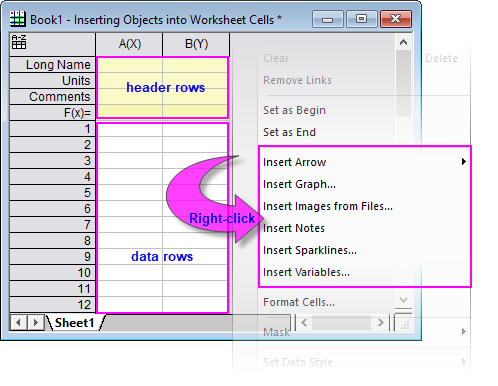
The following table lists things that can be inserted into worksheet cells. Some elements can be inserted into either header rows or data rows (indicated by the availability of the shortcut or menu command).
 | Linking Origin worksheet cell contents to variable values, to values in other Origin workbook cells or to other graph windows, can all be useful in automating routine tasks and generating reports. |
| Element | Comments |
|---|---|
|
Arrow |
Useful for annotating worksheets.
|
|
Graph as Editable Graph† |
This embeds an editable graph in the worksheet cell. Edit the graph by double-clicking on the worksheet cell. When you have finished, click the Close button
|
|
Graph as Picture† |
This inserts a graph as a picture object. You can link the picture to the source graph so that any change to the source graph updates the picture.
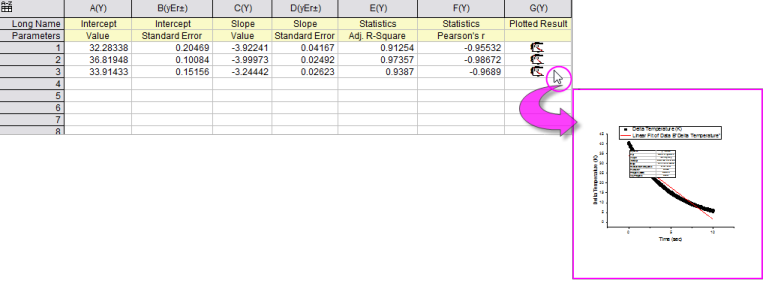
You can mouse over the cell to see a preview. |
|
Hyperlinks |
You can insert hyperlinks into worksheet cells. For more information, see Inserting Links into Worksheet Cells. |
|
Image from File† |
Inserts an image (.JPG, .BMP, .GIF, etc.). Double-clicking on the cell opens the image in the Image window.
Once opened in an Image window, the inserted image can be linked to an external source file. This helps control project sizes when many (or large) images are involved. See the following links for information on (1) linking and (2) restoring externally-linked images to the workspace of opened project files. |
|
Long Names, |
The header rows can display a wide variety of sheet and column-related data. For more information, see Displaying Supporting Data in Worksheet Header Rows. |
|
Notes |
To add a cell Note, select a cell then click the Insert Note button
|
|
Equation |
LaTeX equation can be insert into data area and label rows (e.g. Long Name, Unit, Comment).
|
|
Sparklines† |
A sparkline provides a thumbnail plot of the data contained in a worksheet column.
|
|
Variables |
You can insert variables stored in the worksheet's binary storage area (as might result from importing data files with important header information) into a worksheet cell, either as static values or as a linked value. When inserted as a linked value, a cell value is updated as the value of the linked variable changes (as might result from importing a new data file). For more information, see The Insert Variables Dialog Box for Worksheets. |
†Note: Beginning with Origin 2018, any inserted graph, whether it be a an editable graph, a graph inserted as a linked or static picture, an image inserted from file, or a sparkline, will generate a pop-up preview when you hover on the containing cell.
| To insert the image file into Worhsheet cell, you also can copy and paste it directly.
|
| Topics covered in this section: |


