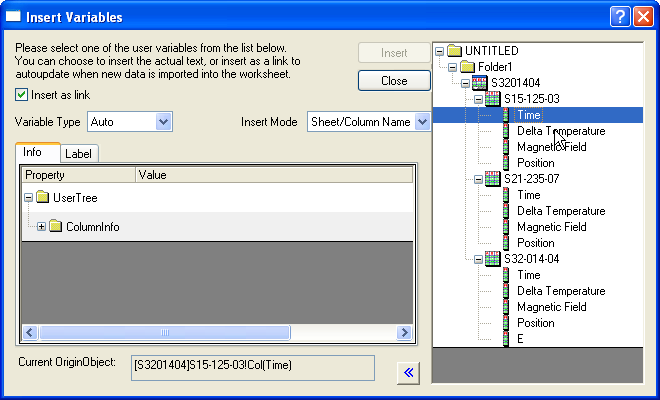
The Insert Variables dialog box is used to insert workbook metadata into a worksheet cell.
This dialog can be opened in two ways:
The Insert Variables dialog box is also used to insert metadata into text objects in the workbook or into text objects in an associated data plot. For details, please see this page.
| Note: If you want to insert LabTalk variables (defined in an OGS file, in the Script Window, etc.), into text objects in a worksheet or graph, please refer to Linking Text Labels to Data and Variables. |
Select this box to insert a string that is dynamically linked to the value of a variable. Any change of the variable value will produce a corresponding update of the string.
This drop-down list is only available when you open this dialog from the Variable menu of Set Column Values dialog. This determines the type of the variable which is declared in the Before Formula Scripts panel.
Options include:
This drop-down list is available when a sheet or a column is selected in the right panel.
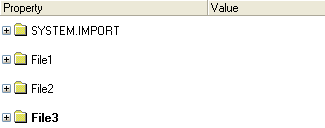
Select the information you wish to insert.
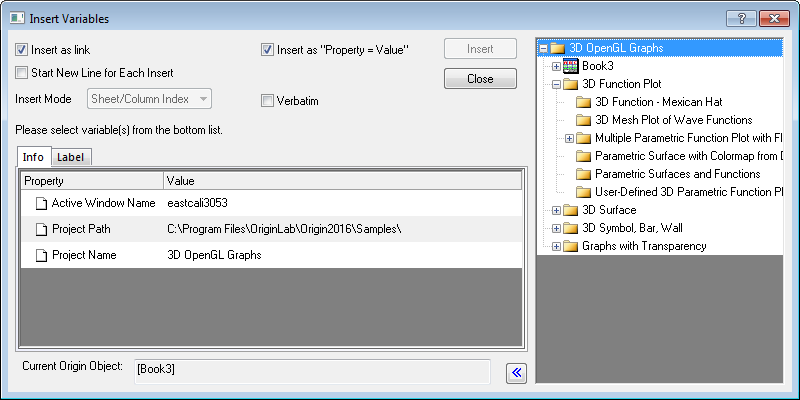
Since Origin 2016 SR0, you can choose to insert additional information variables: Active Window Name, Project Path, and Project Name as displayed in Info tab when the root folder is selected on the right panel.
 | To view these information, you need to select Add Info Variable or Add Column Label Cell from the Variable menu in the Set Column Value dialog. |
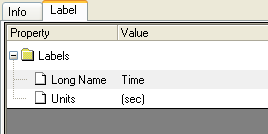
When you select the column in the right panel, the labels for the column ,such as long name, comment and unit, will be listed in this tab. Select a label and then you can insert it into the target worksheet.
[Workbook]worksheet!column
Displays the Origin object selected in the right panel.
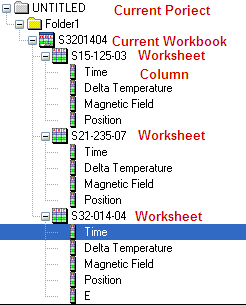
This panel shows the structure of current project. You can select different Origin object to show the corresponding info in the left panel and select the information to be inserted.
If you right-click on the right panel, the following menu will pop up.
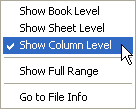
| Show Book/Sheet/Column Level | Show the project till the selected level. |
|---|---|
| Show Full Range | Specify whether to show the objects listed with full range strings, such as [S3201404]S15-125-03!Col("Time"). |
| Go to File Info | Switch to the Info tab of the left panel. |