You can always open Axis dialog to add objects on axes, such as straight lines, reference lines, etc. This page will show you how to add these axis related objects quickly and intuitively.
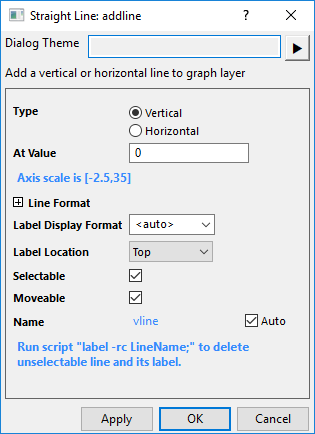
Select Insert: Straight Line... to open the Striaght Line: addline dialog.
You can insert a vertical or horizontal straight line with its label at specified position of X or Y axis.
You can expand Line Format brach to customize the line style; And decide the display format and the postion of the label.
If Selectable and Moverable are checked, the line can be drag and drop to other places of the axis and the label will automatically updated.
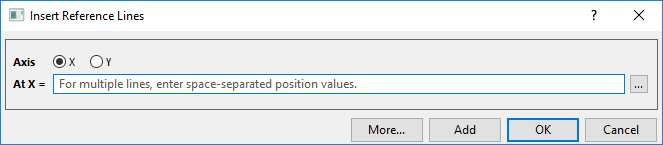
Select Insert: Reference Line... to open the Insert Reference Lines dialog:
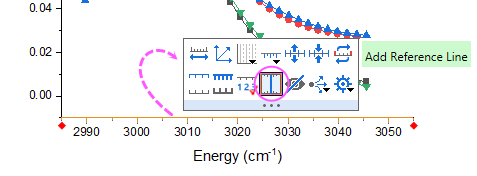
This dialog can also be opened by clicking on the axis to press the Add Reference Line button:
You can choose a axis to add the reference lines onto.
You can enter multiple space-seperated values into the At X= or At Y = box to add multiple reference lines.
And, clicking the button  to expand the statistic string list to enter a statistic value.
Clicking More... button will open the Reference Lines dialog to let you do further customization for the reference lines you added.
Note: Once you added a reference line you can click on it to use the Mini toolbar buttons to do further customization.