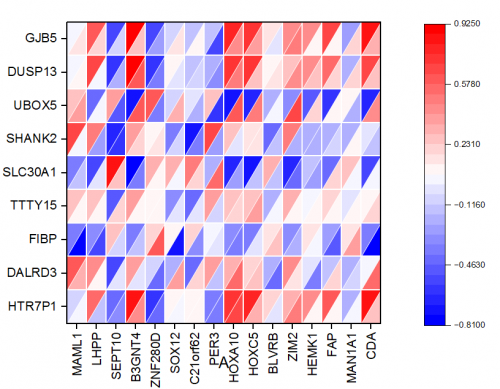
Worksheet: Select XYZZZ... /XYZXYZ... columns (full or subrange); XYY... columns as virtual matrix.
Matrix Sheet: A matrix sheet with multiple objects.
If plotting from a worksheet with virtual matrices(no Z columns there), the plotmultivm dialog box that opens:
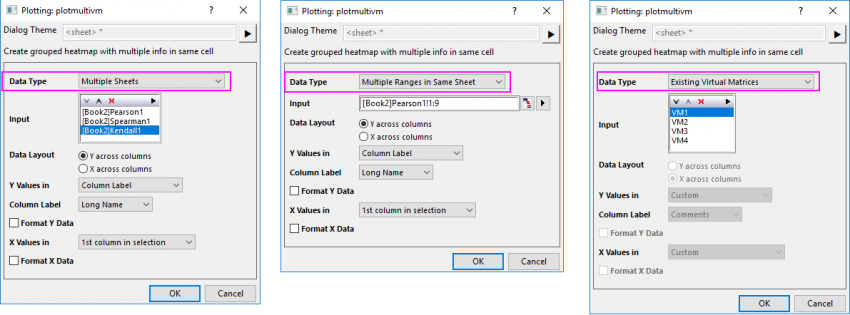
Three options for Data Type:
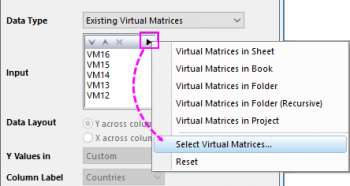
Once you selected the Input Data, the other settings in this dialog are similar with the controls in plotvm dialog.
If plotting from multiple XYZ columns or XYZZ... columns, the plot_heatmapxyz dialog box that opens:
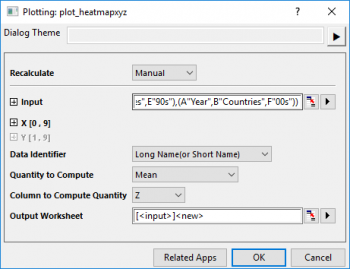
Note: This dialog makes no difference for Heatmap and Heatmap with Split Tiles created from XYZ dataset. Multiple Z columns will be plotted into same heatmap cell as pieces.
If you stored the source data in multiple matrix objects in a matrix sheet, selecting will plot a Heatmap with Split Tiles directly with values at same location from different objects dividing the same heatmap cell.
Heat_Map_Multi_var.OTPU
This plot is an advanced variant of Heatmap, which supports to plot grouped heatmap in same cell.
| Minimum Version: Origin 2024 |