, the Annotation
  , or the Data Cursor tool
  from the Tools toolbar.
The Data Info window and Data Point Tooltips are related features that use similar dialog boxes to display similar descriptive information about a plotted data point.
, the Annotation , or the Data Cursor tool from the Tools toolbar. In the image below, we have an automobile dataset comparing models from various manufacturers over a number of years. We begin by making a plot of Power vs. Gas Mileage and we want to do a little exploratory analysis using the resulting plot. We pick the Data Reader from the Tools toolbar and click on a point in the graph that looks to be a bit of an outlier. The Data Info window opens and shows us that we have picked a point in row 334 or our worksheet and that it has coordinates of X = 66 (Power) and Y = 36 (Gas Mileage).
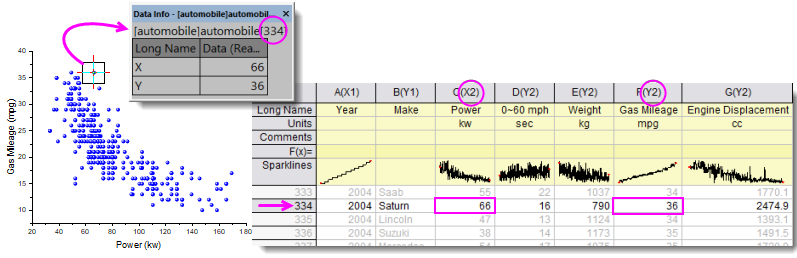
If we return to the source worksheet we find that row 334 happens to be a Saturn model, Year = 2004 and it has a rated Power = 66kw and a Gas Mileage = 36mpg. The Data Info window reports this information in its default configuration; but as we are doing our exploratory analysis, wouldn't it be helpful to know more than just X = 66 and Y = 36? What if, instead of reporting simple XY coordinates, we gave meaningful labels to the X and Y values? Also, wouldn't it be helpful to know automobile make and model and perhaps other available information about this data point (2004 Saturn) -- 0-60mph time, Weight and Engine Displacement? We can add this data to the Data Info window and even save our custom configuration for the next time we need to perform such exploratory analyses.
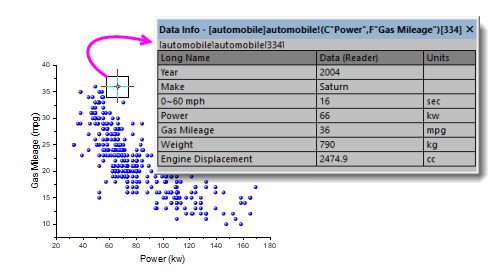
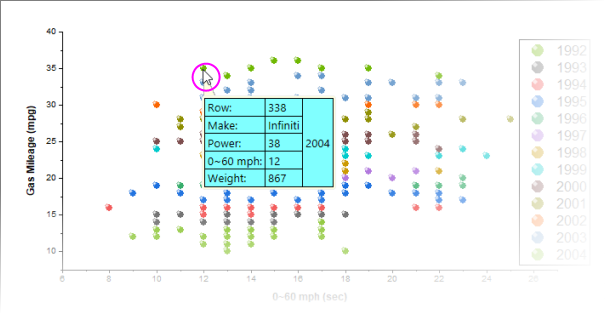
Starting with Origin 2019, you can simply hover on a data point to produce a tooltip that can be configured to report much the same information as the Data Info window. The tooltip is customized via the Data Point Tooltip dialog -- a slightly-simplified version of the Data Info Report Settings window.
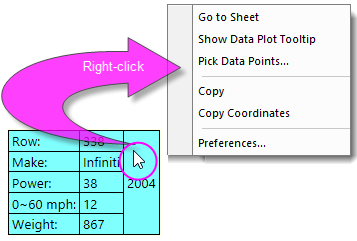
Tooltip Shortcut Menu
For tooltip customization and other options, right-click directly on the data point tooltip.
 | There are a couple of ways to turn off display of the data tooltips (see next tip). The quickest way -- particularly if you find this feature useful but just want to temporarily disable it -- is to activate the graph and click the View menu. Clear the check mark beside Data Tooltips. Tooltips will be disabled for all graphs until you click this menu item again or until you start a new session. |
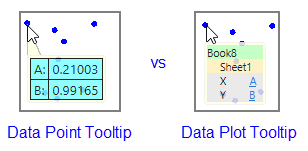
| There are two data tooltips, the other one being the older, non-customizable Data Plot Tooltip. You can toggle between the two or you can turn them off completely. To turn Data Point and Data Plot tooltips on or off on startup, change the values of LabTalk system variables @PT and @PTI. @PT=0; //Disable both data plot and data point tooltips @PT=1; //Enable data plot tooltips for 2D graph @PT=2; //Enable data plot tooltips for 3D OpenGL graph (default) @PT=3; //Enable data plot tooltips for both 2D graph and 3D OpenGL graph @PTI=0; //Disable only data point tooltips @PTI=1; //Enable data point tooltips (default) |
| By default, the Data Point Tooltip displays with a moderate degree of transparency. You can affect tooltip transparency by changing the value of LabTalk System Variable @TDT. For information on changing the value of a LabTalk System Variable, see this FAQ. |
Right-click on the Data Info window to bring up the context menu.
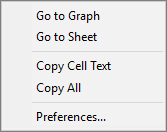
| Go to Graph |
Go to the source graph. Not available when the graph window active. |
|---|---|
| Go to Sheet |
Go to the source worksheet. Not available when the worksheet is active. |
| Copy Cell Text |
Click in a Data Info window cell and copy the text in the cell to the Clipboard. |
| Copy All |
Copy all the text displayed in the Data Info window to the Clipboard. |
| Preferences | Open the Data Info Report Settings dialog. Additional information about configuring Data Info Report Settings is provided below.
Note: The Preferences context menu is only available when the graph window is active. |
The Data Info Report Settings dialog is used to customize the content displayed in the Data Info window.
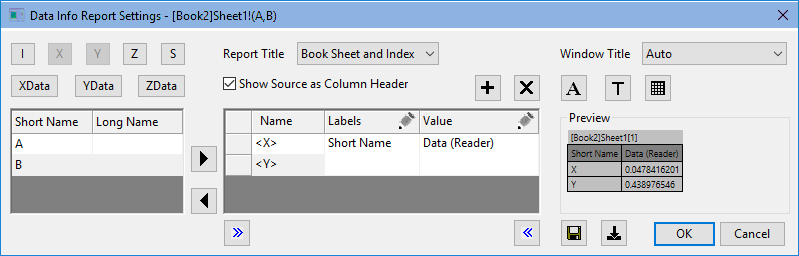
| Use the Show/Hide buttons at the bottom of the dialog to temporarily hide the outside panels so that you can make the center panel wider. |
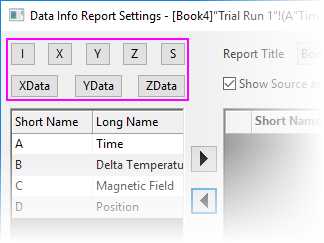
Generally, you will want your Data Info window to display the X and Y values (and Z if they exist) of your selected point. Use these buttons to add data point values to the Data Info window (or Data Point Tooltip).
When plotting numeric data, it is common for graph axis tick labels to be formatted differently than are the corresponding data in the source worksheet. In such cases, you can use either coordinate (e.g.  ) buttons and source buttons (e.g.
  ) for adding data point values:
Note that in either case, you can still apply a custom format to Data Info or Tooltip display (i.e. you can set distinct formats for (1) worksheet, (2) graph axis and (3) tooltip dislplay) -- see Column Settings, below.

|
<I> Row Index : The worksheet row index of the selected point. |
|---|---|
|
|
<X> X Coordinate : The x coordinate of the selected point. |

|
<Y> Y Coordinate : The y coordinate of the selected point. |

|
<Z> Z Coordinate : The z coordinate of the selected point. |
|
|
<XData> Source X Data : The source x dataset of the selected point. |

|
<YData> Source Y Data : The source y dataset of the selected point. |

|
<ZData> Source Z Data : The source z dataset of the selected point. |

|
<S> Black Space : Add a separator. |
The column controls in the left and center portions of the dialog box are used for adding, arranging and formatting the display of data associated with a particular data point.
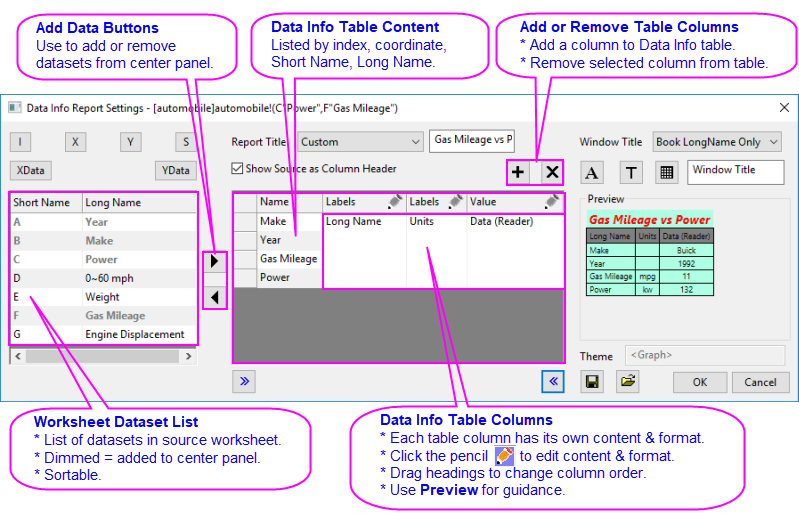
| Worksheet Dataset List |
This panel lists all datasets (columns) in the worksheet used to create the plot. This list may include unplotted data. Datasets are listed by column Short Name and by Long Name, if it exists.
|
|---|---|
| Add Data Buttons |
Use these buttons to move datasets in or out of the Data Info window. |
| Data Info Table Content |
This is a listing of all datasets currently added to the Data Info window. These are listed only by column Short Name:
|
| Data Info Table Columns |
Each column in the Data Info table (visible in the Preview) is configured independently.
|
| Add or Remove Table Columns |
Click to add or remove columns from table content (from the Data Info window). Drag column headings, as needed, to rearrange columns in the table. |
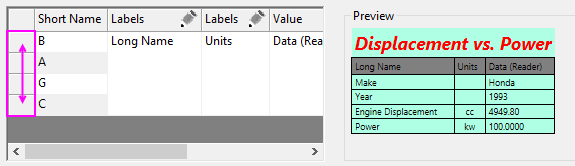
| To reorder rows in your table, drag the buttons to the left-side of the center panel. |
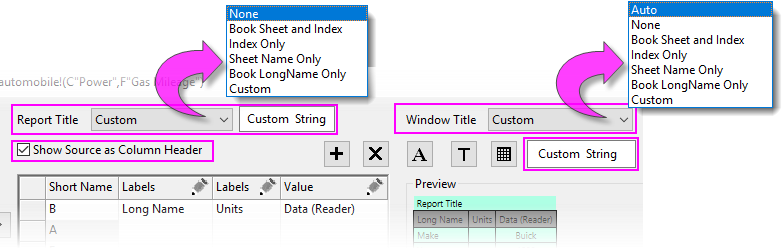
Use the Title controls to add key information to your Data Info window.
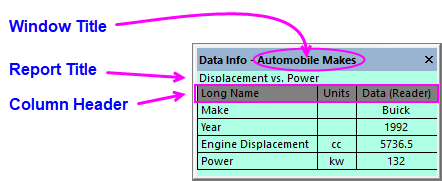
Where are these elements?
| Report Title |
Use this drop-down list to specify the report title. The supported options include:
|
|---|---|
| Custom String |
Option only available when Custom is selected for the Report Title. Enter literal strings or build a string using LabTalk String Registers, in combination with variables i (row index) or point coordinates X, Y, Z. %N = Book Short Name You can also use elements from this List of @Options, provided you follow the form used in the example column (e.g. %(1,@W)). example: either [%N]%B[$(I)] or [%(1,@W)]%(1,@WS)[$(i)] displays as [Book Short Name]Sheet Name[Row Index]. |
| Window Title |
Use this drop-down list to specify the window title. The supported options include:
|
| Custom String |
Option only available when Custom is selected for the Window Title. Enter literal strings or build a string using LabTalk String Registers, in combination with variables i (row index) or point coordinates X, Y, Z. %N = Book Short Name You can also use elements from this List of @Options, provided you follow the form used in the example column (e.g. %(1,@W)). example: either [%N]%B[$(I)] or [%(1,@W)]%(1,@WS)[$(i)] displays as [Book Short Name]Sheet Name[Row Index]. |
| Show Source as Column Header |
Add a column header to Data Info. The header shows the source of the data in each Data Info table column -- generally, indicated by the column Short Name, Long Name or other worksheet column label row heading; or Data (coordinates) or Relative (distance). |
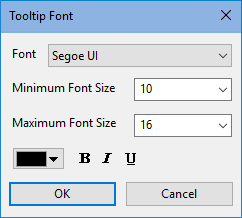
| Font | Set font face. |
|---|---|
| Minimum Font Size | Set the minimum font size. Default value is 10. Note that the font size will be changed upon resizing the columns in the Data Info window. Setting a proper minimum size will ensure the text is legible. |
| Maximum Font Size | Set the maximum font size. Default value is 16. Note that the font size will be changed upon resizing the columns in the Data Info window. Setting a proper maximum size will ensure the text is legible. |
| Font Color and Style | Set font color and style for the Data Info window. Note that the Report Title can be configured independently.
|
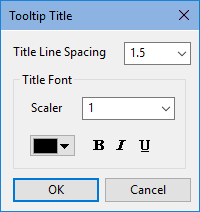
| Title Line Spacing | Set line spacing for the Report Title. |
|---|---|
| Title Font Scaler | Scale factor for the Report Title text. |
| Font Color and Style | Set Report Title font color and style.
|
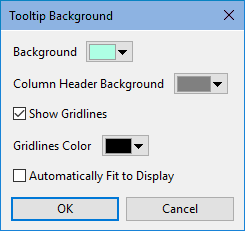
| Background | Set background color. |
|---|---|
| Column Header Background | Set background color of the column header. |
| Show Gridlines | Enable or disable grid lines. |
| Gridlines Color | Specify grid line color. To create a custom color, see this page. |
| Automatically Fit to Display | Automatically fit content to the window when the Data Info window is resized. |
The Display Tab contains options for customizing the display of the Data Info window.
| Type |
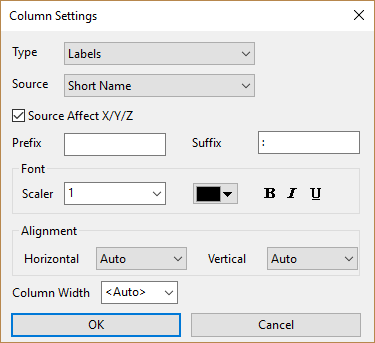
Set what kind of information to show in the current column, options include:
| ||
|---|---|---|---|
| Source |
When Type =
| ||
| Source Affect X/Y/Z |
Check this box to list source data by column Long Name, if it exists; otherwise list by Short Name. This box is automatically selected when you add source data to your table (i.e. you add data values using | ||
| Prefix |
Specify a string to prefix to column content. | ||
| Suffix |
Specify a string to append to column content. | ||
| Font Scaler | Scale factor for the column text. | ||
| Font Color and Style | Set font color and style for the column text.
| ||
| Column Width |
| ||
| Horizontal and Vertical Alignment |
|
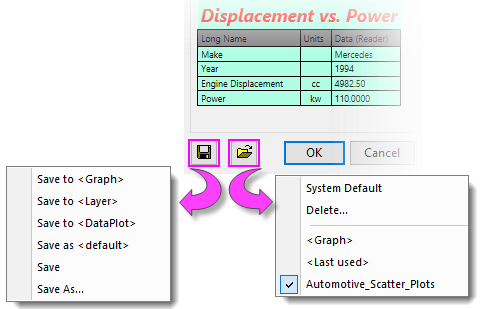
Your custom Data Info configuration can be saved with the active graph window, the active graph layer or even the active data plot. Further, you can load a named Theme at a later time, saving you the trouble of having to recreate your settings.