
See more related videos: Color Manager
|
See more related videos: Color Manager |
Origin provides a Color Manager tool to customize the Color List and Palettes used in Origin.
To open the Color Manager dialog box:
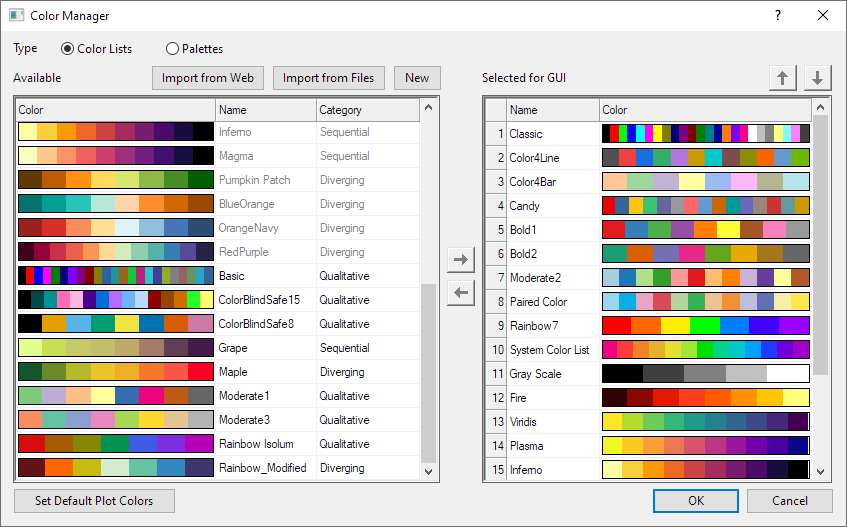
In the left panel Color Manager tool, it lists all available Color Lists / Palettes. Note: These Color Lists / Palettes are not all show in the GUI of Origin.
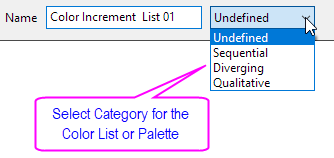
Click on the Name cell for the Color Lists / Palettes, then you can rename them. Click on the Category drop-down list, you can set them to Undefined/ Sequential/ Diverging/ Qualitative Category.
Click on the header of Name or Category to order this list by Name or Category.
In the right panel Color Manager tool, it lists the Color Lists / Palettes that you can select in GUI for customizing colors.
 button to add the selected Color List / Palette to right panel.
 button to remove it.
 and
and  button to rearrange the order.
Origin supports to import Color Lists or Palettes from website or local files. When the new Color List or Palette is imported, it is added in both Available and Selected for GUI lists.
Note that, by default, any imported palette of less than 20 colors will be saved as a color list (.oth) instead of a palette (.pal). Modify this behavior by changing the value of system variable @MPS.
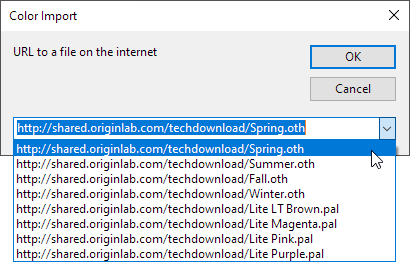
Click on this button, it will pop up a dialog for entering the URL for a Color List or Palette on website.
Origin supplies some URL samples in the drop-down list ,you can select them to import the Color Lists or Palettes.
Click on this button, you can select the local file of Color List / Palette on your machine.
You can import these file formats: Scribus (.xml), CorelDraw and Corel PhotoPaint (.xml), Office Color Table (.soc), Adobe Color (.aco), Adobe Color Table (.act), Adobe Swatch Exchange (.ase), JASC PaintShopPro (.pal) and GNUPlot Palette (.pal).
 | With the exception of the XML formats, these palette files can also be added by drag-and-drop. |
Click New button to open this Build Colors dialog. In this dialog, you can add custom the color list as you need.
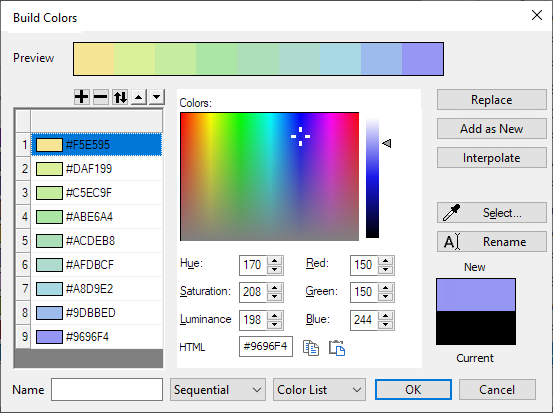
In the left panel, it shows the Color List with Hex color code.
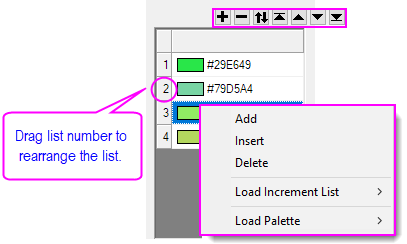
 or right-click on the Color List and select Add to add a color item to the bottom of the Color List. Then specify a color using the various Colors controls (including the eyedropper tool) and click Replace.
 or right-click on a color and select Delete.
 to flip the color list.
 or Move Down
  buttons to move the highlighted color one position in the list.
 button to move the highlighted color to the top of the list; click the Move to Bottom
  button to move the highlighted color to the bottom of the list.
Right-click on Color List, and select Load Increment List or Load Palette to load an Increment List or Palette. Then you can do modify this Color List and save it as a new one.
Use the middle panel to define a color and add it to the Color List.
You can define colors in one of three ways:
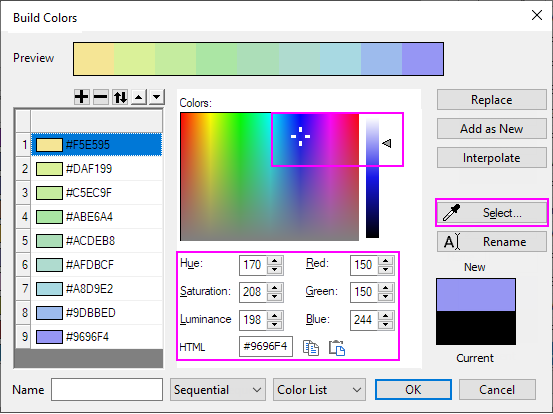
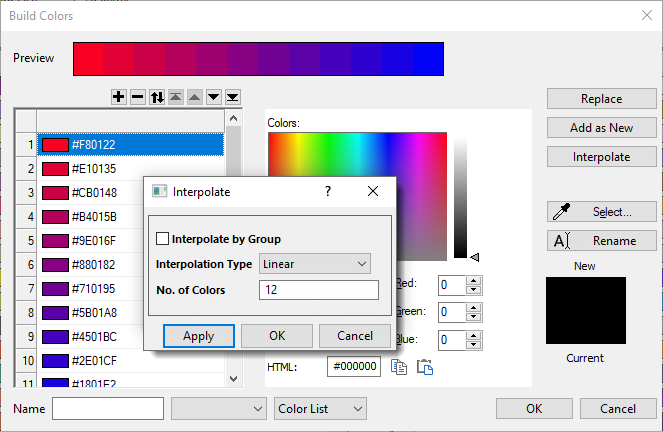
Click the Interpolate button in the right panel. In the pop-up dialog, you can choose to Interpolate by Group, set the Interpolation Type and the number of colors to be interpolated.
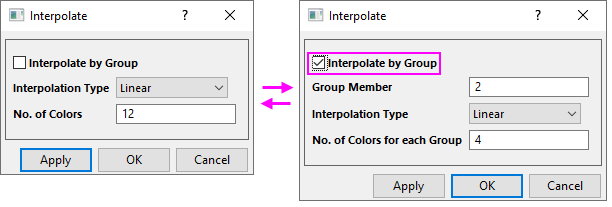
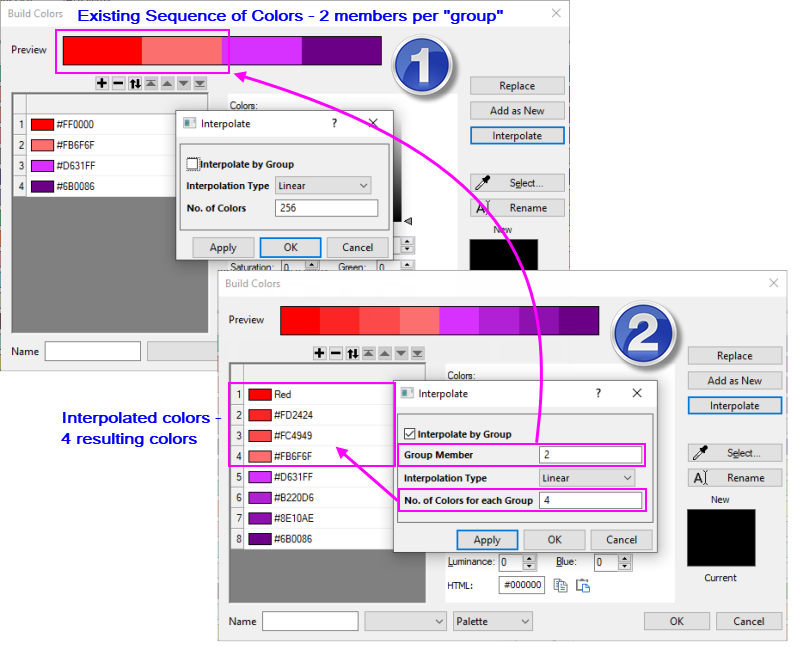
Interpolate by Group: When checked, two edit boxes are added:
You can specify these four Interpolation Type(s).
For information on algorithms for each interpolation method, you can refer to the X-Function interp1xy
| Apply | Generate a Preview. |
|---|---|
| OK | Accept the Preview, close the dialog and add the Color List/Palette to the Color Manager. |
| Cancel | Discard the Preview, close the Interpolate dialog and return to the original list. |
Bottom Name edit box is used to custom the name for the user-defined color list.
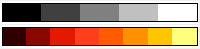
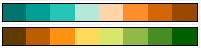
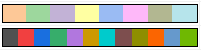
You can merge existing color lists/palettes. Note that the total number of colors in lists/palettes to be merged, cannot exceed 256 (i.e. Merge Color will not be available).
| Because the number of total colors cannot exceed 256, you may need to reduce the number of colors in existing lists/palettes before Merge Color becomes available. Use the Interpolate by Group option to systematically reduce colors in existing lists/palettes so that you will be able to merge them. |
Only available when the Color Lists radio button is selected. Click this button to open the System Increment list of Theme Organizer dialog.