
The Peak Analyzer is a goal oriented peak analysis wizard. The major goals are as following:
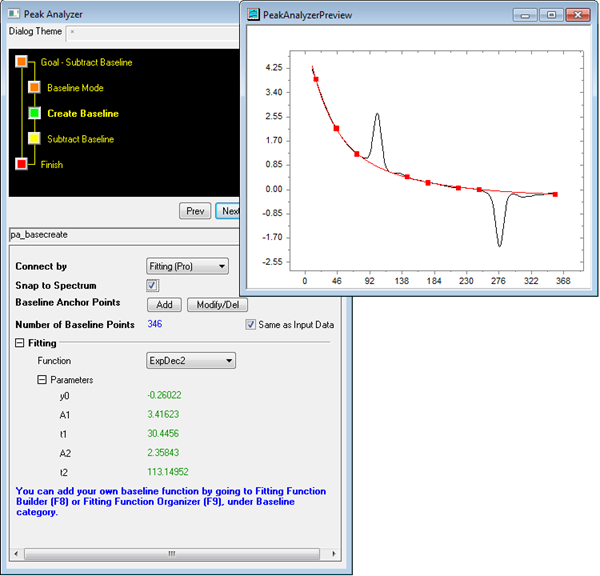
Select Create Baseline as Goal if you simply want to create a baseline. Baseline creation is a necessary step in goals Integrate Peaks, Find Peaks, Fit Peaks(Pro). There are generally two ways to create a baseline:
 | Click here if what you want is a step by step tutorial about how to create and subtract baseline. |
In Origin, baseline auto detection usually involves three steps below:
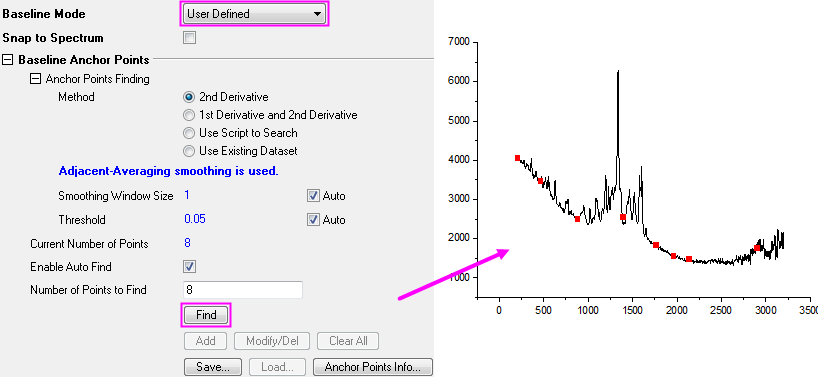
Select User Defined as Baseline Mode and click Find button on the bottom to auto detect anchor points.
|
|
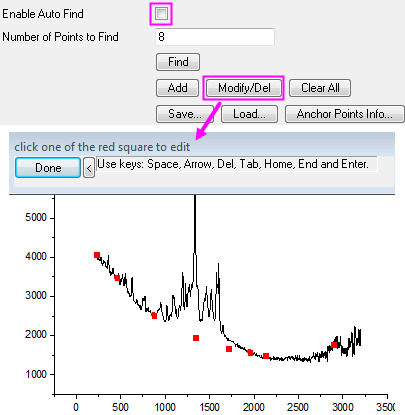
1. Uncheck Enable Auto Find checkbox and click Modify/Del button to enter anchor points editing mode.
2. Use mouse cursor to select or Tab, Home, End keys to navigate to desired points.
3. While the point is highlighted, keep mouse click pressed to drag or use four Arrow keys to move it stepwise.
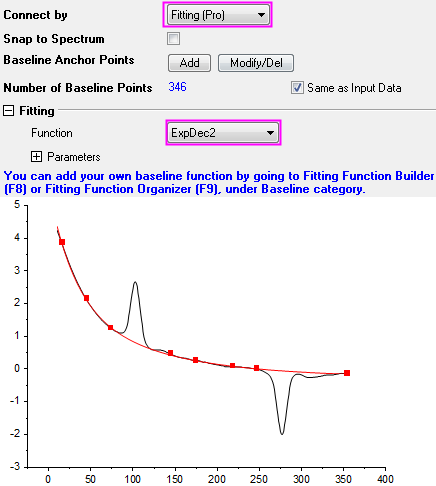
1. Select Fitting(Pro) as anchor points connection method.
2. Select a fitting function from Function drop-down list to fit.
| Read this tutorial to learn to fit a baseline step by step. |
Origin also provides commonly used baseline types as listed in table below:
| Baseline Type | Descriptions | Examples |
|---|---|---|
| Constant | Use one of the statistical values or a given value as constant baseline. | 
|
| Straight Line | Create a straight line as baseline by setting the Y intercept and slope. The default value of A(Intercept) and B(Slope) is obtained by connecting the two end points of the data. | 
|
| Use Existing Dataset | Use existing dataset as baseline. | 
|
| End Points Weighted | Create a baseline by weighting certain fraction of the end points. | :
|
| Min&Max | Positive peaks will use Minimum value as baseline while negative peaks use Maximum. Only available when Goal is Find Peaks. | 
|
Create baseline for XPS using Shirley or Tougaard method and adjust corresponding parameters to optimize.
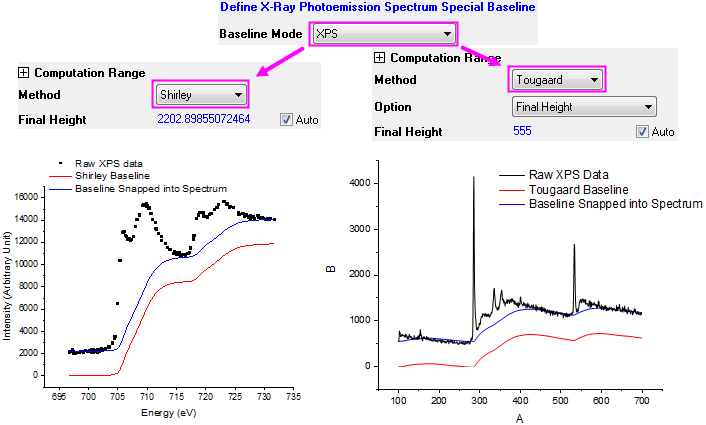
| Read the algorithms of Shirley and Tougaard to know each baseline mode. |
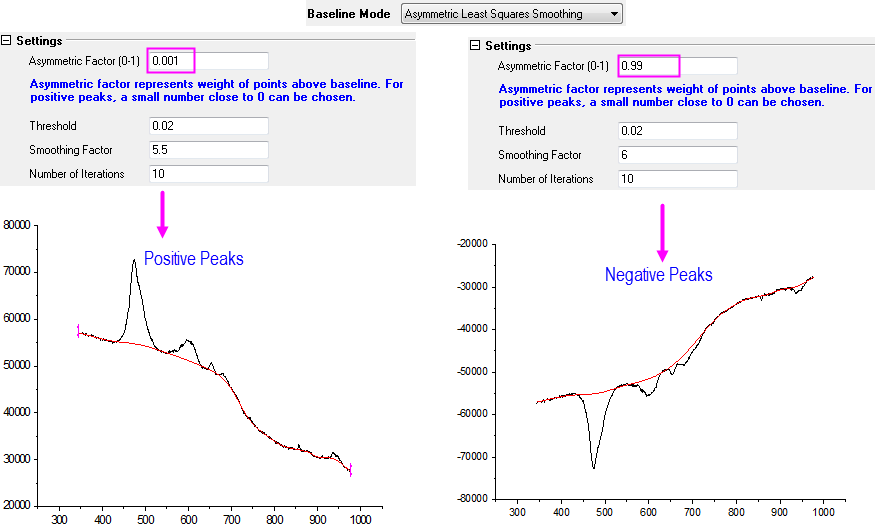
Create baseline using Asymmetric Least Squares (ALS) Smoothing method and adjust corresponding parameters to optimize. The asymmetric factor should be chosen close to 0 for positive peaks, eg., 0.001, and close to 1 for negative peaks, eg.,0.99.
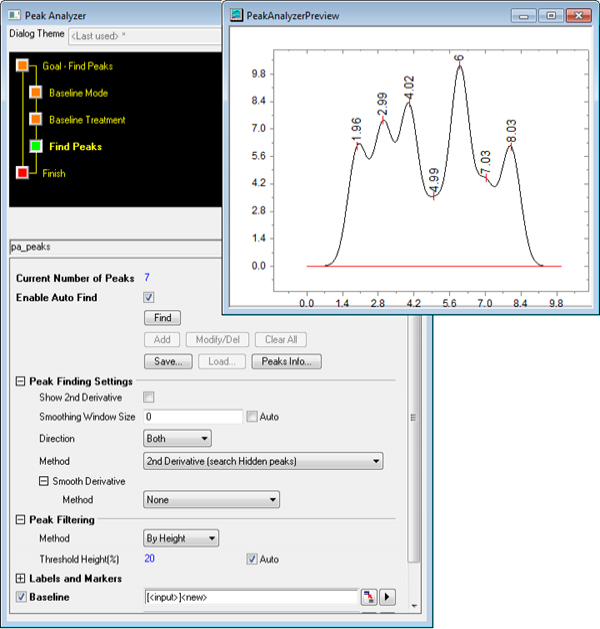
In Origin, peak finding generally involves three steps possibly one more below:
| Click here if you want to know a step by step example about finding and marking peaks right away. |
Select one of the three peak finding methods listed below and click Find button to auto detect ordinary peaks.
| Peak Finding Method | Descriptions | Example |
|---|---|---|
| Local Maximum | Compare nearest N neighbors and find the maximum. | 
|
| Window Search | Find the maximum value in given search window. Window can be defined in absolute values or percentage value with respect to total width and maximum height. | 
|
| First Derivative | Find where first derivative is equal to 0. Offer options to smooth original data before calculating 1st derivative so as to accurately find peak position(s). | 
|
Select one from two methods listed below and click Find button to auto detect hidden peaks.
| Peak Finding Method | Descriptions | Example |
|---|---|---|
| Second Derivative | Find hidden peaks by detecting local extrema in second derivative of raw/smoothed data. | 
|
| Residual after 1st Derivative | Calculate the residuals between spectrum data and cumulated fitting data and find hidden peaks by detecting residuals greater than certain threshold. | 
|
You can filter the found peaks by number of peaks or by height of the peaks.
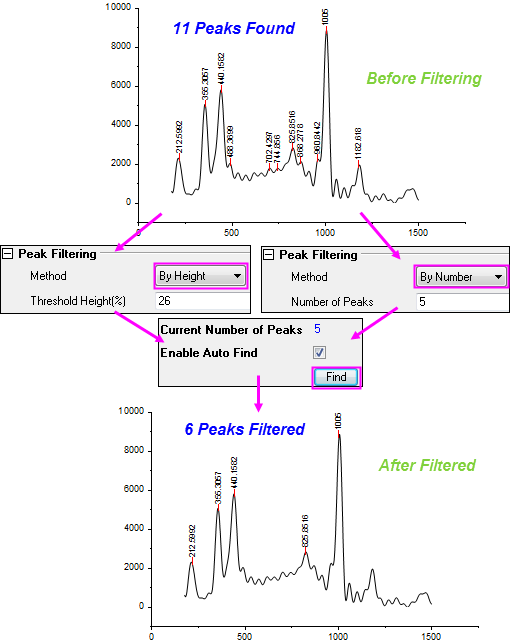
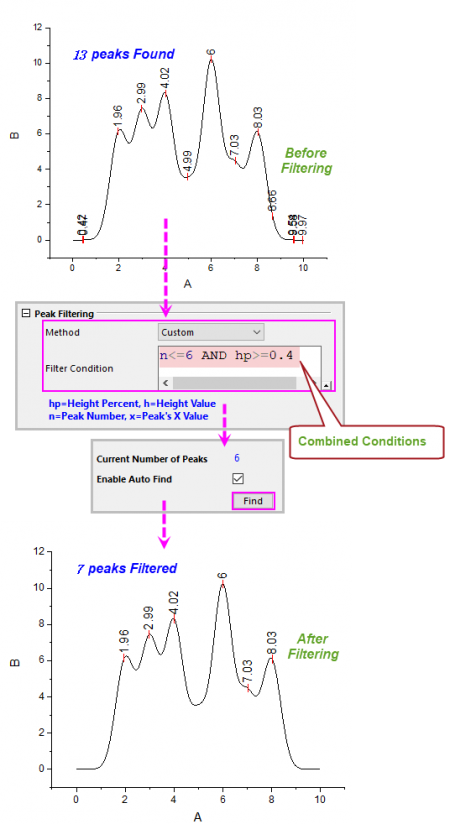
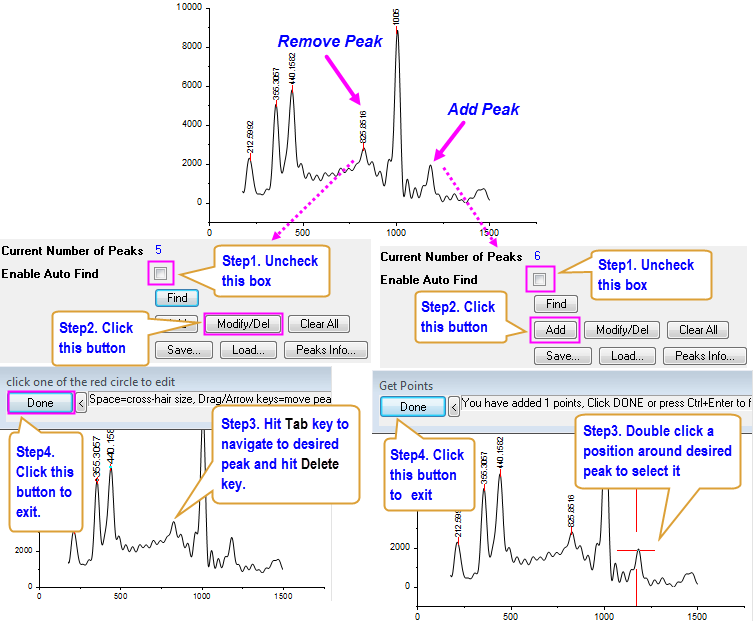
After the peaks being filtered, you can further modify, delete, add peaks. To fine tune the positions of manually added peaks, you have fit the peaks.
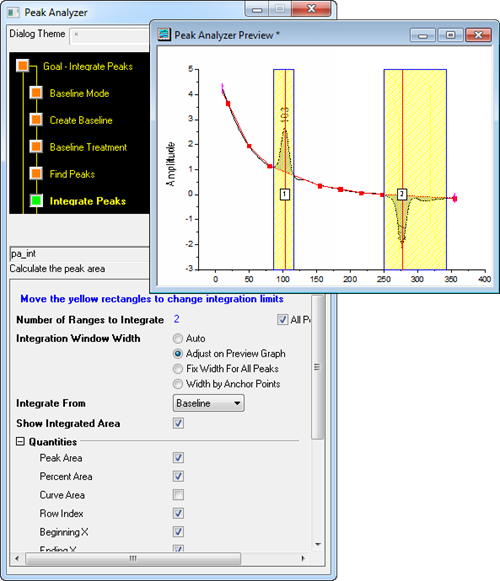
Select Integrate Peaks as Goal to start. Before actually perform peak integration, you have to go through two steps below:
When all the peaks are detected, you only need to set the integration width. Available options are as following:
| Click here if you want to jump into a step by step tutorial about peak integration. |
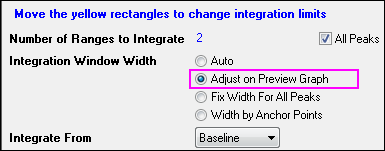
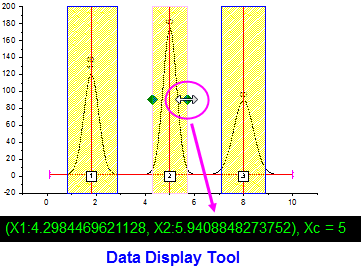
Check Adjust on Preview Graph radio box to enable direct adjustment on graph.
1. Click on the yellow rectangle to select desired peak.
2. Place mouse cursor on the edge of rectangle and when it turns drag to adjust width arbitrarily or according to coordinates displayed in Data Display Tool on the bottom.
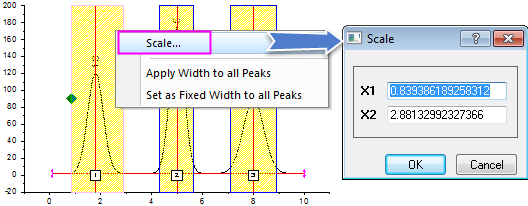
1. Right click on the yellow rectangle of desire peak to select Scale....
2. Enter value in X1, X2 edit boxes in appeared Scale dialog to specify integration range.
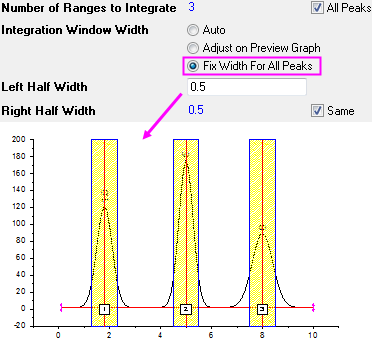
1. Check Fix Width For All Peaks radio box.
2. Enter left half and right half widths relative to peak center in Left/Right Half Width text box respectively.
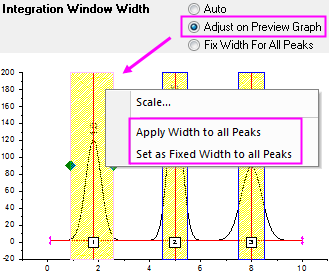
1. Check Adjust on Preview Graph radio box and adjust width of one peak.
2. Right click on the yellow rectangle around that peak and select either Apply Width to All Peaks or Set as Fixed Width to All Peaks.
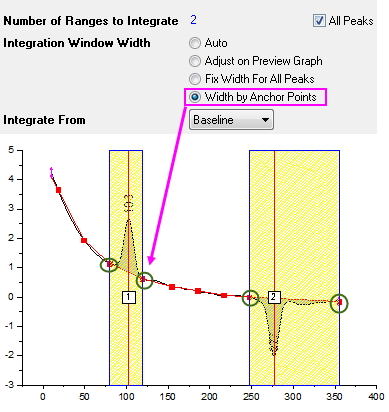
If you selected User Defined for Baseline Mode on Baseline Mode page to use the anchor points to create baseline, you are allowed to select Width by Anchor Points to use the existing adjacent anchor points to determine the width of the peaks.
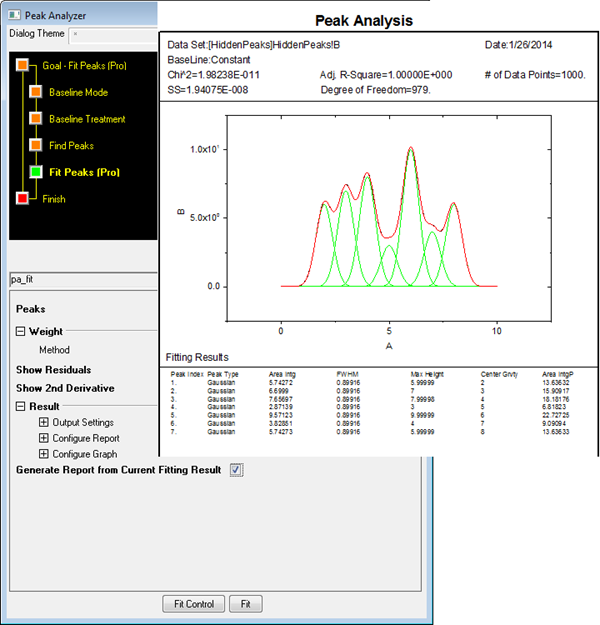
Select Fit Peaks(Pro) as Goal to start. Before actually proceed to fit peaks, you have to go through two steps below:
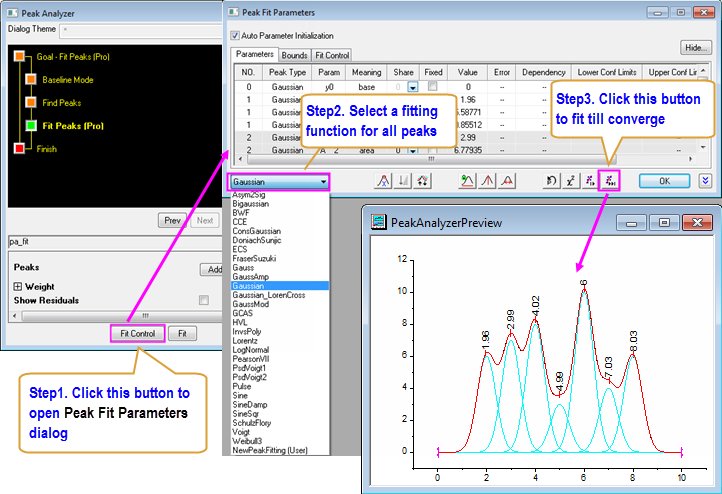
You can navigate and select a built-in function from one of the peak function categories, and directly fit your curve with automatically initialized parameter values.
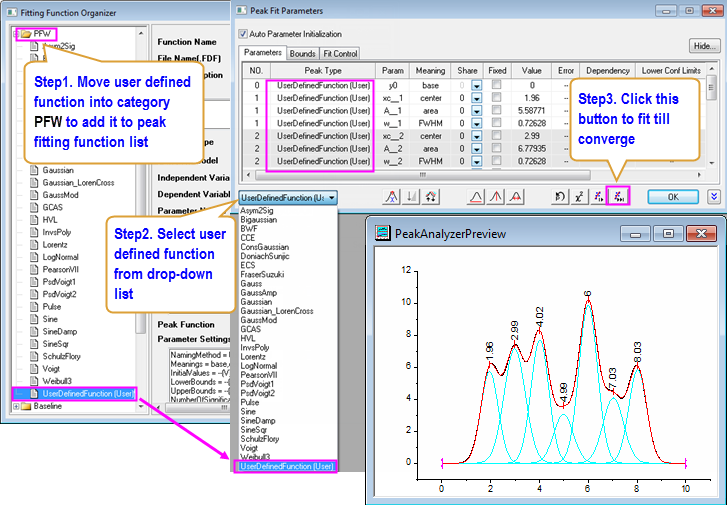
You can also defined your own peak fitting function to be used in Peak Analyzer.
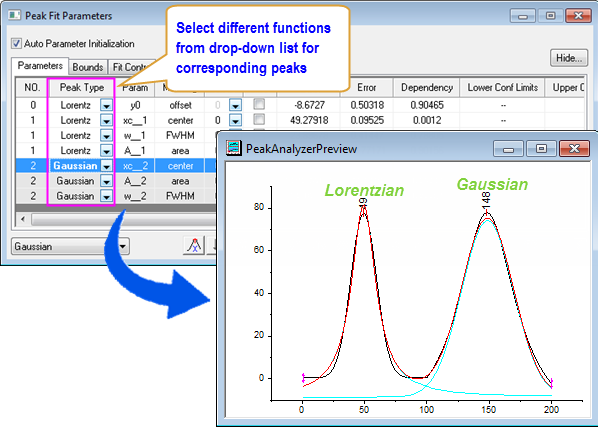
You can fit all peaks with same fitting function or different fitting functions.
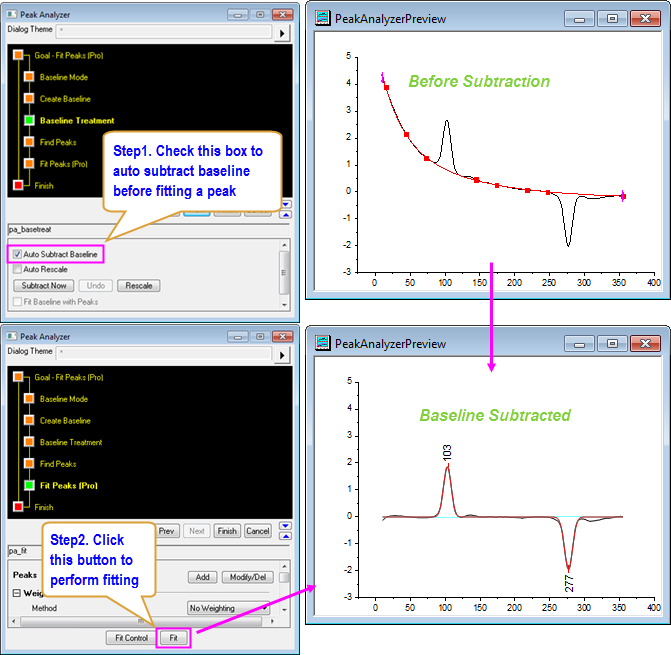
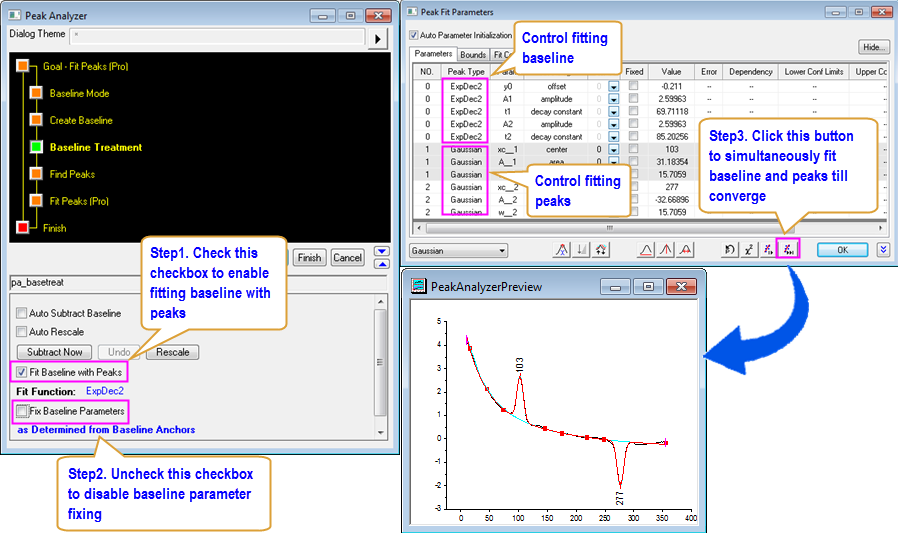
| Read this tutorial to learn how to perform peak fitting while fitting baseline simultaneously. |
You can choose to fix or share some parameters and set upper and lower bounds or linear constraints.
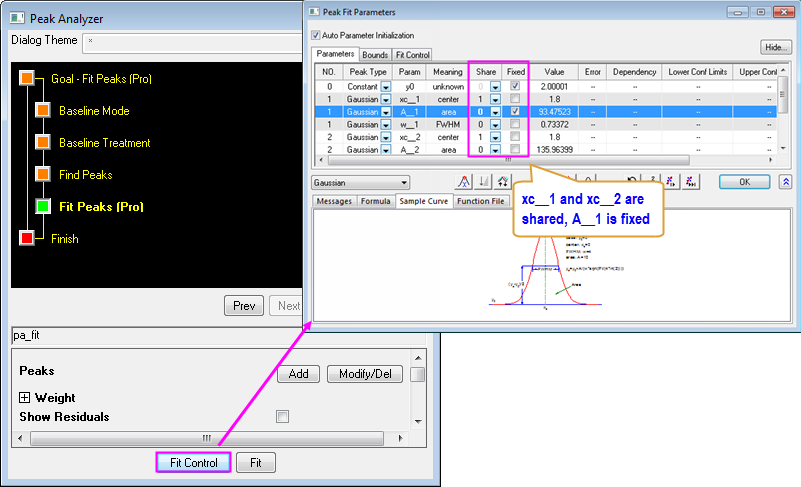
| Read this tutorial to learn how to fix certain parameters and save settings for re-usage. |
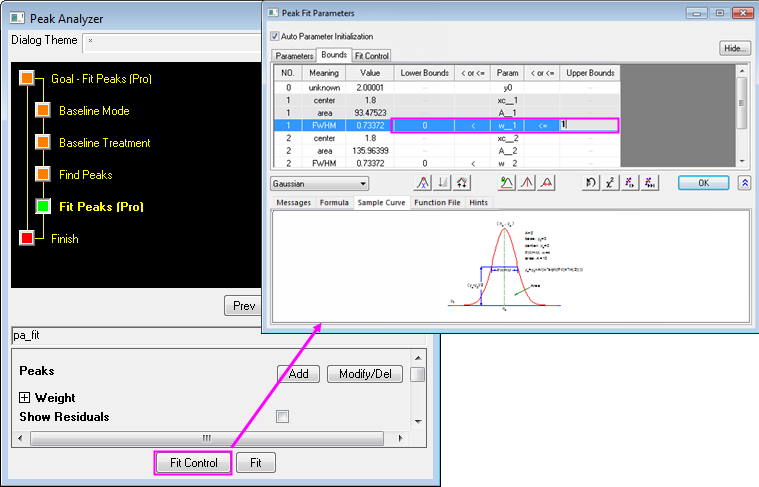
| Read this tutorial to learn how to share status of multiple peak parameters simultaneously. |
Note: If you have set the Peak Direction to Negative or Positive either, under the Peak Finding Settings branch in the Find Peaks page, Origin will check the bound setting of Amplitude parameter(or Area parameter) of the found peaks before perform peak fitting, and behaviors as below:
|
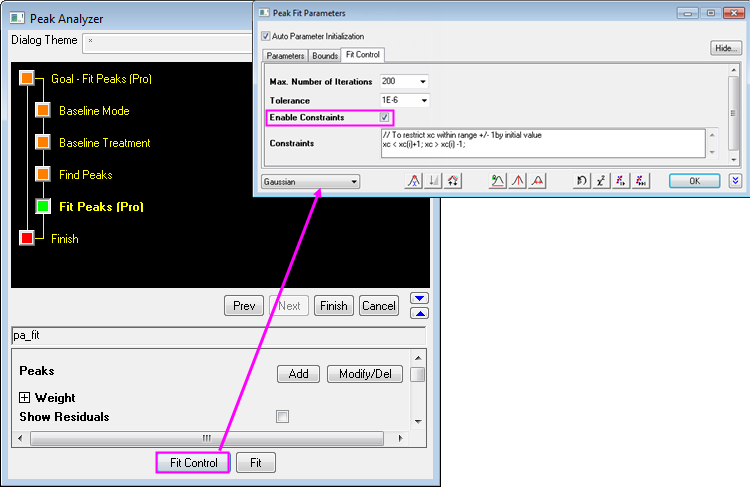
| Go to this table to learn how to write linear constraints. |
 Fitting Multiple Peaks with Peak Analyzer