10.1.2.1 The Data Display Tool
DataDisplay-Tool

The Data Display tool provides a dynamic display of the XY coordinates of a data point or of the location of the cursor on the screen. The Data Display tool opens when selecting these Tools toolbar tools.
Resizing the Data Display tool
To enlarge or reduce the tool's display, drag a corner of the window. As a floating tool, position it anywhere in Origin's workspace.
Docking and Undocking of the Data Display tool
- To undock the Data Display tool, drag it from the toolbar area or double-click in the tool's display area.
- To re-dock the tool in the same toolbar location, double-click on the tool's title bar.
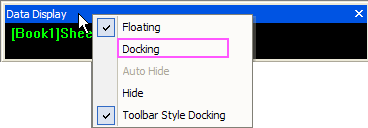
- When the tool is in the undocked position, you can control docking behavior by right-clicking the title bar and selecting Docking in the shortcut menu.
 | If the Data Display tool fails to display, see this FAQ.
|
Shortcut menu commands for the Data Display tool
Shortcut menu commands made available by right-clicking on the tool's title bar
- Floating: Make the toolbar float in Origin's workspace.
- Docking: Dock the tool in the toolbar area.
- Auto Hide: When the tool docks, specify if it auto-hide when the mouse move away.
- Hide: Activates the tool so that it can be moved using the arrow keyboard keys.
- Toolbar style docking: Uncheck this, dock the tool in vertical direction while the position arrows appear.
Shortcut menu commands made available by right-clicking inside the tool
- Fixed Size*: Fixes the size of the text in the tool to the current size when this menu command is selected. Resizing the tool horizontally or vertically has no affect on the text size.
- Fit Horizontally*: Displays the text in the tool so that it always displays in the full width of the tool. Resizing the tool horizontally causes the text size to change accordingly. Resizing the tool vertically has no affect on the text display.
- Fit Vertically*: Displays the text in the tool so that it always displays in the full height of the tool. Resizing the tool vertically causes the text size to change accordingly. Resizing the tool horizontally has no affect on the text display.
- Dock: Automatically docks the tool to the toolbar region (if the shortcut menu command was not already selected). If the docked tool is then dragged to a floating tool, double-click on the tool to restore its docked position. Alternatively, drag the tool to the edge of the workspace.
- Properties: Opens the Data Display Format dialog box.
|
*This shortcut menu command is only available when the Automatically Fit to Display check box in the Data Display Format dialog box is cleared (see below).
|
Customizing the Data Display tool
To customize the tool's coordinate display including the font, font color, and tool background color, right-click on the tool and select Properties from the shortcut menu. This shortcut menu command opens the Data Display Format dialog box.
- Font: Select the tool's text display font from this drop-down list.
- Minimum Font Size: Specify the minimum font size of text in the data display tool.
- Font Color: Select the tool's text display color from this drop-down list.
- Background Color: Select the tool's background display color from this drop-down list.
- Automatically Fit to Display: Select this check box to ensure that all the text displays when the tool is resized. The text font adjusts automatically to tool size. When this check box is cleared, the Fixed Size, Fit Horizontally, and Fit Vertically shortcut menu commands are available (see above).

