



|
|
|
Windrose graphs are used to present wind speed data and wind direction data collected over time at a particular location. This tutorial will demonstrate how to create windrose graphs from both raw and indexed data:

This tutorial will show you how to:
This tutorial is associated with <Origin EXE Folder>\Samples\Tutorial Data.opj.
Also, you can refer to this graph in Learning Center. (Select Help: Learning Center menu or press F11 key , and then open Graph Sample: Specialized Graphs)
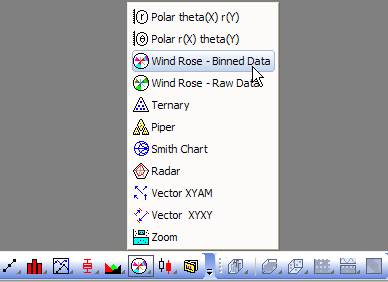
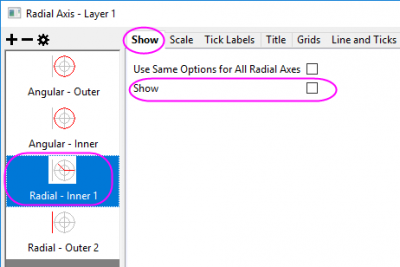
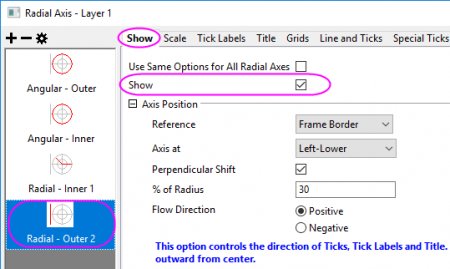

 under the Group tab
  to expand the Color Chooser. In the Color Chooser, under the By Plots sub-tab, select or click the color list or color palette in the you desired to apply the bar colors.

 to add a Text object as graph title. And enter Sample of Wind Rose (Binned Data) in that Text object.


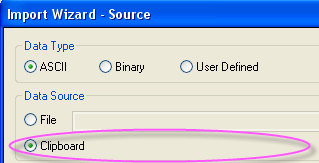
To import Binned Data to a worksheet, copy the Binned Data 1 (including the heading) and select File: Import Wizard. Select the Clipboard checkbox in the DataSource group and click the Finish button to import the data into Origin.
| Direction | 0-4 | 4-8 | 8-12 | 12-16 | 16-20 |
|---|---|---|---|---|---|
| 22.5 | 3.125 | 3.125 | 3.125 | 6.25 | 0 |
| 45 | 0 | 3.125 | 3.125 | 0 | 0 |
| 67.5 | 0 | 6.25 | 0 | 0 | 0 |
| 90 | 0 | 0 | 0 | 0 | 3.125 |
| 112.5 | 0 | 0 | 0 | 0 | 0 |
| 135 | 3.125 | 0 | 0 | 0 | 3.125 |
| 157.5 | 0 | 0 | 9.375 | 3.125 | 0 |
| 180 | 3.125 | 3.125 | 0 | 3.125 | 3.125 |
| 202.5 | 0 | 0 | 0 | 0 | 0 |
| 225 | 0 | 0 | 3.125 | 0 | 0 |
| 247.5 | 0 | 3.125 | 0 | 3.125 | 3.125 |
| 270 | 0 | 0 | 0 | 0 | 3.125 |
| 292.5 | 0 | 6.25 | 3.125 | 0 | 0 |
| 315 | 0 | 0 | 3.125 | 3.125 | 0 |
| 337.5 | 0 | 0 | 0 | 0 | 0 |
| 360 | 0 | 6.25 | 0 | 0 | 0 |
| 382.5 | 0 | 0 | 0 | 0 | 0 |
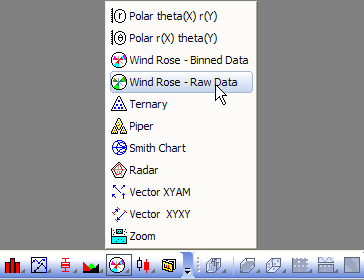
To import Raw Data to worksheet, you can copy the Raw Data (including the heading) and then select File: Import Wizard. Select the Clipboard checkbox in DataSource group and then click Finish button to import the data into Origin.
| Direction | Speed |
|---|---|
| 311.5 | 12.75 |
| 142.7 | 11.18 |
| 161.6 | 5.9 |
| 277.3 | 8.24 |
| 155.3 | 13.46 |
| 40.8 | 8.57 |
| 43.4 | 4.38 |
| 1.3 | 10.91 |
| 78.8 | 18.72 |
| 237.8 | 16.22 |
| 114.6 | 0.88 |
| 2.1 | 12.05 |
| 290.5 | 4.6 |
| 174.1 | 3.29 |
| 267.6 | 16.64 |
| 8 | 5.6 |
| 213.9 | 8.04 |
| 134.8 | 17.26 |
| 137.6 | 11.87 |
| 46.1 | 5.48 |
| 4.5 | 13.47 |
| 311.2 | 10.17 |
| 154.4 | 11.17 |
| 176.2 | 18.91 |
| 348.1 | 4.11 |
| 225.2 | 6.65 |
| 236.4 | 12.87 |
| 11.7 | 1.07 |
| 278.9 | 4.36 |
| 356.5 | 5.01 |
| 58.9 | 7.3 |
| 161.8 | 15.6 |