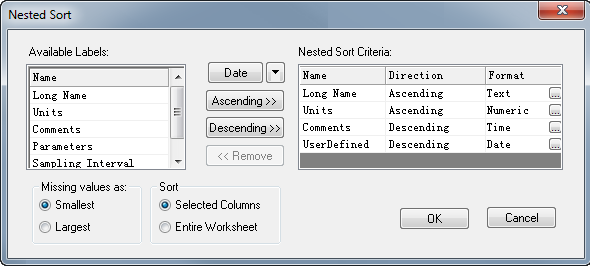
This tool sorts columns by values in worksheet label row, and you can use values in multiple column label rows for nested sort.
Origin provides two methods to open this dialog:
In this dialog, you can choose a column label row in the Available Labels panel and click the Ascending or Descending button to add it as a criteria to the Nested Sort Criteria panel, and you can customize the format etc. later. You can add more than one criteria.
If there are missing values in the selected worksheet label rows, you can either define them as the smallest or biggest value by choosing the corresponding radio button.
Show the available label rows in this panel, including: Long Name, Units, Comments, Parameters, Sampling Interval and User Defined parameters.
Select the labels in the Available Labels panel and click the Ascending  , Descending
  , or Categorical
  (for categorical data only) button to add in the Nested Sort Criteria panel.
Also, when you add the labels to the Nested Sort Criteria panel, you can specify the rows format.
|
Note:
|
Label row can be text, numbers, categorical, time and date. To sort by such labels, format must be set correctly.
 next to the format button
  and choose one of the format in the flyout menu. Or, will also open the Row Format dialog.
 under the Format column to open the Row Format dialog.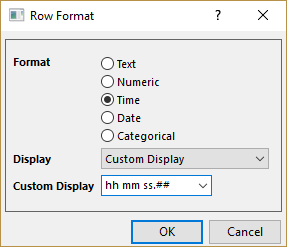
| Format | Specifies the format of the label rows: Text, Numeric, Time or Date. |
|---|---|
| Display | When choose Time or Date format, this drop-down list is shown. Determines how the data in the column is displayed. |
| Custom Display | When the Custom Display is selected in the Display drop-down list, this combo box is shown. And you can customize the date or time format. |
You can set the missing value in the labels as the smallest or the largest value when sort the columns.
You can sort either the Selected Columns or Entire Worksheet.
|
Note: If you do not select any column, and open this dialog by selecting Worksheet:Sort Columns by Labels in the main menu, Entire Worksheet is chosen by default and this option is grayed out. |