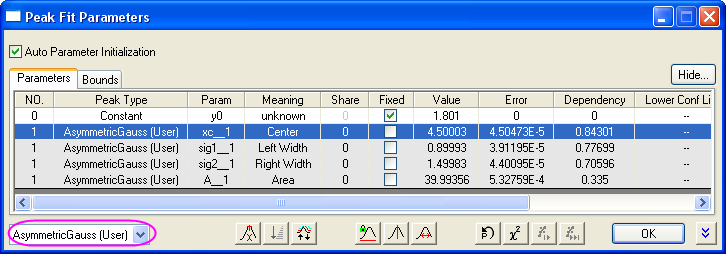
15.3.4.4.1 A Simple Example
ScriptEx-FitFuncBuilder-NewFitFunc
Summary
This tutorial will show you how to create a fitting function with the Fitting Function Builder.
Minimum Origin Version Required: Origin 8.5 SR0
What you will learn
- How to define a peak fitting function
- How to write function body
- How to write initialization codes
- How to set bounds for parameters
Steps
- In Origin's main menu, click Tools, and then click Fitting Function Builder to open the tool. Click Create a New Function on the first (Goal) page, and then click Next to go to the Name and Type page.
- On the Name and Type page, we will create a category for the new fitting function, then name the function and select a Function Type.
- Click New to open the Category Name dialog, and input MyPeakFitting as the new category name.
- Input AsymmetricGauss in the Function Name edit box.
- Select Origin C from the Function Type list. You should find that the Hints in the left panel have updated accordingly.
- Click the Next button to go to the Variables and Parameters page.
- On the Variables and Parameters page, we will do the following:
- Input x and Y as the independent variable and the dependent variable.
- Input y0,xc,sig1,sig2 and A in the Parameters edit box.
- Enable the Peak Function box so we can use this function for replica fitting in the NLFit tool or fitting peaks in the Peak Analyzer. ( Note: Before using it in the Peak Analyzer, make sure you have shared this function to the PFW category in the Fitting Function Organizer.)
- Click Next to go to the Function Body page.
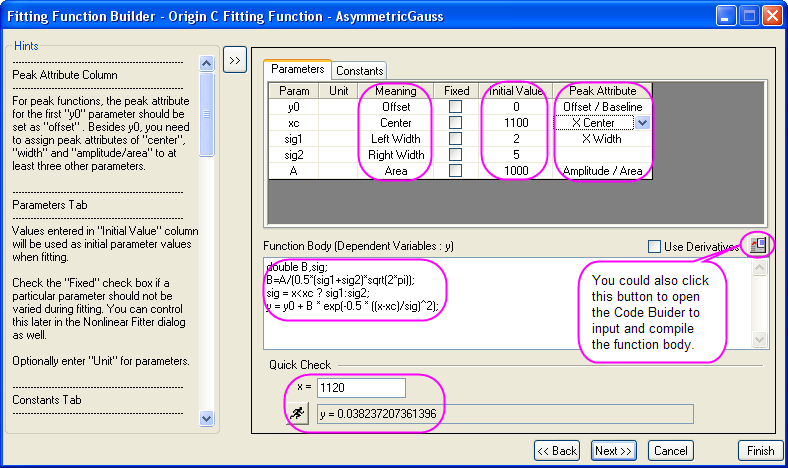
- On the Function Body page, we will input the function body and choose the peak attribute for each parameter.
- Click the cell in the Peak Attribute column and xc row of the Parameters tab. Select X Center as the peak attribute. Then select X Width and Amplitude/Area for the parameters sig1 and A.
- Enter initial values and parameter meanings in the Initial Value and Meaning columns.
- Copy and paste all of the following lines into the Function Body edit box.
- double B,sig;
- B=A/(0.5*(sig1+sig2)*sqrt(2*pi));
- sig = x<xc ? sig1:sig2;
- y = y0 + B * exp(-0.5 *((x-xc)/sig)^2);
- After entering values for the independent variables, click the Evaluate button
 to quickly check the fitting function.
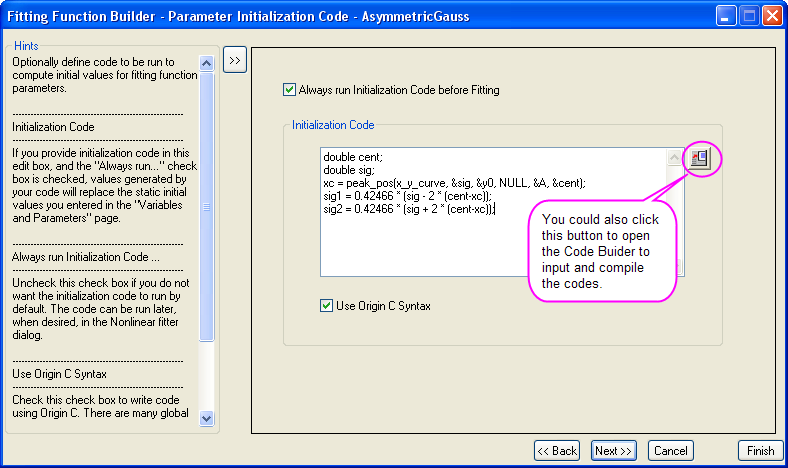
- Click Next to go to the Parameter Initialization Code page, and enter the following codes into the Initialization Code edit box.
- double cent;
- double sig;
- xc = peak_pos(x_y_curve, &sig, &y0, NULL, &A, ¢);
- sig1 = 0.42466 * (sig - 2 * (cent-xc));
- sig2 = 0.42466 * (sig + 2 * (cent-xc));
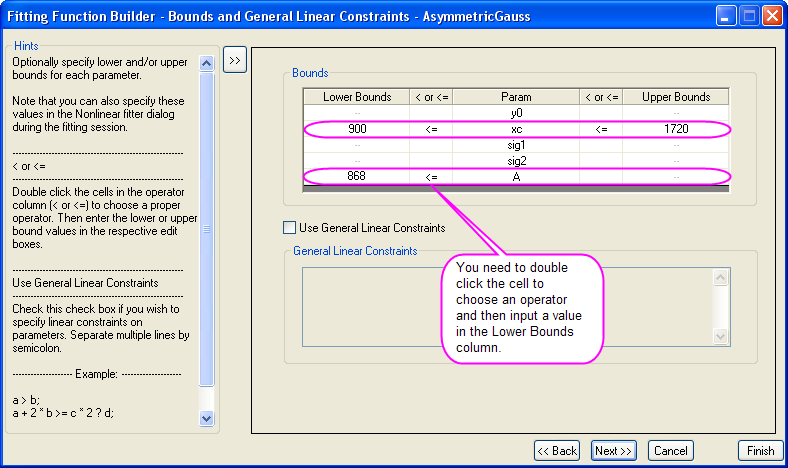
- Click Next to go the Bounds and General Linear Constraints dialog, and then set the dialog as in the image below:
- Click Finish.
Where to Access the User-defined Function
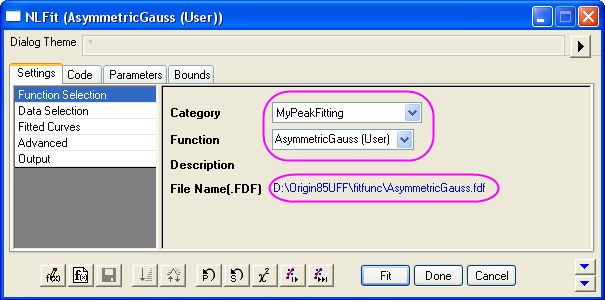
- Use the user-defined function to perform curve fitting with the Nonlinear Fitter. For more details about the Nonlinear Fitter, please refer to Nonlinear Curve Fitting.
- Find the function in the Fitting Function Organizer. For more details about the Fitting Function Organizer, please refer to Fitting Function Organizer.
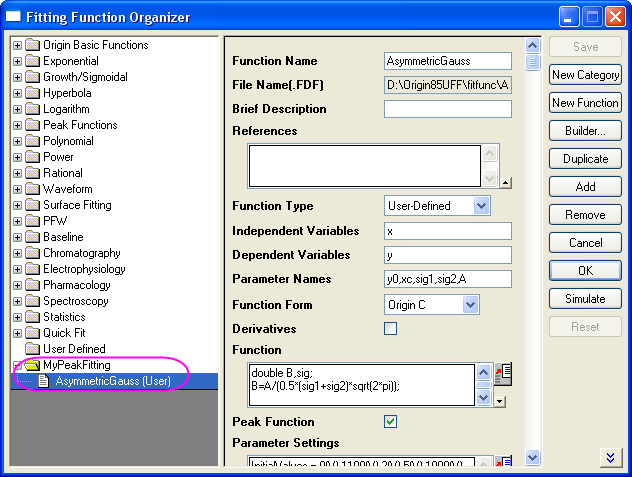
- In the Fitting Function Organizer, right-click this function and select Share To to share this function to the PFW category. You can then use the function to perform peak fitting with the Peak Analyzer.