3.9 Recent Origin Files
Recent-Origin-Files
Recent Origin Files dialog shows the Origin Project files (*.opj(u)) and child Window files (*.ogw(u);*.ogg(u);*.ogm(u)). It can help you browser or find the Origin files used recently.
To open the Recent Origin Files dialog:
- Select File: Recent Projects: Recent Origin Files... in the Origin main menu.
or
- Double click on the Origin gray area workspace
or
- Right-click on the empty space of Origin GUI, select Recent Origin Files... in the context menu.
or
- Press the shortcut key Ctrl+F11 in Origin.
or
- Run the following Labtalk script in the Script Window.
doc -mrf;
 | Using system variables to control whether allow double-click workspace to open Recent Origin Files dialog and Ctrl+double-click to open Project Browser.
- @DDW=0 (default): Support both double-click to open Recent Origin Files dialog and Ctrl+double-click to open Project Browser.
- @DDW=1: Disable both double-click and Ctrl+double-click.
- @DDW=2: Disable double-click to open Recent Origin Files dialog, but allow Ctrl+double-click to open Project Browser.
|
Previews
When the cursor is placed on a Origin file name, it will produces a popup preview for the graph/workbook in the project with the project name.
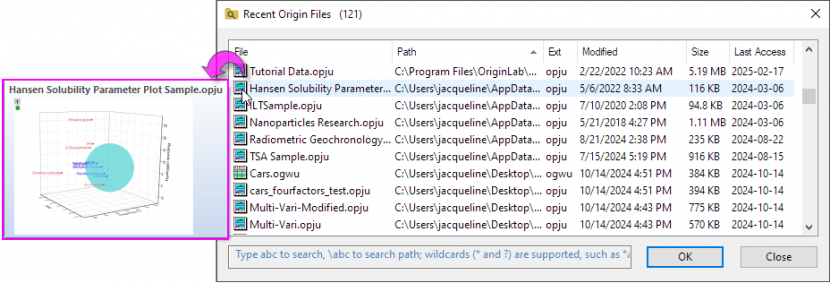
Open the Files
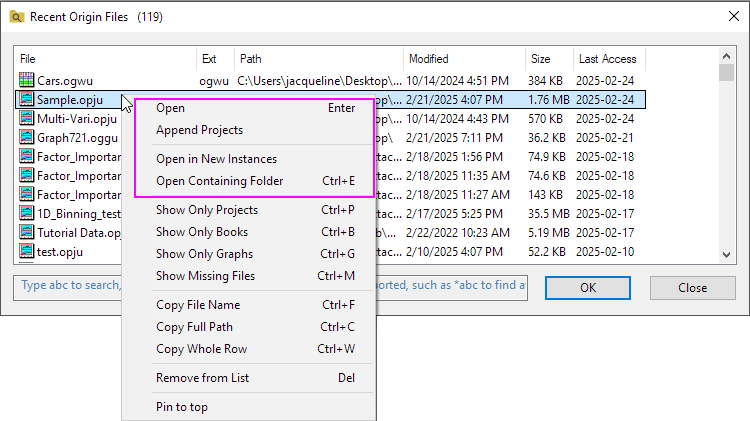
- Double click on the row to open the Origin file. If the file is a project, it will close current project to open this selected file. If the file is child Window files, it will be open in the the current project.
- Right-click on the file:
- Select Open to open the file. If the file is a project, it will close current project to open this selected file. If the file is child Window files, it will be open in the the current project.
- Select Append Project to append the file to the to the first level folder of current project.
- Select Open in New Instance to open the file in a new project.
- Select Open the Containing Folder to open the folder saved the file.
Find in Project Files
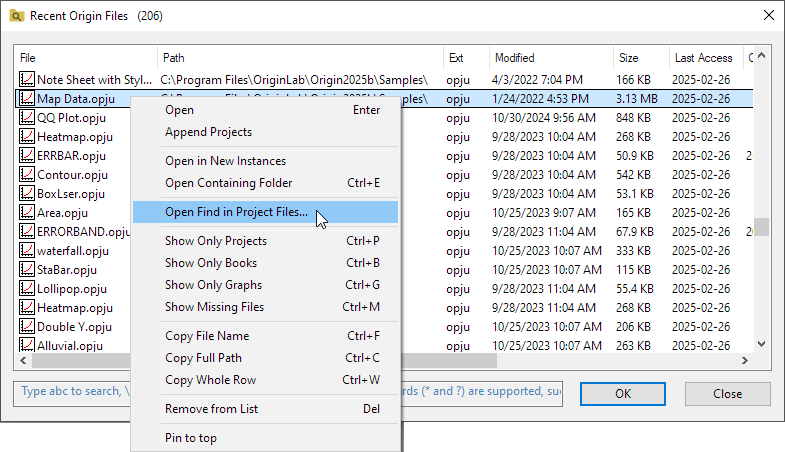
Right-click on the file and select Find in Project Files... in the context menu to open the Find in Project Files dialog.
Specify the displaying Files
To specify the displaying files, you can right-click on a file (files) or the empty space of the file list and then select the following option, or use the hotkey.
- Show Only Projects (Ctrl+P)
- Show Only Books (Ctrl+B)
- Show Only Graphs (Ctrl+G)
- Show Missing Files (Ctrl+M): By default, the missing files are not shown in the dialog. Check this option to show them. For the missing files, it also supports to open previous location for them.
Copy Information of the Recent Files
To copy the recent files information, you can right-clicking on the file (files) and then select the following option, or use the hotkey.
- Copy File Name (Ctrl+F)
- Copy Full Path (Ctrl+C)
- Copy Whole Row (Ctrl+W)
Remove the file from this list
Select one or multiple files, right-click it (them) and choose Remove from List to remove the file(s) in this dialog.
| You can use Ctrl+A key to select all files in the list. It also supports to use Ctrl+Z and Ctrl+Y hotkey to undo and redo this remove operation.
|
Pin Files to Top
Select one or multiple files, right-click it (them) and choose Pin to Top to pin the file(s) to the top of this dialog. Then the rows of these files will be filled background with Yellow color.
Right-click on the pinned to top files, and choose Unpin, then the files follow the sorting by the column in this dialog.
Change the Display or the Order of Columns for the list
- Right click on the column header area and select or de-select a heading to display or hide the heading.
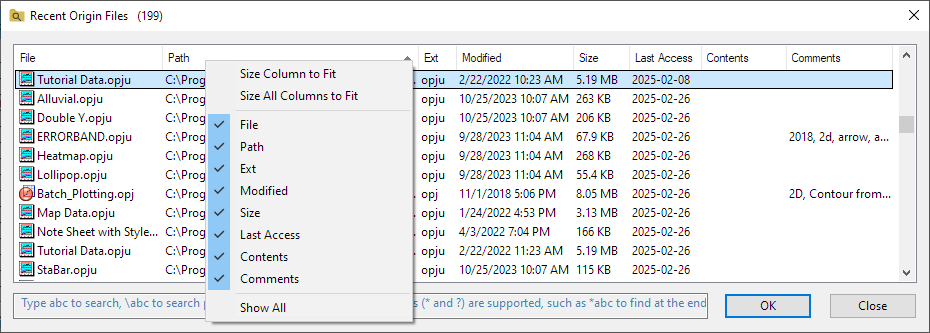
- To display the complete information of each row in a column, you can right-click on the column header to click Size Column to Fit. If click on Size All Columns to Fit
- Drag to reorder displayed column headings.
- The customization of column header will be remembered for later use.
Search in Recent Origin Files
- Type the string to search the files by the file name.
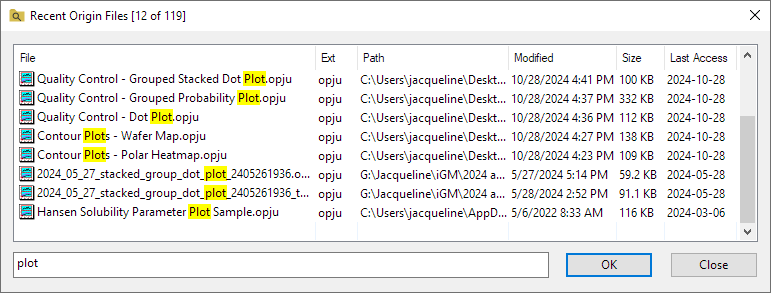
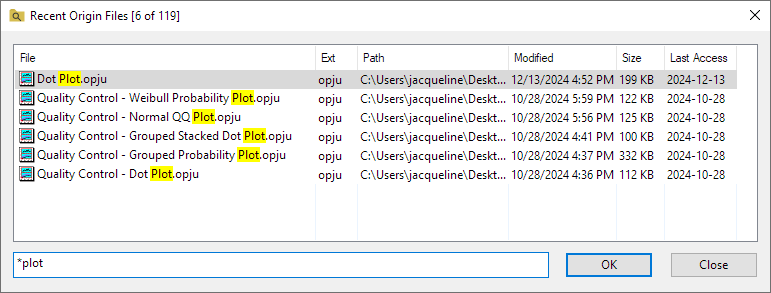
- Wildcard (* and ?) are supported, such as *abc to find at the end
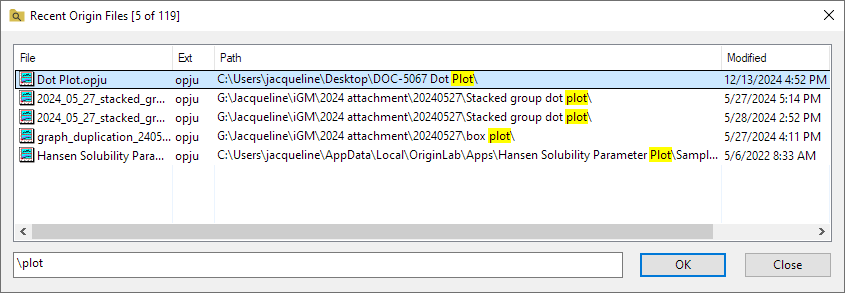
- \abc to search the string in the path
Recent Origin Files Menu
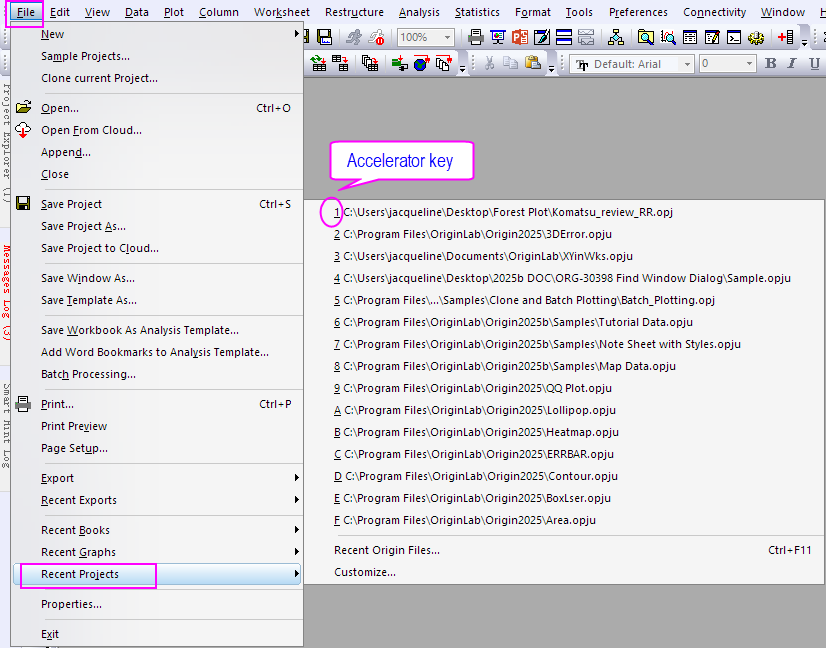
When you select File: Recent Projects menu, you can find the 15 recent project files listing in the fly-out Menu. Click the project name to reopen the recent project easily. Also, when this menu is expending, you can press the accelerator key of the project to reopen it.
Customize the Fly-out Menu
Select Customize... under the menu to open the Recent Project dialog. You can change the number of the recent project displaying in the menu, and specify whether to show the file path and accelerator key of the files. All changes will take effect next time when you choose this menu.
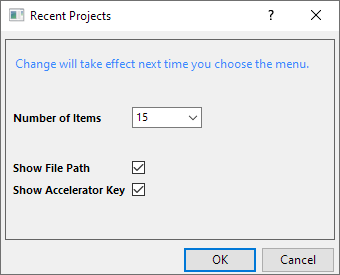
| - When the file path is hidden in the menu, place the cursor on the file name then path should be shown on tooltip and on status bar.
- Using the system variables also can customize this fly-out menu.
- @MRP : Set number of recent project items. By default, @MRP=15.
- @MRPHP: Set whether to show file path. By default, @MRPHP=0, show the file path in the menu.
- @MRPA: Set whether to show accelerator key. By default, @MRPA=1, show the accelerator key in the menu.
|