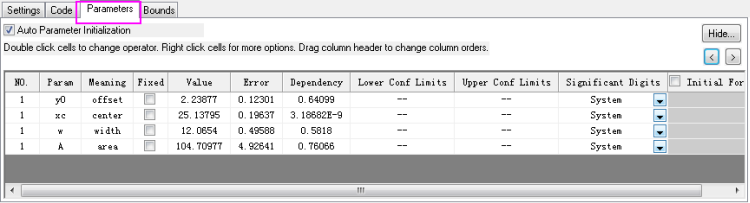
On this tab you can see and set parameter values and significant digits, and control whether parameter values should be varied or fixed during the iterative fitting process. This tab also displays error and other information for monitoring the fitting procedure.
Run automatic parameter initialization code for the chosen fitting function.
For all built-in functions, automatic parameter initialization codes are provided. For user-defined functions, this code is optional. If parameter initialization code is not supplied, all parameter values will register initially as missing values (even though Auto Parameter Initialization may be selected). In this case, you must enter estimated values before you can start fitting.
For more details, please see Parameter Initialization.
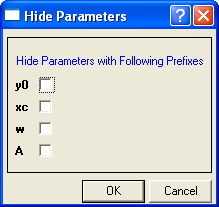
Click this button to open the Hide dialog. Selected parameters are hidden in the parameter table. This may be useful while manipulating initial parameter values or formats. Hiding a parameter does not remove it from the fit process.
The  and
and  buttons will only be activated after clicking 1 Iteration or Fit until converged button. It will help user compare parameter values, fixed status and bounds between each 1 Iteration or Fit until converged click.
For example:
and buttons. Each click is multiple iterations. button, it actually goes back multiple iterations to the stage of corrected parameter value with bounds; then click will go back one iteration at a time till parameter initial values stage. The same applies for button.All parameters and properties are listed in tabular format.
 | To have the Parameters table in the result sheet to display Meaning column information, go to the Settings tab and under Advanced > Quantities, check the Meaning box. |
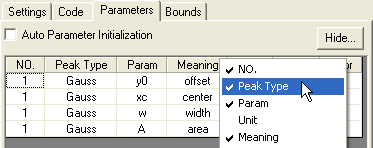
Right-click any column title and use the context menu to display (or hide) parameter properties. Select Show All Columns to display all columns.
These columns correspond to columns in the Peak Fit Parameter dialog. For details about each column, please see here.
To initialize certain parameters using column label row values or statistics:
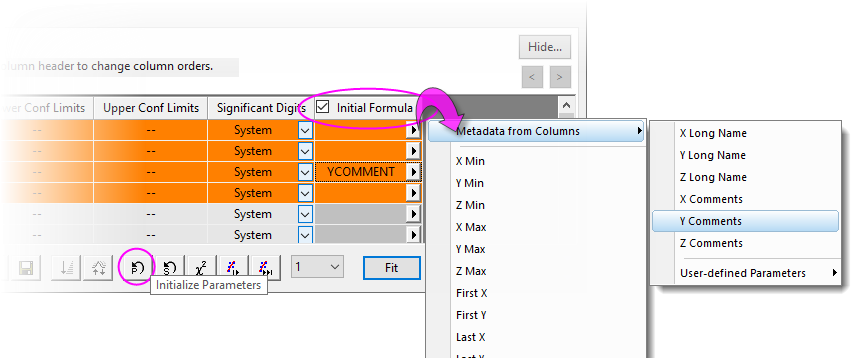
Right-click the Parameter tab title to open a context menu:
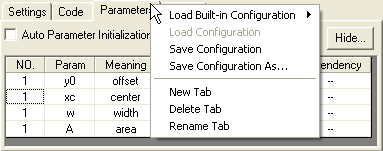
This is the same menu that displays in the Peak Fit Parameter dialog. Please see Peak Fit Parameter Help for details.
Value cells support Numeric, Date, and Time formats.
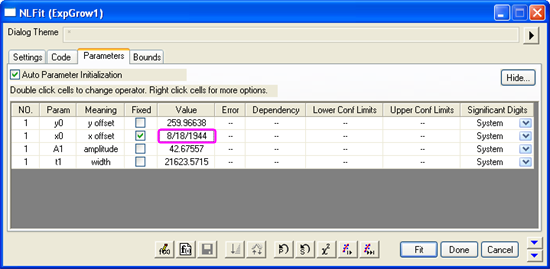
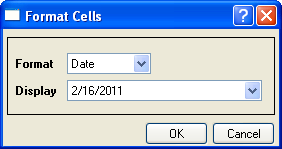
Origin 2022b and later support use of named ranges in place of numeric parameter values.
For more information, see this OriginLab blog post on Name Range for Fitting Parameters.
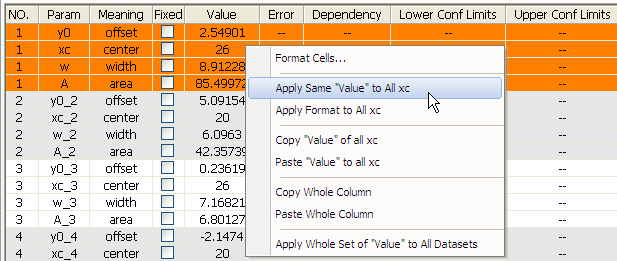
When doing an independent fit for multiple datasets with the same fitting function, you can use the fly-out menu to apply the current value to all similar parameters in other datasets.
For example, as in the above screenshot, right-click the value of parameter xc. Select Apply Same "Value" to All xc from the fly-out menu to apply 26 to the similar parameters, xc_1, xc_2, xc_3 and xc_4. Use this menu to copy and paste the initial values to all paralleled parameters.
Note:
|