15.3.7.1 Fitting with Themes
Fitting-Themes
Theme Setting
The NLFit Theme Setting dialog allows you to specify what will be saved to the theme. It can be opened as in the image below:
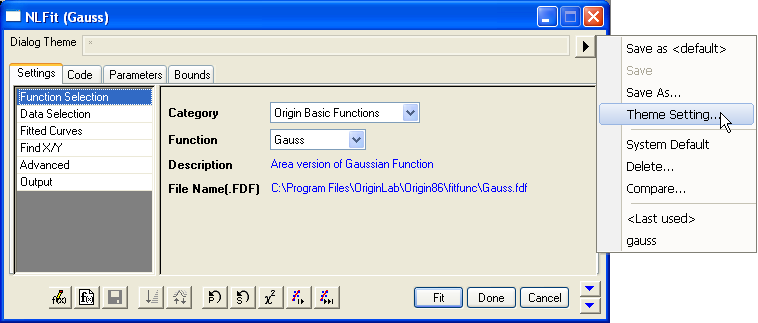
- Click on the triangle button to the right of the Dialog Theme control in the upper panel to reveal a menu.
- Select Theme Setting from the menu to open the NLFit Theme Setting dialog.
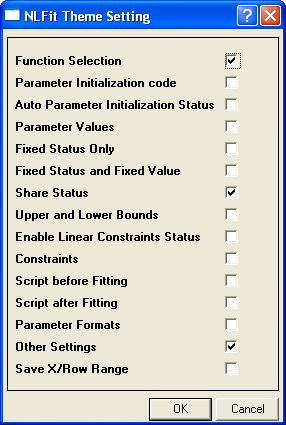
The NLFit Theme Setting dialog contains a series of check boxes. Choose options to be saved with the Theme:
- Save the Category and Function selections.
- Parameter Initialization code
- Save the code on the Parameter Init page of the Code tab.
- Auto Parameter Initialization Status
- Save Auto Parameter Initialization, if any, in the Parameter Init code.
- Save the parameter values on the Parameter tab. This will have no effect if Auto Parameter Initialization saved with your function or Theme.
- Fixed Status and Fixed Value
- Save the Fixed check box settings on the Parameter tab.
- Save the Share check box settings on the Parameter tab. Available only when either of the following conditions is met:
- For multi-range input, Global Fit is chosen from the Multi-Data Fit Mode drop-down list.
- For single-range input, Number of Replicas is more than 1.
- Save parameter lower and upper bounds.
- Enable Linear Constraints Status
- Save the state of the Enable Linear Constraints check box, Constraints page of the Code tab.
- Save the general linear constraints for fit parameters.
- Save scripts to execute after fitting completes.
- Save parameter Significant Digits.
- Save all other dialog box settings.
- Save the X/row range, Data Selection page of the Settings tab.