4.1.1 The New Book dialog
New-workbook-dlg
The New Book dialog provides all-in-one access to your workbook, matrixbook and Analysis Templates. The dialog lists three classes of templates:
- User templates are your customized templates and are generally saved to <user>\Documents\OriginLab\User Files.
- Extended templates are special OriginLab-supplied templates available for analysis work and generally saved to <user>\AppData\Local\OriginLab\Templates.
- Group templates only show for users who share a designated Group Folder that contains workbooks or matrixbooks. Other users will not see the Group check box.
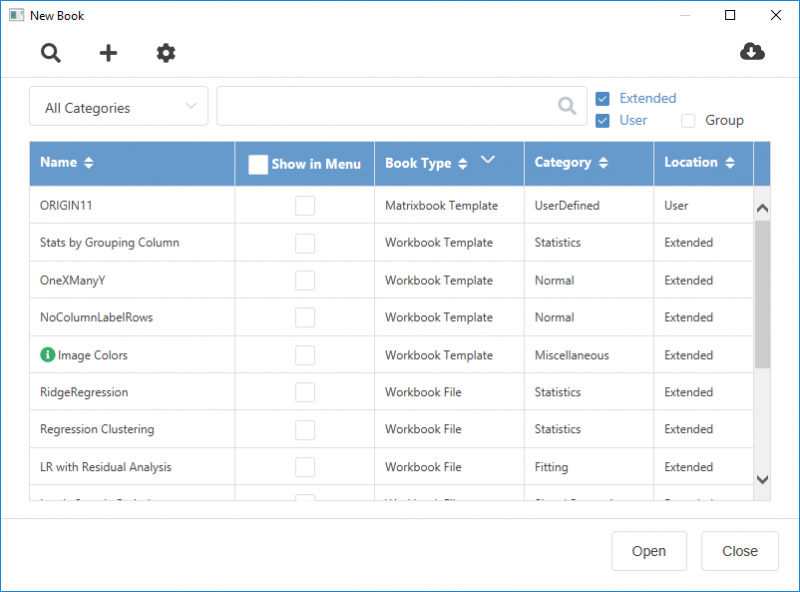
- Select File > New: Workbook : Browse from the main menu.
 | Please note, the New Book dialog won't pop up automatically when startup Origin or new a project, which is different from the old New Workbook dialog. Meanwhile, the Learning Center will always show up if you've checked the Show on Startup check box.
|
| Note: The Group check box only appears when you have set a Group Folder, and added any workbook/matrix book to it.
|
Add User Books and Manage All Books

- If you have added existing book files to your User Files Folder or Group folder, you can click the Scan User Book button
 on the toolbar to scan them automatically.
- To add workbook templates(*.otwu) or workbook windows/analysis templates(*.ogwu) from a folder other than User Files, click the Add Book button
 on the toolbar.
- Click the Manage Mode button
 on the toolbar to switch to the management list. In this mode, you can
- delete the user book from the view list. Please note, you are not allowed to delete an extended book.
- hide some books and show them back from the main view list. When you set a book to be hidden, the book will be gray out and not show up in the view list.
- click on the Up&Down button
 in the column header to sort the books by Name, Book Type, Category and location.
Add New Templates in the Template Center
OriginLab maintains an online repository of specialized book and graph templates that you can download from the Template Center. To find out more, see Template Center.
Search and Filter the Books
Select one category from the Category drop-down list, enter a string or text in the Search box to search it in the book information.
You can check or uncheck the Extended, User and Group check box to decide which kinds of the books to show in the list.

More Controls on the View List
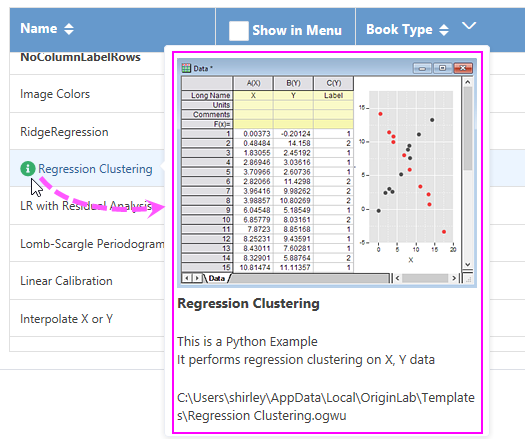
- Show Book Preview and File Information
- Hover over the Info icon
 before a book, the preview, description and file path will show up in its tooltip.
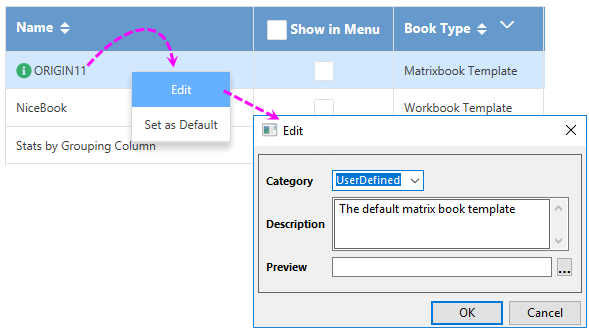
- Edit a User Book
- Right-click on a User book file to select Edit to open the Edit dialog to edit the book file.
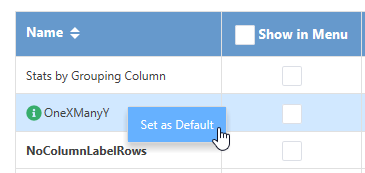
- Set a Book as Default when new a workbook or matrix
- Right-click on the book and select Set as Default will change the default template for the New Workbook button
 and New Matrix button
  . The current default template will be bold if it is in this view list. You are allowed to clear the default on the default one or set another template as default to change the default template.
- Add the book into the File: New:Workbook/Matrix menu
- Check Show in Menu check box after the book name to decide whether show them under the File: New:Workbook/Matrix main menu.
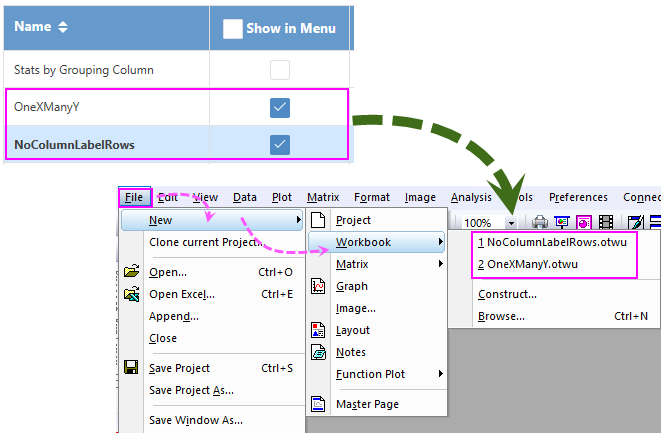
- Filter the books by Category or Book Type
- Click on the down arrow beside the Book Type header to select a type to filter the books.
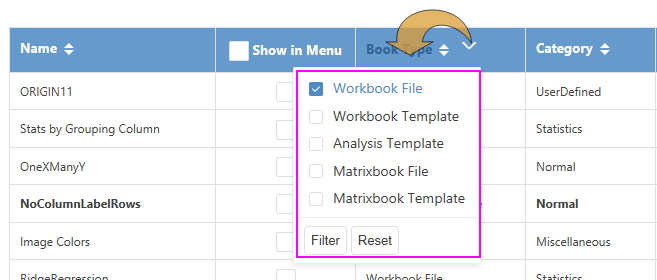
- Sort books in the list
- By default, the recently-used book files will be listed at the top of the table and the newly-added book will also be considered as recently-used and listed at the top. To sort the listed books manually, click on the Up&Down button in the column header to sort the books by Name, Book Type, Category and Location.