After importing a NetCDF file into matrix stack, you can perform manipulation on matrix data.
The following examples show how to use these tools on NetCDF data.
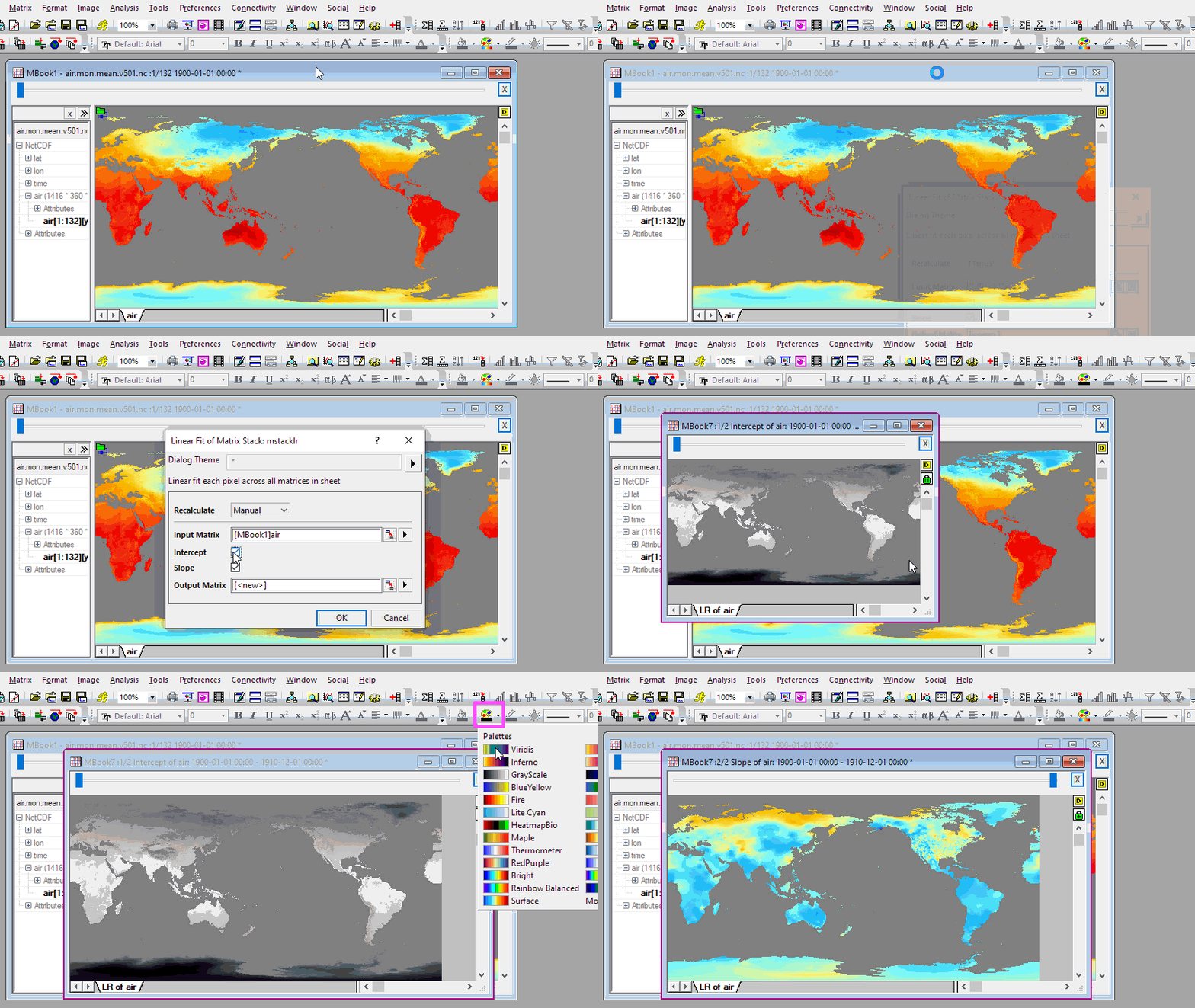
Select Analysis: Linear Fit on Matrix Stack to open the dialog, perform a linear fit on the NetCDF matrix stack.
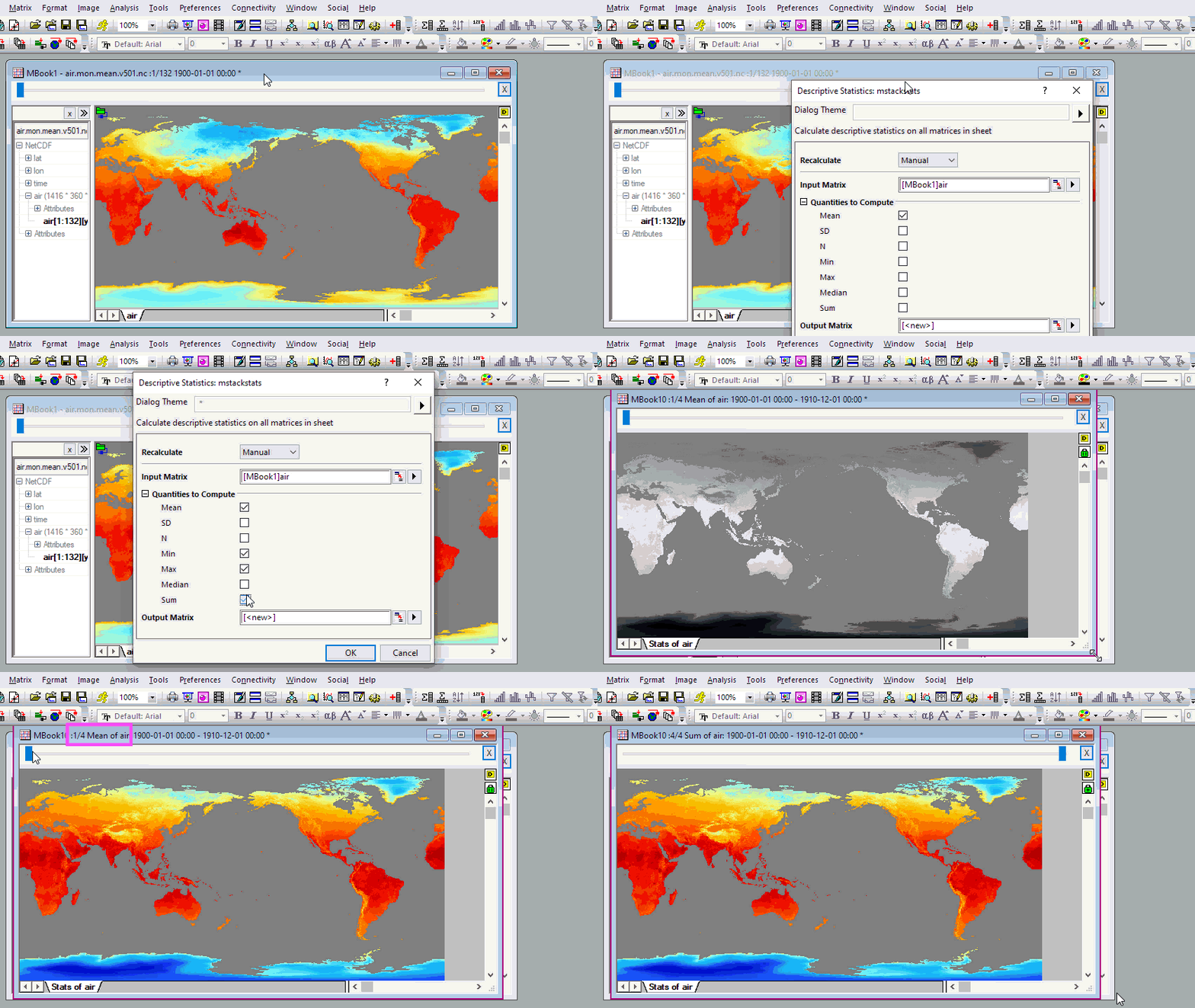
Select Analysis: Descriptive Statistics to open the dialog to get the descriptive statistics (Mean, SD, Min, Max, Median and Sum) for the matrix stack.
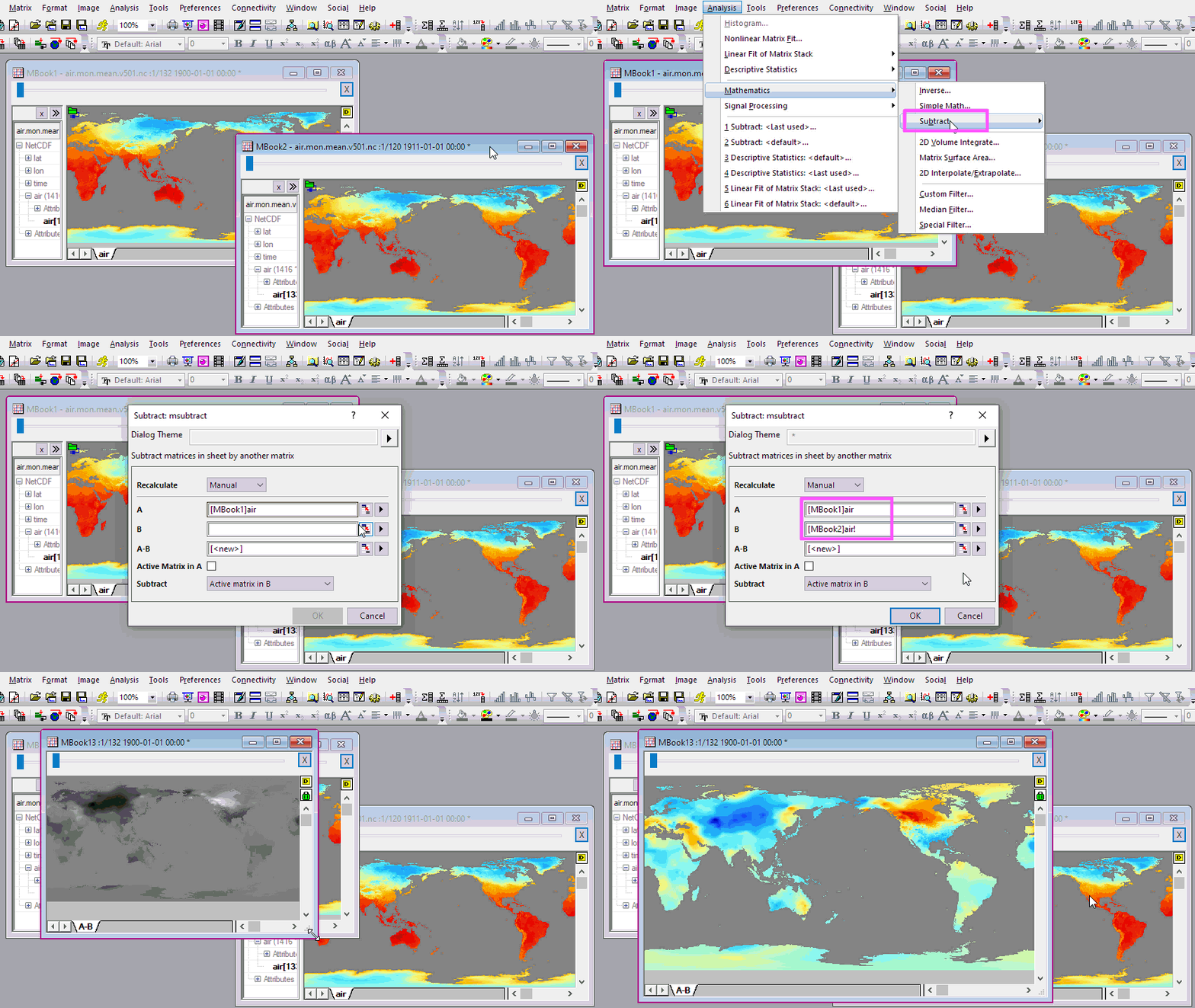
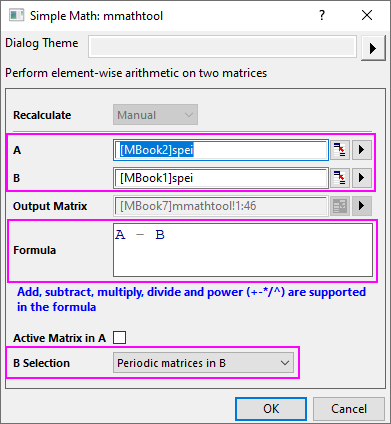
Select Analysis: Mathematics: Subtract to open the dialog, perform subtraction between two same-sized matrice stacks to get the difference between them.
In the following illustration, we'll get the mean value of the matrix from and then perform subtraction with two mean value matrices to get the difference of them.
User Story:
Select Matrix: Pixel Extraction to open the dialog, extract the Z value for specified XY coordinates for all matrices in the matrix stack.
To specified XY coordinate values, you can:
or
or

Select Matrix: Resize to open the msresize dialog, you choose Interpolate as Resize Option to get more detailed information from NC files.
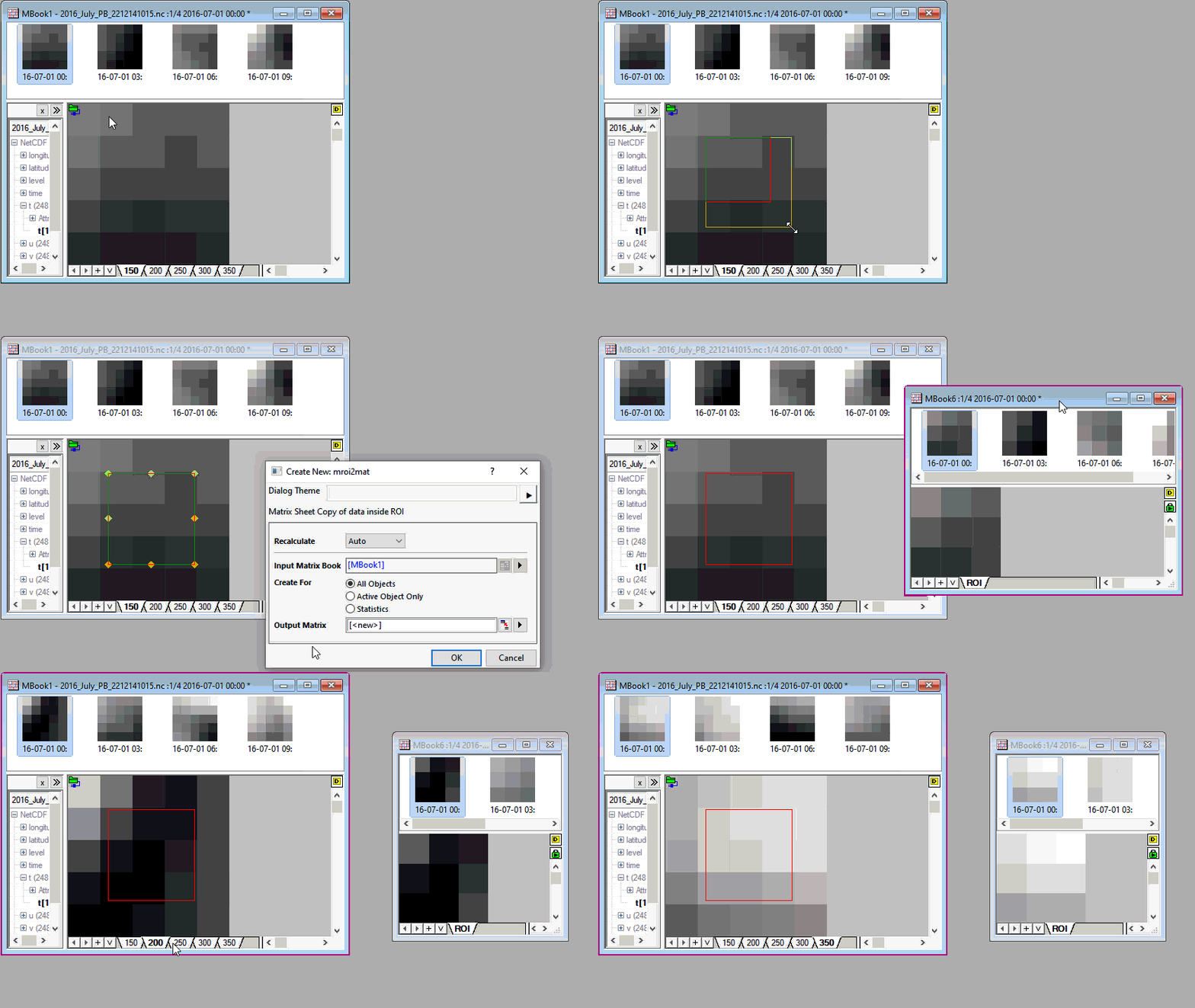
When a matrix is in Image Mode, you can use first select an area using the Rectangle/ Circle/ Polygon/ Region tool  as region-of-interest (ROI), and then extract data from it.
Right-click on the ROI and choose an option from the shortcut menu. To discard the ROI, press Delete.
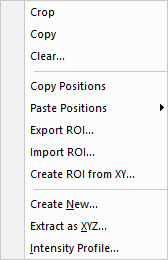
To add multiple ROIs:
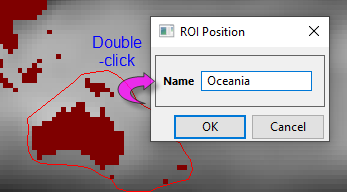
Each ROI is added with a default name (e.g. ROI). You can add multiple ROIs to your matrix image but you need to rename each ROI before you can add another.
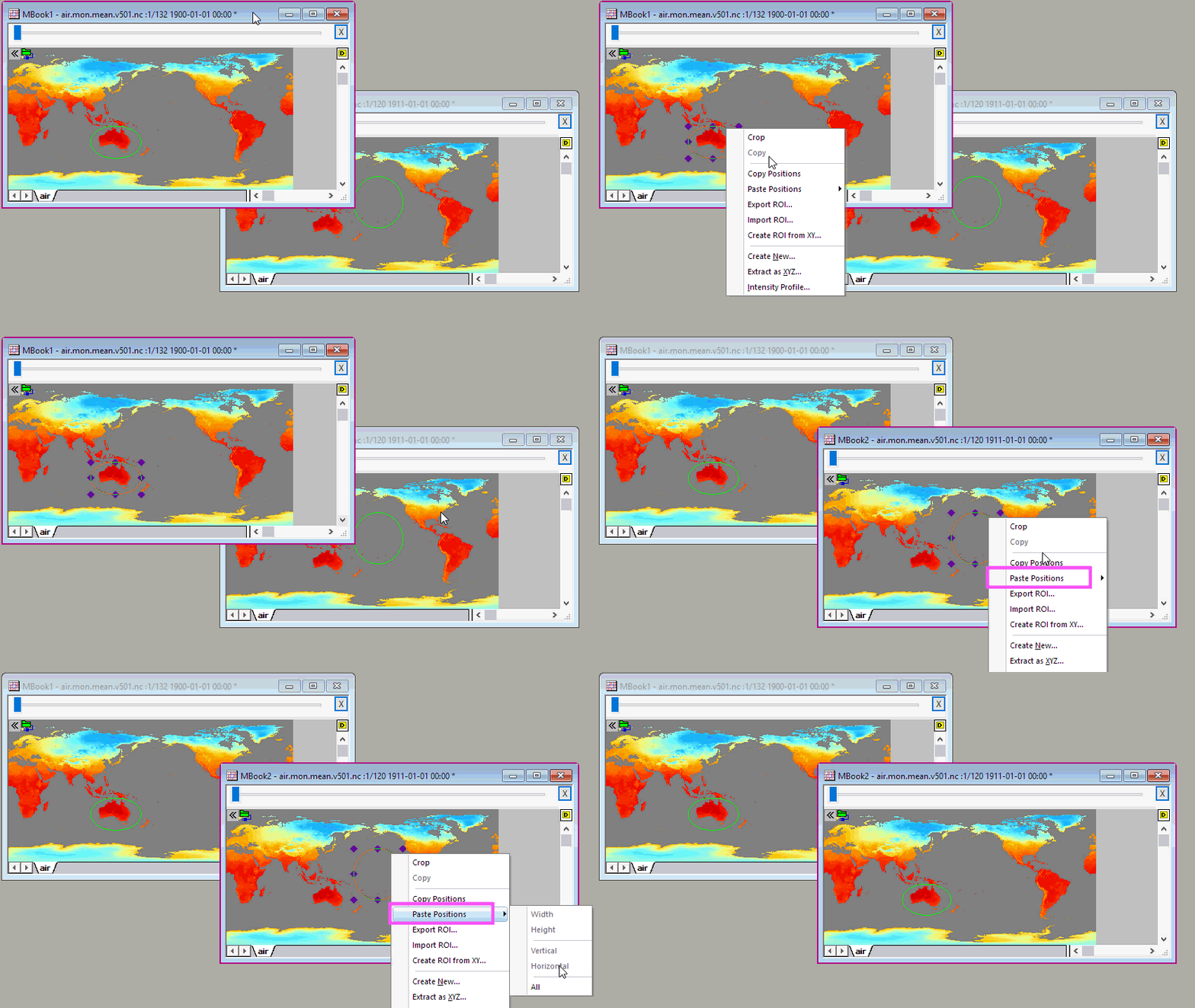
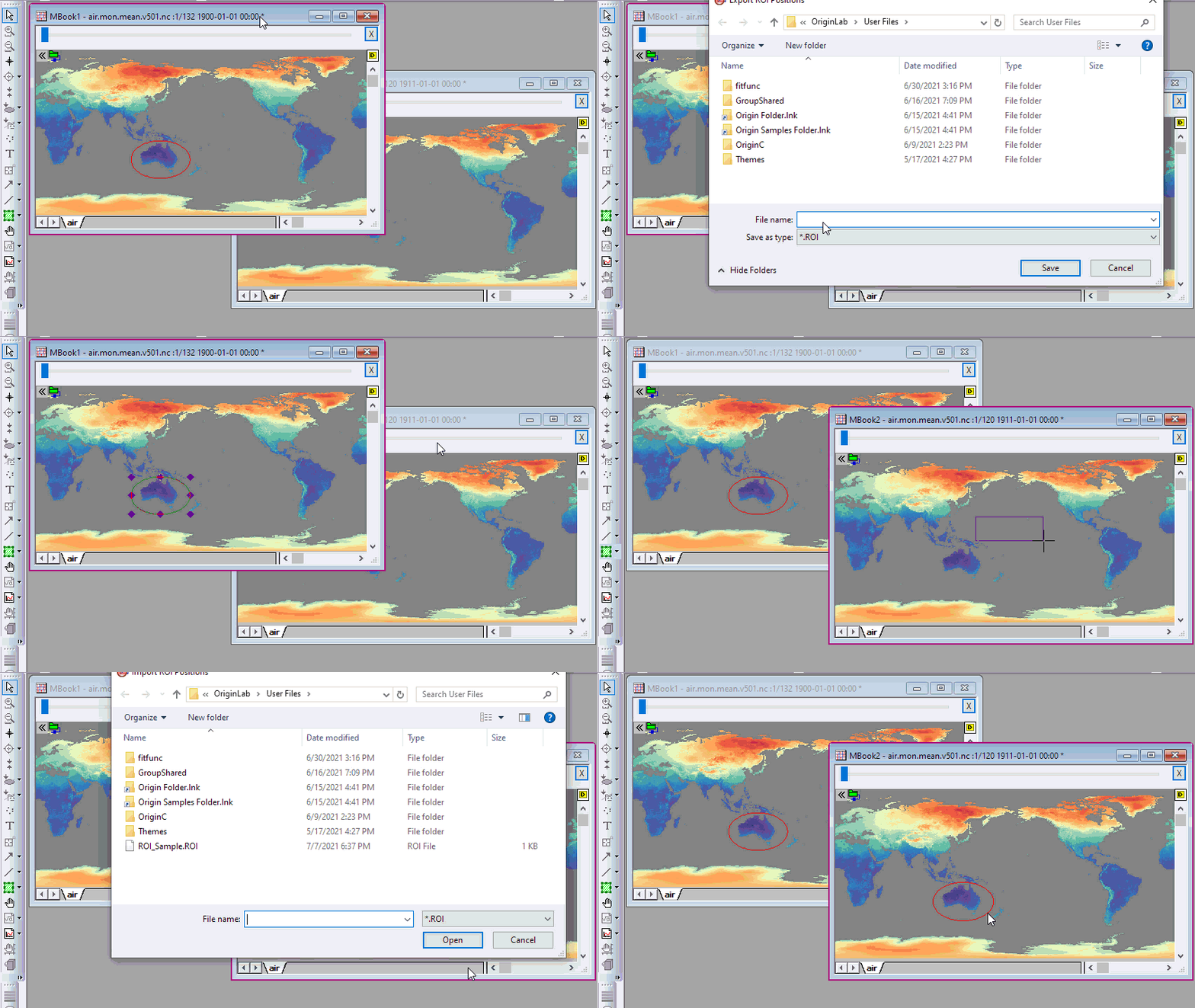
Copy the position of the selected ROI. Then paste the position of the selected ROI to another ROI (width, height...all).
Save the ROI object(s).
Replace the object(s) with those in a saved .ROI file (hint: create a "dummy" ROI to import).
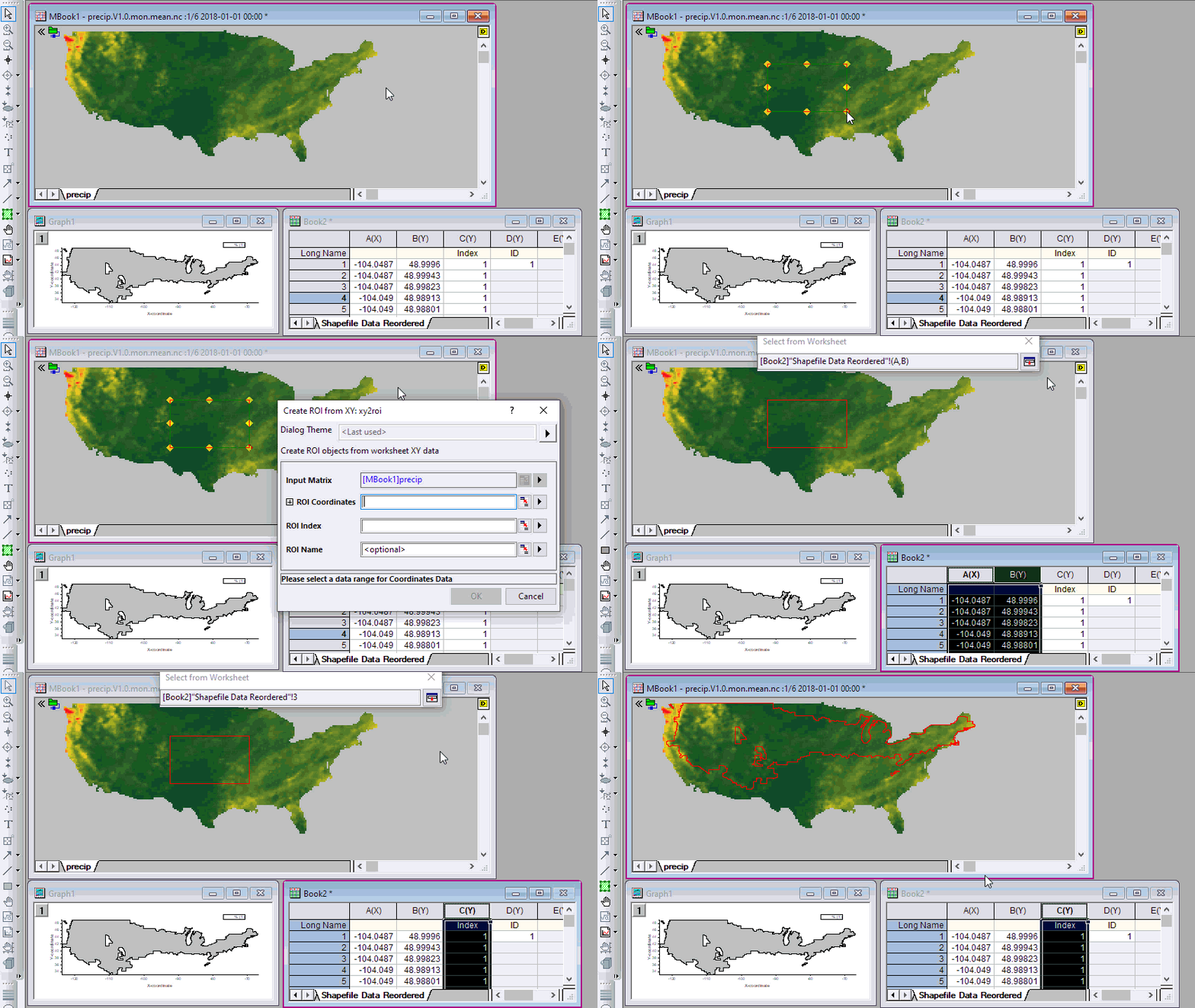
Add ROI on the matrix, right-click on the ROI in the Matrix, select Create ROI from XY, and use xy2roi tool to import the Worksheet XY data for defining the ROI.
For example, there is a dataset from shapefiles, you can import it into the NetCDF matrix.
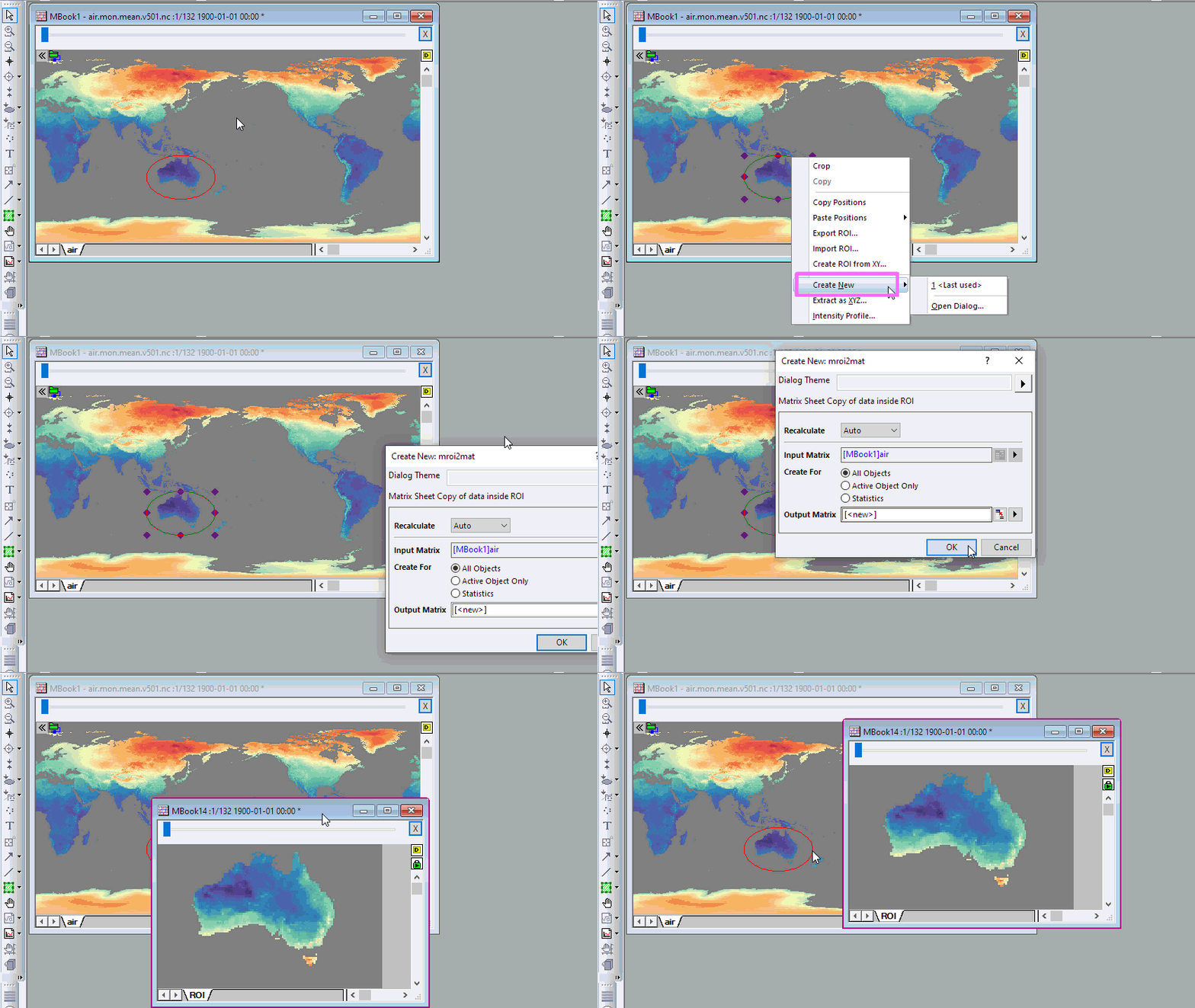
Use the mroi2mat tool to generate a new matrix from the ROI.
Use the mroi2xyz tool to generate a new worksheet of XYZ values in the ROI.
Use the mroiprofile tool to generate the descriptive statistics value (Mean, SD, Min, Max, Median, Sum, XY of Min and XY of Max) for the ROI. The Intensity Profile dialog gets a Weighted ROI check box. When this option is selected, each pixel is weighted by the area of the intersection of the pixel rectangle and the ROI polygon. This is to improve results when the ROI coordinates do not fully cover a pixel.
For example, after add a shapefiles dataset as the ROI (Create ROI from XY tool), you can use use Intensity Profile tool to analysis the ROI dataset.
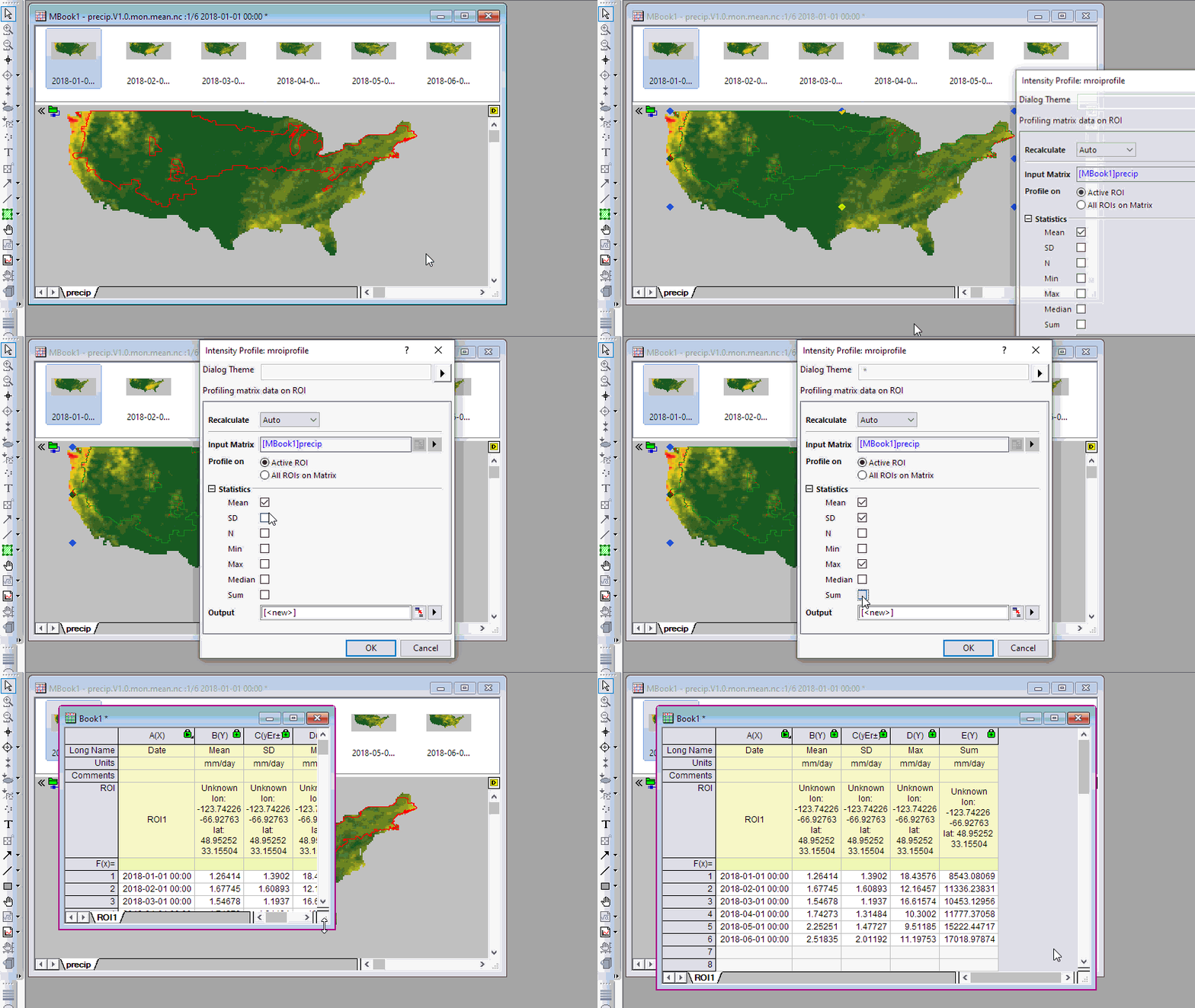
Refer to the X-Function Mroiprofile to know more about this dialog.
 | There can be a speed issue when there are many ROIs, Profile on = All ROIs on Matrix and Data Layout = Matrix Rowwise. The slowness is caused by maintaining output columns of Report Data. In such cases, if the original output has number of columns greater than @RDRC, output will simply remove all original columns. However, it should be noted that removing all output columns will also cause plots made from output, to be destroyed. |
Add ROI on the matrix, right-click on the ROI and select Clear.
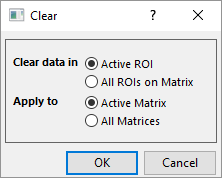
For the 4D matrix book matrix book (the 4th dimension is sheets), the single ROI will be displayed across matrix sheets. And the ROI will be displayed on the active sheet.
For this ROI, it also supports Create New, Extract XYZ and Intensity Profile tool. And it will generate the active matrix sheet’s result. Switching sheets, the result will update for the active sheet.