
Select at least one data column and one factor column to create interaction plot by factors.
Select required data.
From the menu, select Plot > Statistical: Interaction Plot to open the plot_interaction dialog.
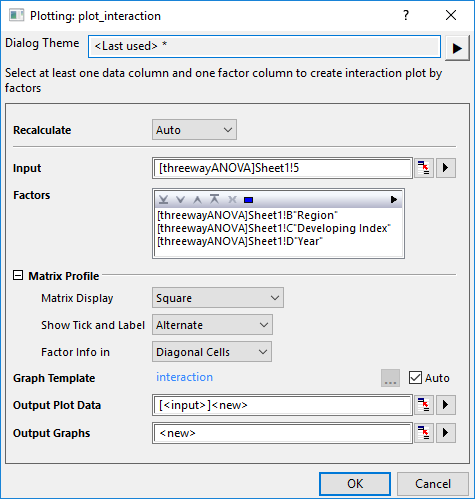
| Input | Specify the input data. | |||||||||||
| Factors | Select N factors which interact with each other. | |||||||||||
| Matrix Profile | This group is similar with that for Scatter Matrix diagram.
| |||||||||||
| Graph Template | Specify the template to plot the interaction plot.
By default, the built-in template interaction is used; Uncheck Auto check box to browse and select a user template, to apply the format you saved in advance. | |||||||||||
| Output | Output the plot data to specified sheet. | |||||||||||
| Output Graphs | Output the result graph(s) to specified sheet. |
interaction.OTPU(installed to the Origin program folder).
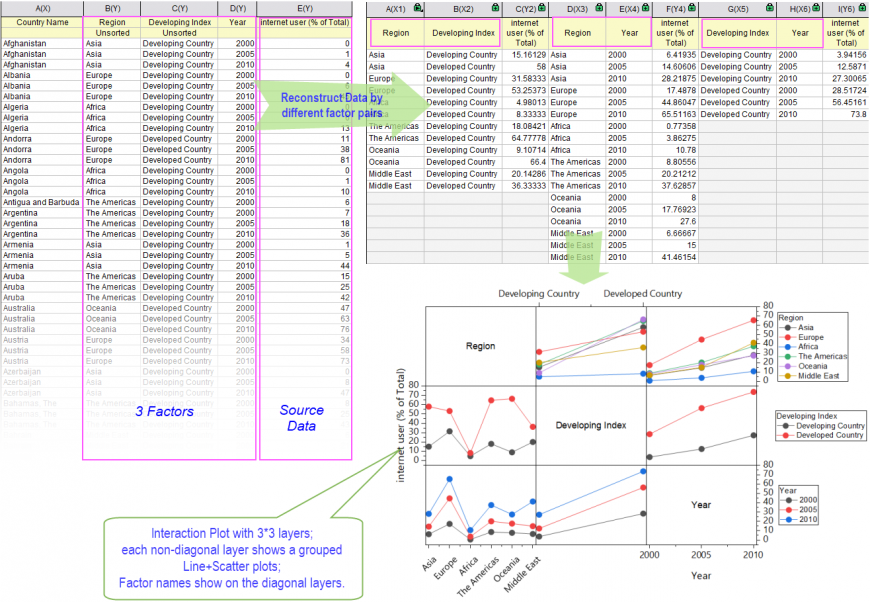
The interaction plot looks like a Scatter Matrix, shows a matrix of interaction plots. In a Interaction plot, the number of rows and columns are both equal to the number of grouping variables(factors), each panel(except the diagonal panels) indicates the interaction of the row effect with the column effect.
When you select N factors, you will get N*N layers(cells). By default, the diagonal cells show labels for each factor. For the (N, M) cell, get the mean of data column by Nth and Mth factor. Then plot Mth factor in X direction against Y as line+symbol plot, Nth factor set to subset column. Note: Cell (N, M) and (M, N) share the same data in the result plot data sheet.
| Minimum Version: Origin 2025b |


