6.8.1 Accessing Metadata from the GUI
GraphInterface-Access-Metadata
There are several ways to access workbook metadata associated with imported files, within the graphical user interface (GUI):
- View the metadata in the Workbook Organizer.
- Link metadata to "variables" and insert them into label objects (text, graph legend, etc.) on workbooks or graphs or into worksheet cells.
Viewing metadata in the workbook organizer
If a file has been imported into the workbook, you can right-click on the title bar and choose Show Organizer from the shortcut menu. You can see the metadata saved in two areas:
- For metadata saved in page.info, select page.info or its sub-nodes on the left pane.
- For metadata saved in binary storage area, select a filename under Imported Files on the left pane.
Linking the metadata to a variable and displaying it in a worksheet cell
By Insert: Info Variable dialog
- Right-click on the cell where you want to insert your variable value and choose Insert Variables from the short-cut menu.
- In the Insert Info Variables dialog box, choose a variable and click Insert.
For more information, see Inserting Graphs, Images and Other Objects into Worksheet Cells.
| Note: You can insert variables in multiple cells, simultaneously. If you choose n variables in step 2, the first variable is inserted into the cell selected in step 1. Variables 2 to n are inserted in cells 2 to n below the first cell.
For more details, please see documentation for the X-Function insertVar.
|
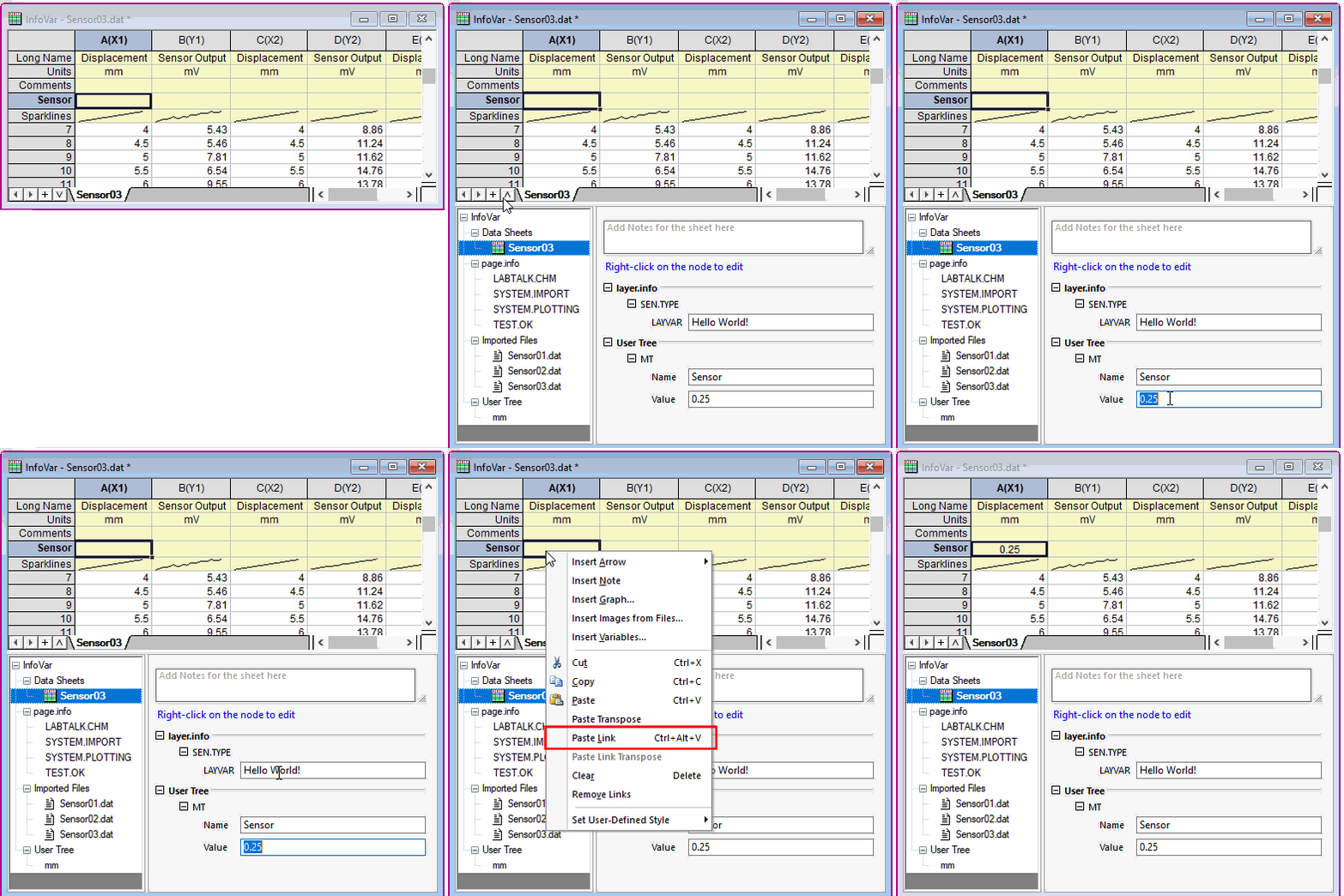
By Workbook Organizer
- Click the Show/Hide Organizer button
 in the bottom-left corner of the workbook window.
- Right click on the desired variable content edit box, or non-editable blue text, or variable name, and select Copy Node Path.
- Go to the target column label cell, or a worksheet cell, right click and select Paste Link.
Linking the metadata to a variable and showing it in a graph
To insert a variable into a label object (text object or graph legend object):
By Insert: Info Variable dialog
- While editing your label object, press CTRL + H. This opens the Insert Info Variables dialog box.
- Choose a variable and click Insert.
For more information, see Inserting Variables Extracted from Imported ASCII Files into Text Labels in the "Graphing" chapter under "Adding Text and Drawing Objects: Advanced Concepts Constants Variables Scripts".
By Workbook Organizer
- Click the Show/Hide Organizer button in the bottom-left corner of the workbook window.
- Right click on the desired variable content edit box, or non-editable blue text, or variable name, and select Copy Node Path.
- Go to the text object on the graph, right click and select Paste Link.