 See more related video:Origin VT-0010 Interpolation
See more related video:Origin VT-0010 Interpolation
The Interpolate Gadget performs quick interpolation on a ROI (Region of Interest) range.
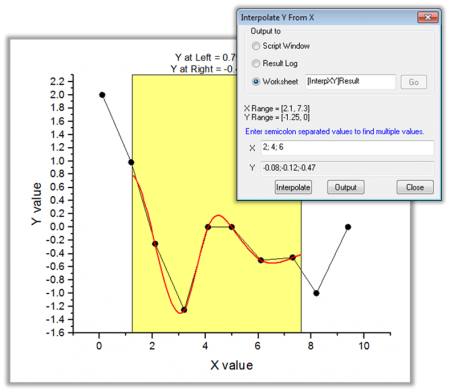
With this gadget, you can:
To use this tool, select Gadgets: Interpolate from the Origin menu, when a graph is active.
This dialog can be opened from Gadgets: Interpolate in the Origin menu, or by selecting Preferences from the ROI fly-out menu.
| ROI Box | X Scale
Show Tool Name
Fill Color
Interpolation Line Color
Interpolation Line Width
|
|---|---|
| Show on Center-Top of ROI Box | Choose the quantities to be displayed at the top of the ROI box.
|
| Interpolate/Extrapolate Options | Method
Number of Points
Boundary
Smoothing Factor
Fit Limits To
|
| Output To | Specify the output result worksheet:
|
Click the triangle button  at the top right corner of the ROI tool to open the fly-out menu. Menu commands include:
| New Output | Output results to the specified worksheet. |
|---|---|
| New Output for All Curves (N) | Output the results for all curves in the current layer to the specified worksheet (if not empty, append the results). |
| New Output for All Layers (L) | Output the results for all curves in all layers within the current graph to the specified worksheet (if not empty, append the results). |
| Go to Report Worksheet | Activate the report worksheet. |
| Change Data | Select the source data set. This is applicable only when there are multiple curves on the graph.
|
| Expand to Full Plot(s) Range | Expand the ROI to the full plot(s) range. |
| Fix ROI Position | Fix the position of the ROI. |
| Interpolate X/Y | Open the Interpolate Y from X dialog. You can enter multiple X values and the tool will output the interpolated Y values for each of them. |
| Save Theme | Save the settings as a Theme. |
| Save as <default> | Save the settings as default Theme. |
| Load Theme | Load settings from a Theme file. |
| Preferences | Open the Interpolate Preferences dialog. |
