Palette Editor is an old tool. For Origin 2023 and later, please try Color Manager instead.
Origin has several built-in tools for creating and editing palettes.
| Palette Editor is an old tool. For Origin 2023 and later, please try Color Manager instead. |
Note, too, that this topic is about modifying palettes in Origin. You can also add palettes to Origin by drag-and-drop of many standard palette files. For information, see Import Color Lists or Palettes.
Palette Editor is Origin's original tool for creating and editing of Microsoft palette files (.PAL). The built-in system palettes are saved to the "<Origin Program Folder>\Palettes\" folder, and the user-customizable palettes are saved to the "<User Files Folder>\Palettes\" folder. You can create new palettes using any external application that writes the palette out in the Microsoft .PAL format. Just copy the saved palette to "<User Files Folder>\Palettes\" folder to use it in Origin.
To open the Palette Editor tool,
Run
palEdit -d
in the Command Window.
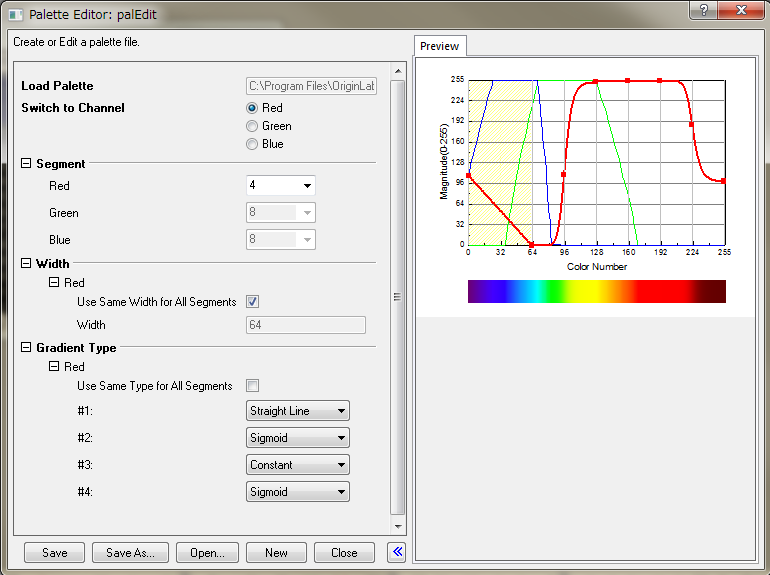
| Red / Green / Blue | Switch to the specified color channel. When this is selected, you can edit division settings in red channel. |
|---|
| Red / Green / Blue | This is only available when the color's radio button is selected in the Switch to Channel group. It specifies the number of divisions in the specified color channel. |
|---|
This control group specifies the width of each division.
| Use Same Width for All Segments | If this check box is checked, then all the segments will use the same width, and the Width=32. |
|---|---|
| #1 from | This is used to specify the beginning value of the first division. It always 0 and cannot be modified. |
| #N to | Here, N=1...8. Specify the ending value of the Nth division. The last division is always 255. |
This control group specifies the line connection type of each color channel's division, and only available when the specified color's radio button is selected in the Switch to Channel group. It use to specify the line type of each division in that channel.
| Use Same Type for All Segments: | If this check box is checked, then all the segments will use the same gradient type, and you cannot manually select the line type for each division. |
|---|---|
| Gradient Type |
This is only available when Use Same Type for All Segments check box is checked. It specifies the gradient type for all divisions.
|
| #N |
Here, N=1...8. Specify the gradient type of the first division. See more details about its drop down list in the Gradient Type section above. |
At the bottom of the dialog box are six buttons.
| Save | Save the current palette to disk using its current file name. If the palette is new and does not yet have a file name then this button will be unavailable. |
|---|---|
| Save As... | Save the current palette using a new file name. |
| Open... | Open an existing palette file. Only .PAL format files can be recognized. |
| New | Create a new palette. |
| Close | Close the dialog. |
| >> , << | Open or close the preview panel where you can view or directly manipulate the color curves. |
The preview is a XY Graph in the right panel of the PalEdit dialog, The X-axis indicates the color segments from 0 to 255 where 0 is start and 255 is end. The Y-axis indicates the color brightness changes in the palette from 0 to 255 where 0 represents very dim and 255 very bright. And there are three curves (Red, Green and Blue) in the graph which represent red, green, or blue color changes respectively. For example, if three curves have the same equation: y=x, it means that the colors change from black to white gradually. And if the Red line equation is y=255, Blue and Green lines both have equation y=0, it means that only red color appears in the palette and red changes from dark to bright gradually.
There are nodal points at the edge of very segment. When the Gradient Type is not set to Keep Current, you can drag and drop these points to change the color conveniently.
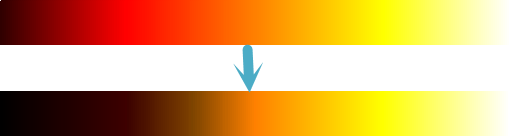
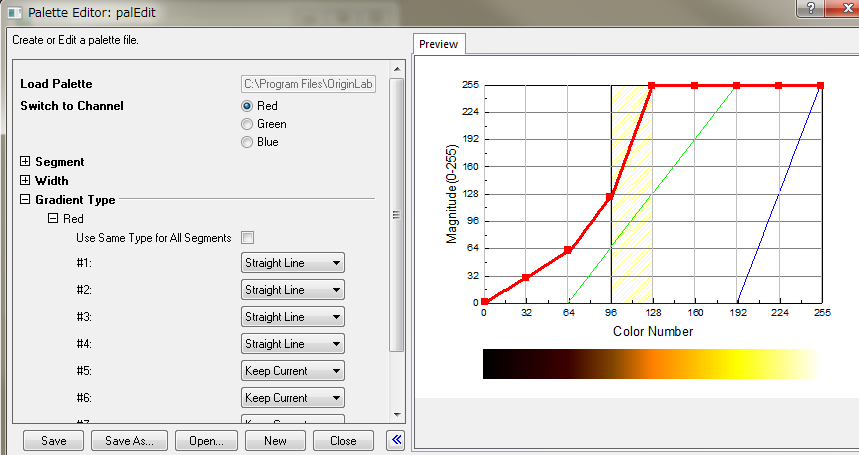
The following tutorial demonstrates how to modify the existing palette, and save as a new palette using the Palette Editor. Here, you expand the black area in the "Fire" palette at the lower range of the RED channel: