While Graph Templates and Themes are generally used to apply a previously-saved set of customizations to specified graph(s), Copy and Paste Format operations offer more freedom in choosing which format properties one wants to selectively copy from a source graph, and subsequently, which copied properties one wants to selectively paste to a target graph.
In Origin, you can choose to copy format properties from a graph window's page, layer, axis titles, axis lines and ticks, user-defined text and drawn objects, graph legends and plots. Which properties can be copied and which can be pasted, will depend on the selected object.
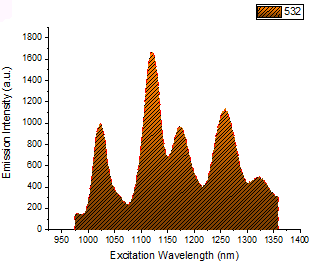
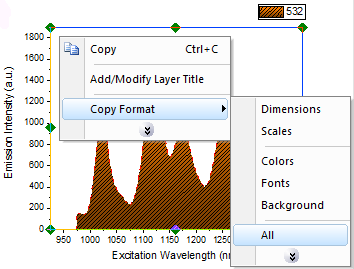
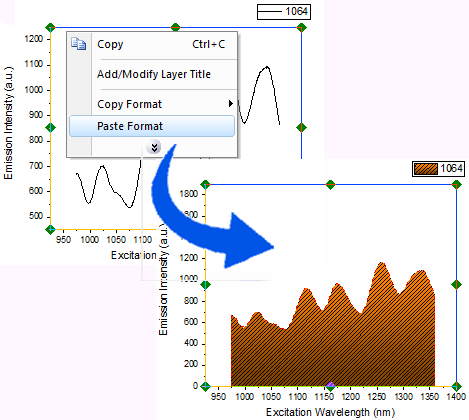
To copy the format of a graph or graph object (text, line, arrow, etc.) and paste it to another graph or graph object:
| Note: Both Copy Format or Paste Format context menus are object-oriented, for different graphic objects, plot types, page, layer, axes, etc, the context menu items are different. |
Sometimes one may want to copy format from a dataplot and then apply copied format to all other layers. To do so, follow the steps below:
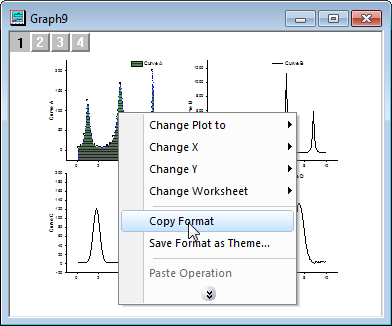
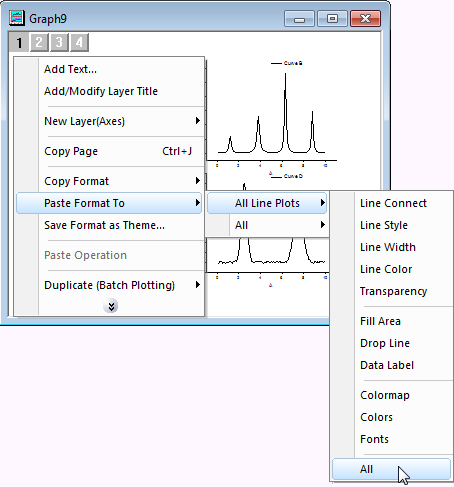
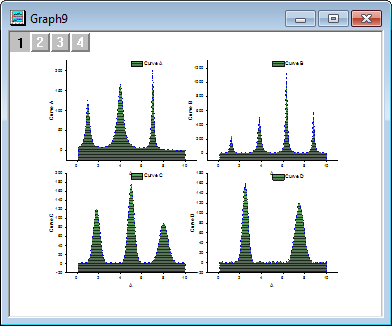
 | Alternatively you can paste copied format properties to a specified layer, to do so you just need to select that layer first and paste. |
In some cases, one may want to copy format from a graph layer and apply to all other graphs in current project/folder. To do so, follow the steps below:
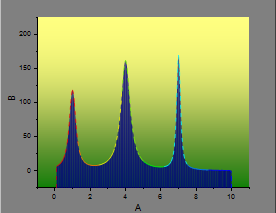
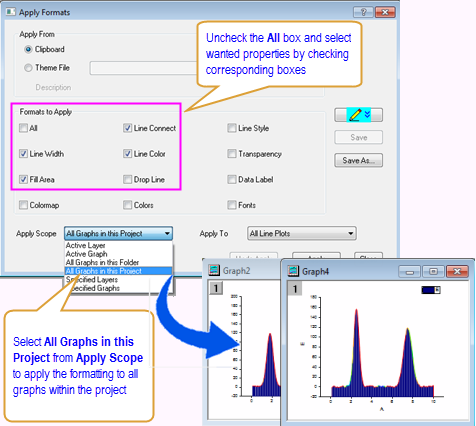
 to expand the Details display box. You can check List View box on the right to view the list of format properties. To edit the copied format properties, single click on the row in Value column to enter a value or select an option. You can also apply multiple selected properties other than all the properties by holding Ctrl key to select multiple items and check Apply Selected Properties Only box to apply.
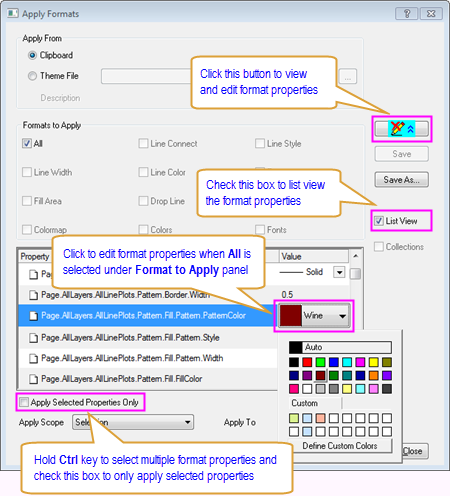
| Note: In the Apply From section, you could specify the source of format properties. If you had copied format properties, by default you are using source from Clipboard, otherwise you can choose Theme File radio box and browse to a pre-saved theme file. |
| You can also save currently copied format properties into a theme by clicking Save As... button in Apply Formats dialog. Later you can edit and apply the saved theme using Theme Organizer. |
If you have a multi-layer graph and each layer contains different types of plot. Now you just want to copy format from one plot type in some layer and apply format properties of that specified plot type to all other layers. Below is an example to show how to copy format from a column plot in one layer and apply to all other columns plots in other layers.
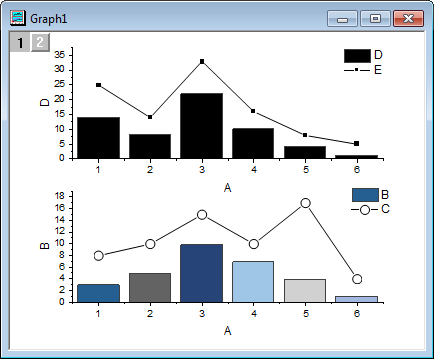
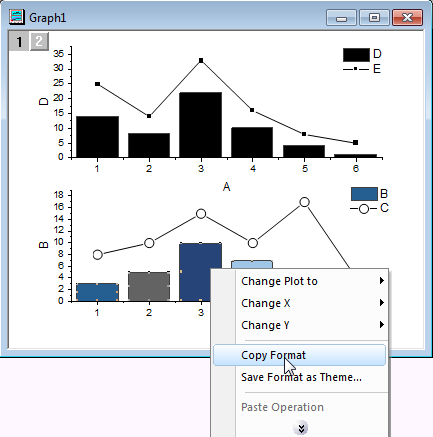
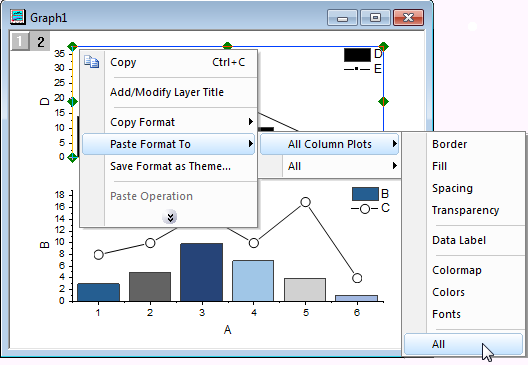
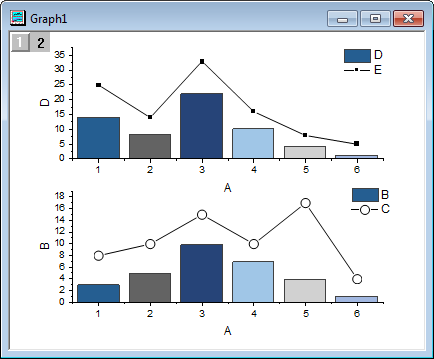
| You can also apply copied format from a specified plot type to specified layers/graphs or all graphs in the folder/project. To do so, hold SHIFT key when you select an item in the Paste Format To context menu or go to Edit: Paste Format... to open Apply Format dialog. Then you can select an option from Apply Scope drop-down list.
|
When selecting an option in Copy Format/Paste Format context menu to copy/paste format properties from/to a graph or a graphic object, the format properties contained in that option are corresponding to a single or multiple controlling options in the graph's Plot Details dialog or in the graphic object's Properties dialog.
For instance, suppose you are trying to paste format properties copied from a data plot.
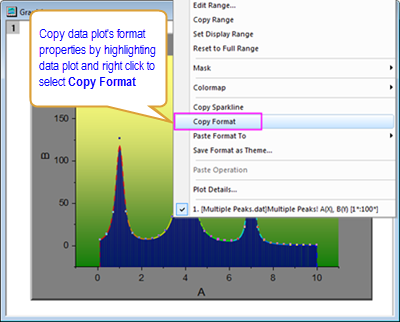
You can find the format properties for each item in Paste Format To context menu by double clicking the source data plot to bring up its Plot Details dialog. The correspondences between each item in Paste Format To context menu and options in Plot Details dialog are shown in the figure below:
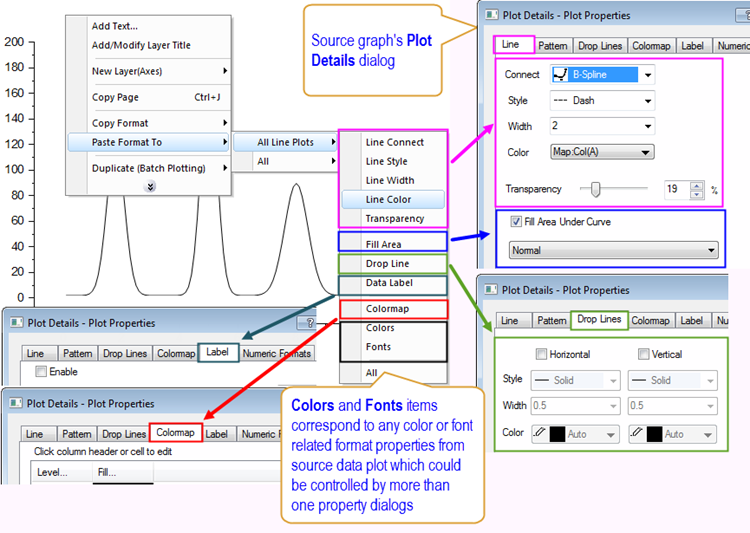
| To view the details of each item in Copy Format/Paste Format context menu, you can go to Edit: Paste Format to open Apply Formats dialog. Then to view the details of a particular item, first uncheck All box under Formats to Apply and select the checkbox on the left of wanted item. After that click the Edit Theme Details button |
| Note: There are some properties of text objects which cannot be copied and pasted to other text objects. If the text object property is created by inserting an escape sequence into the text object, it will not be copied to another text object.
Actions that insert escape sequences into text objects:
For more information on escape sequences, see Escape Sequences in the Origin Help file. |
