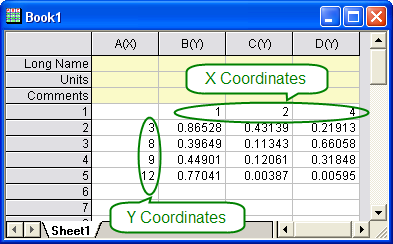
It is common to see three-dimensional spreadsheet data arrayed with X coordinates in the first row and Y coordinates in the first column (or vice versa). If you have such an arrangement and your X and Y coordinate values are linearly-spaced, you can do a direct worksheet to matrix conversion of your data, as a first step in creating 3D plots or performing other analyses on matrix data.
If the X and or Y spacing is nonlinear (as shown above) then you cannot do a Direct Conversion to matrix. There are two alternatives:
To use the menu option:
This opens the w2xyz dialog box. This dialog box uses the w2xyz X-Function.
In the Conversion Options branch of this dialog box, you can specify how the original data are arrayed: X across columns, Y across columns, or No X and Y (meaning the X and Y coordinate values are not supplied and Origin should use column and row indices). Note that Z values can be numeric or text (as well as categorical data).
| Recalculate |
Controls recalculation of results
For more information, see: Recalculating Analysis Results |
|---|---|
| Convert Range |
Options are Entire Worksheet (default) or Specified Ranges. The Specified Ranges option allows you to define a subrange as Input (by preselecting data or using the interactive range selection control. |
| Input Worksheet |
The input worksheet to convert when Convert Range = Entire Worksheet. For help with range controls, see: Specifying Your Input Data |
| Input |
The input range to convert when Convert Range = Specified Ranges. For help with range controls, see: Specifying Your Input Data |
| Data Format |
The format of the source data:
|
| X Values in |
When Data Format = X across columns.
|
|
When Data Format = Y across columns.
| |
| Y Values in |
When Data Format = X across columns.
|
|
When Data Format = Y across columns.
| |
| Column Label |
Only available when X Values in or Y Values in = Column Label. Choose the label row to supply the X or Y coordinates. |
| Trim Missing |
Trim empty rows and columns from the worksheet. Additionally, if during conversion either an X, Y or Z value is missing from the triplet, the point is discarded. |
| Output |
Specify three columns for the output XYZ range. X, Y and Z data can be output to different sheets and books. For help with the range controls, see: Output Results |