Last Update: 1/6/2019
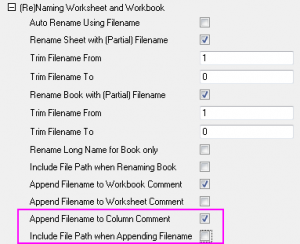
From Origin 2017 SR2, you can check Append Filename to Column Comment and uncheck Include File Path when Appending Filename under (Re)naming Worksheet and Workbook branch of any import tools to extract file name without extension to column Comments.
| Notes:. If you want to include file extension when append file name to column Comments, you can use the Set System Variables dialog for the job. Choose Preferences: System Variables to open the dialog. Set IFE to 0. |
For older versions, when checking "Append File name to Column Comments", file extension will be included by default. So you need to import data through Import Wizard, during which you can create a new parameter in the workbook that specifies the file name without file extension, and then copy file name from parameter row to column Comments.


//The goal of this loop is to 1) place all the columns in fname row into the comments row and to 2) hide fname row
loop (j,1,wks.ncols)
{
wcol(j)[C]$ =wcol(j)[fname]$; //places fname into comments
}
wks.UserParam1=0; //hides fname row in the workbook
To use this filter setting again, when you select Import Wizard you must initially select List filters applicable to both Data Type and file name under Import filter and then select from Import Filters to the current Data Type drop-down to select the filter you want to use.
If you don't do steps 8 and 9, the file name will be imported into the new parameter row. When you plot, the legend automatically lists the columns from Comments. To update the legend with file name, you will need to either
or
Keywords:extract file name, trim file extension