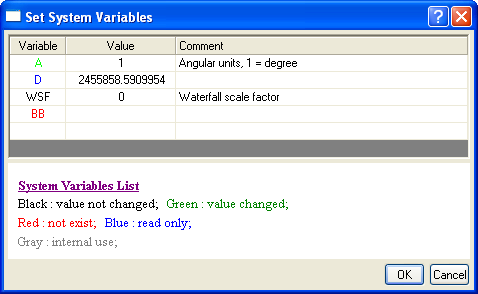
Use the Set System Variables dialog to set new system variable defaults.
To open Set System Variables:
Enter system variables in the upper panel of the dialog (shown above). The lower panel displays relevant hints.
When you change values and click OK, values are updated in the SystemVariables.ogs file located in the User Files Folder. System variables can also be edited directly in the SystemVariables.ogs file. These changes take effect when Origin is restarted.
Add a system variable in the dialog as shown in the image below:
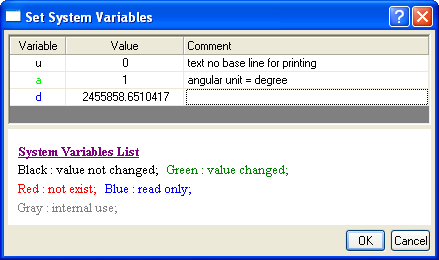
Click OK. The contents of SystemVariables.ogs will be updated to something like:
//System Variable Customization
//Generated from Origin by OriginLab on 2011-10-24 03:41 PM

[Main]
@u = 0;//text no base line for printing
@a = 1;//angular unit = degree
Only the changeable system variables (e.g., "a" and "u") are written to this file; others ("d") are not.
Origin 2026 allow you save System Variables to share with others.
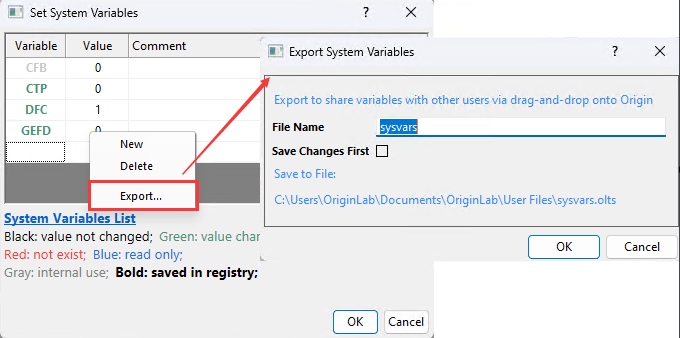
In the System Variables dialog, right-click and choose Export to export current system variables list to an otls file. Then share the file to other users via drag & drop onto Origin.
You can write system variables and their values to the SystemVariables.ogs file, using the run -oc command and the add_sys_vars OC function.
run -oc add_sys_vars var value;
run -oc add_sys_vars var1|var2 value1|value2;
For example:
run -oc add_sys_vars RCN 0;
... adds the system variable @RCN to the Set System Variables dialog box and, simultaneously, writes the value of @RCN to SystemVariables.ogs in the User Files Folder.