Last Update: 5/31/2022
Smart Hints and Project Explorer previews are intended to improve your Origin software experience and make it easier to find your data. However, if you would rather dispense with hints and previews, you can disable them by system variables.
If you want to disable smart hints in the current session,
Open the Script Window by Window: Script Window, type the following script, highlight it and pressing ENTER:
@SHS=0;
If, during the session, you want to restore the default values,
@SHS=1;
Note: Enabling or disabling the feature in this way only turns them off in the current session. If you close Origin and restart, these variables are reset to their default values.
To make your changes "permanent",
Or, you can refer to this FAQ topic.
To turn off preview temporarily in Project Explorer
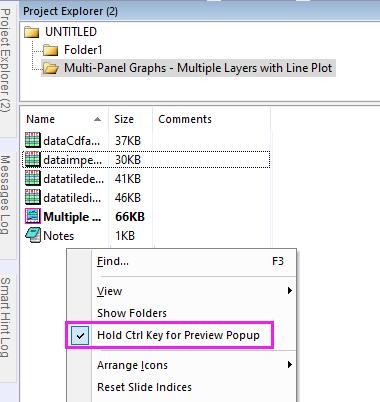
Preview is helpful for detecting windows in Project Explorer but can be in the way of your clicking, etc., so since Origin 2022b, we added a context menu in Project Explorer to not show preview unless Ctrl key is pressed when mousing over windows in Project Explorer.
Right click below window list in bottom panel of Project Explorer, and check Hold Ctrl Key for Preview Popup. Then the preview will not show unless you hold Ctrl key while mousing over windows in Project Explorer. The associated system variable is @pek=1.
To turn off all image preview in Project Explorer completely,
Set
@PESS = -1;
in the Script Window or Set System Variables dialog.
Note: there is no way to enable or disable the preview for a specific kind of window.
To restore to the default setings,
Set
@PESS = 7;
Note: You can set @PESS to other value (instead of "-1") to enable the preview feature. Please refer to System Variables list to choose a desired value if needed.
Set @PESH to disable or enable the workbook comment tooltip in Project Explorer.
@PESH=0 //turn off comments previews
@PESH=1; // show comments previews
Keywords:Smart Hint, hint, Project Explorer, Comments