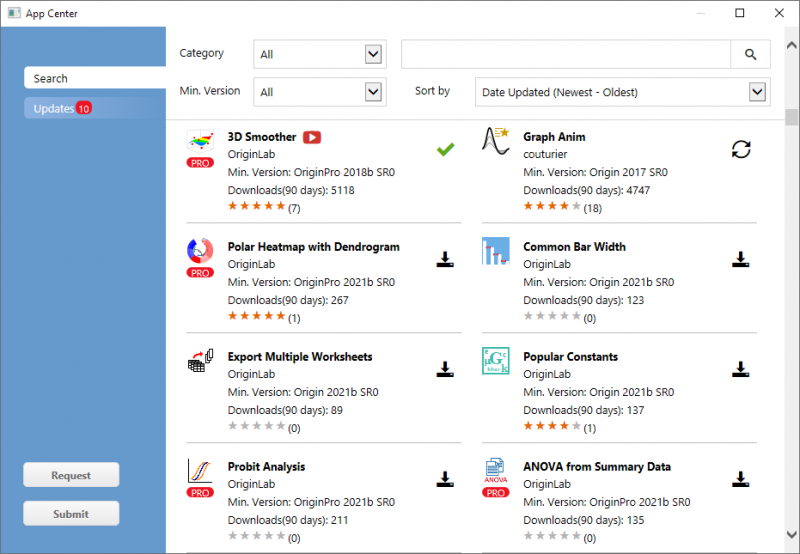
The App Center dialog helps you get start with Origin Apps. You can also manage your Apps in this dialog, installing new Apps and keeping the installed Apps up to date.
Note: for more information about Origin Apps, please see this page
 | Registration is needed to use App Center. If you haven't registered your Origin, follow the prompt to complete registration. |
On this tab, you can:
 button.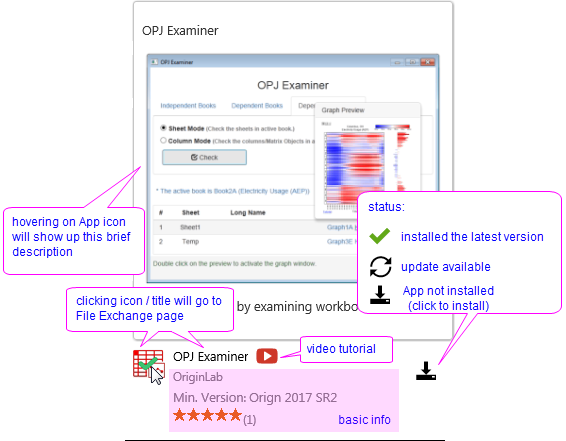
Note: Min Version lists All and Compatible two options. Compatible means set min version to current Origin version, so you will only see the apps that can really install and used in your Origin. However, it won't filter out Pro version if you have a standard Origin.
| You can also search for relevant Apps from these Origin menus, by clicking on Find Apps...:
This opens the App Center where you can click the Download and Install icon |
Choose Updates tab from left to view all Apps available for updates. You can click  button to the right of an App to update it, or click Update All Compatible button to update all at once.
| You can set @AUA = 1 in the System Variables dialog to turn on auto-update for installed Apps that have an update available. |
 - click to request a feature that you cannot accomplish by the existing Apps.
 - if you have developed an App, welcome to share it via File Exchange.
