2.2.3.77 wtranspose
Contents
Menu Information
Restructure: Transpose
Brief Information
Transpose the active worksheet
Additional Information
Minimum Origin Version Required: Origin 8 SR0, updated in Origin 8.5 SR0
Command Line Usage
1. wtranspose exchange:=1 col:=new type:=long;
2. wtranspose select:=1;
X-Function Execution Options
Please refer to the page for additional option switches when accessing the x-function from script
Variables
| Display Name |
Variable Name |
I/O and Type |
Default Value |
Description |
|---|---|---|---|---|
| Input Worksheet | iw |
Input Worksheet |
|
Specify the worksheet to be transposed. |
| Transpose from Selected Cell | select |
Input int |
|
This is only available when the Exchange Label With Data check box is not selected. It specifies whether or not to transpose only a region of the worksheet, where the selected cell of the top-left corner of the region. When this check box is selected, the cells above or to the left or the selected cell will not be transposed. Otherwise, the whole worksheet will be transposed. |
| Exchange Label With Data | exchange |
Input int |
|
This is only available when the Transpose from Selected Cell check box is not selected. It specifies whether to exchange the column label row selected in the Label Type drop-down list with the data column selected in the Data drop-down list. |
| Label Type | type |
Input int |
|
This is only available when the Exchange Label With Data check box is selected. It specifies the column label row that will be exchanged with the data column selected in the Data drop-down list.
|
| Data | col |
Input int |
|
This is only available when the Exchange Label With Data check box is selected and the Label Type drop-down list is not None. It specifies the data column that will be exchanged with the column label row selected in the Label Type drop-down list.
|
| Output Worksheet | ow |
Output Worksheet |
|
Specify the destination for the transposed worksheet. See the syntax here. |
Description
This X-Function can be used to transpose worksheet data.
The whole worksheet can be transposed, or you can opt to transpose only part of the worksheet. In the latter case, select the worksheet cell that locates in the top-left corner of the part to be transposed before bringing up the dialog. Make sure the Transpose from Selected Cell checkbox is selected and click OK in the wtranspose dialog.
Note: A worksheet with columns of different types cannot be transposed.
Examples
Suppose you want to transpose the following worksheet and rearrange the content in the long name row as a new column:
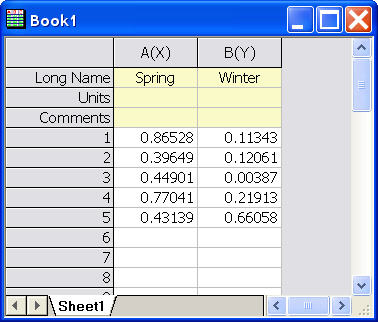
You can do the following:
- Make the worksheet active and select Worksheet: Transpose from the menu.
- Select Long Name with the Data Type drop-down list.
- Click OK to close the dialog.
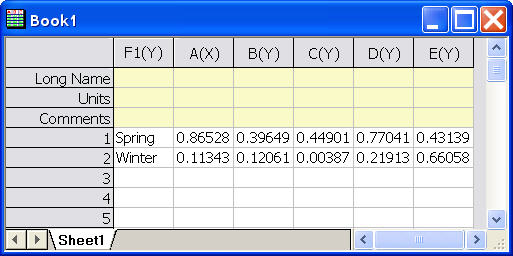
The result worksheet is as follows: