2.2.25 reducedup
Contents
Menu Information
- When Workbook is active
- Worksheet: Reduce Duplicate X Data
- When Graph is active
- Analysis: Data Manipulation: Reduce Duplicate X Data
Brief Information
Reduce XY data by replacing duplicated X values
Additional Information
Minimum Origin Version Required: 8.1 SR0
Command Line Usage
reducedup method:=mean tol:=1 xcount:=<new>
X-Function Execution Options
Please refer to the page for additional option switches when accessing the x-function from script
Variables
| Display Name |
Variable Name |
I/O and Type |
Default Value |
Description |
|---|---|---|---|---|
| Input | iy |
Input XYRange |
|
Specifies the input data range. |
| Replace Y With | method |
Input int |
|
Specifies the value that is used to replace the Y values that correspond to equal X values.
Option list:
|
| Tolerance | tol |
Input double |
|
Specifies the tolerance used to test whether two X values are equal. For more details, please refer to the Algorithm section below. |
| Output | oy |
Output XYRange |
|
Specifies the output range. See the syntax of Output Notations. |
| Duplicate X Counts | xcount |
Output XYRange |
|
Specifies whether or not to output the count of duplicate X. See the syntax of Output Notations. |
Description
This X-Function is for removing data rows that have duplicated X values. After reducing the input data with this X-Function, there will not be any pair of X values that are equal to each other. The Y values that correspond to equal X values in the original data will be replaced with a chosen statistical quantity.
Example
The following example shows you how to reduce several rows of data that contain duplicate X values.
- Create a workbook and import the data <Origin Program Folder>\Samples\Mathematics\Circle.dat.
- Highlight the columns in the worksheet and select Plot: Line: Line from the main menu to create a graph.
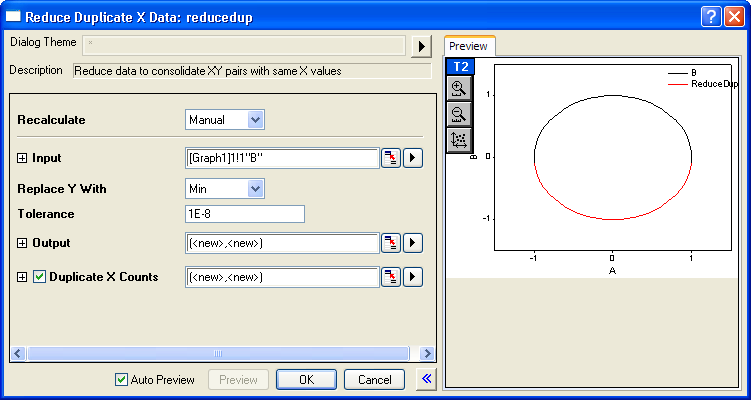
- Make the graph active. Select Analysis: Data Manipulation: Reduce Duplicate X Data from the Origin menu to open the dialog box of the reducedup X-Function.
- Check Auto Preview so that we can see the current result in the Preview window when we change the dialog options.
- Choose Min with the Replace Y With drop-down list.
- Check Duplicate X Counts and enter [<new>]<new> after it. This ensures that you will get the counts of duplicate Xs after reducing the data.
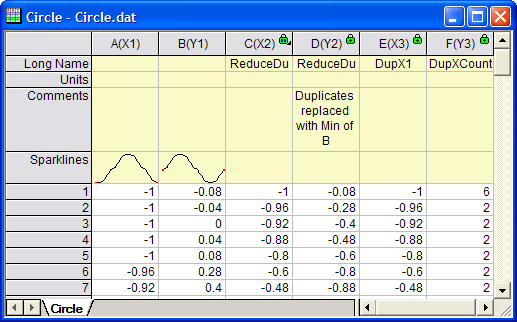
- Click the OK button. You can see the results in the original workbook and the graph.
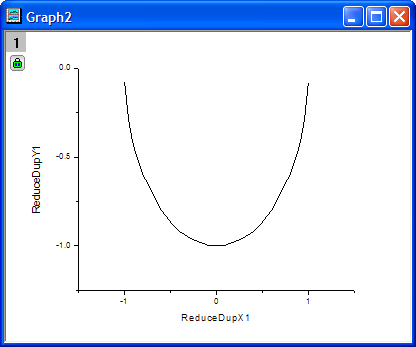
- Now we plot the reduced data separately. Go to the workbook. Highlight col(C) and col(D). Select Plot: Line: Line from the Origin menu to create a new graph.

Algorithm
- Tolerance for testing whether two values are equal
Some X-Functions that test for equality include a tolerance. This algorithm tests whether two X values are equal.
For a given vector, firstly sort it ascending, and suppose the sorted vector is \(\left (x_1, x_2, x_3, ..., x_n \right )\), where \(n\) is the size of the vector. The following steps are the procedure for testing whether two X values are equal with a specified tolerance, \(tol\).
- Find the maximum and minimum of the vector, say \(max\) and \(min\) respectively.
- Calculate a testing value, \(dTol\), by using:
- \[dTol = tol * \left ( max - min \right )\]
- Loop over all values in the sorted vector, from \(x_1\) to \(x_n\), comparing the absolute value of \(\left ( x_n - x_{n-1} \right)\) with \(dTol\).
- If \(abs \left ( x_n - x_{n-1} \right ) \le dTol\), we will say that \(x_n = x_{n-1} \,\), else, \(x_n \ne x_{x-1}\).
- When multiple X values are determind equal, say \(\left ( x_i, x_{i+1}, ..., x_j \right )\), where \(1 \le i < j \le n\), the display X value for this "equal" X values is defined as:
- If the number of this "equal" X values is even, the display X value is \(x_{\frac {i + j - 1}{2}}\).
- If the number of this "equal" X values is odd, the display X value is \(x_{\frac {i + j}{2}}\).
Related X-Functions
Keywords:data reduction, average, mean, sum, minimum, maximum, statistics