2.14.2.26 pef_pptslide
Contents
Menu Information
Beginning with Origin 2021b, this routine is replaced in the user-interface by the Send Graphs to PowerPoint App that is pre-installed with the Origin software. The pef_pptslide X-Function remains a part of the Origin software and can be called via script or by typing the following in the Script Window:
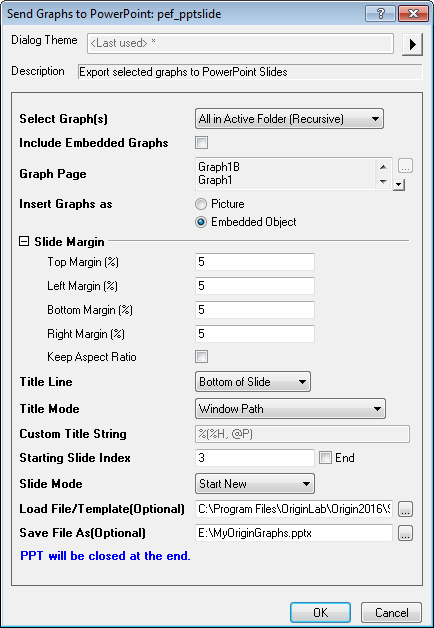
pef_pptslide -d; // opens the pef_pptslide dialog box
pef_pptslide -h; // dumps parameters to the Script Window
Brief Information
Send selected graphs to PowerPoint
Additional Information
Minimum Origin Version Required: 2016 SR0
Command Line Usage
1.pef_pptslide export:=recursive;
2.pef_pptslide export:=open top:=10 left:=10 bottom:=10 right:=10 title:=bottom;
3.pef_pptslide embed:=1 title:=top mode:=lname slide:=2 slidemode:=insert;
4.pef_pptslide export:=page title:=top mode:=lname slidemode:=insert srcf:="C:\Program Files\OriginLab\Origin2016\Samples\Import and Export\Column_Plots_in_Sample_OPJ.pptx" dstf:=E:\MyOriginGraphs.pptx;
X-Function Execution Options
Please refer to the page for additional option switches when accessing the x-function from script
Variables
| Display Name |
Variable Name |
I/O and Type |
Default Value |
Description |
|---|---|---|---|---|
| Select Graph(s) | export |
Input int |
|
Specify which graph(s) to be exported to PowerPoint slides.
Option list:
|
| Include Embedded Graphs | embed |
Input int |
|
Specify whether to export embedded graphs to PowerPoint slides. |
| Insert Graphs as | insert |
Input int |
|
Specify the form of graphs when exported to PowerPoint slides.
Option list:
|
| Top Margin (%) | top |
Input double |
|
Specify the top margin of the slide. |
| Left Margin (%) | left |
Input double |
|
Specify the left margin of the slide. |
| Bottom Margin (%) | bottom |
Input double |
|
Specify the bottom margin of the slide. |
| Right Margin (%) | right |
Input double |
|
Specify the right margin of the slide. |
| Keep Aspect Ratio | keepratio |
Input int |
|
Specify whether to keep aspect ratio. |
| Title Line | title |
Input int |
|
Specifies how the title will be shown in the PowerPoint slides.
Option list:
|
| Title Mode | mode |
Input int |
|
This variable is only available when the title variable is not 0. It specifies what should be used as the exported graph title in each slide.
Option list:
|
| Custom Title String | custom |
Input string |
|
This variable is only writable when mode is set to custom. Used in specifying a custom string to be used as slide title. |
| Starting Slide Index | slide |
Input int |
|
Define the starting slide index number in the PowerPoint presentation file. |
| Slide Mode | slidemode |
Input int |
|
Specify the slide mode for exported graphs.
Option list:
|
| Load File/Template (Optional) | srcf |
Input string |
|
Specify a PowerPoint template file for the exported slides. |
| Save File As (Optional) | dstf |
Input string |
|
Specify the path and name of the PowerPoint Presentation file (*.ppt;*.pptx;*.pptm), PowerPoint Show (*.pps;*.ppsx;*.ppsm) or Design Template (*.pot;*.potx;*.potm) to be saved. Slides will be exported to this file. |
Description
This function is capable of exporting specified graphs to PowerPoint slides. Each graph will be pasted into one slide in the PowerPoint file.
It offers an option to allow you to select graphs within project, folders or subfolders and whether to skip the hidden graphs that are not shortcuts.
The order of exportation is as following: The graphs in the top folder will be exported first, then the graphs in subfolder will be exported. If there are more than one subfolder, alphabetical order will be applied to process the subfolders. For graphs in the same folder, the slide indices (index of Slide column in the Project Explorer, which can be change by dragging and dropping graphs in the Project Explorer.) of the graphs will be applied.
Note: To export graphs to PowerPoint slides, Microsoft Office must have been installed. If the version of Office is 2007, Office has to be upgraded to SP2. Or this X-Function will not work fine.
Examples
The following example can be worked in two ways: The first part of the example uses the user-interface and the pef_pptslide X-Function dialog box. The second part shows the same example being entirely scripted.
- Open the project named <Origin Installation Directory>\Samples\Graphing\Customizing Graphs.opj.
- Highlight the root folder (Customizing Graphs) of the project.
- Click Window: Script Window and at the prompt, type the following and press Enter:
pef_pptslide -d
- In the pef_pptslide dialog, change the settings as the following image shows. For Load File/Template(Optional) browse to and add <Origin Installation Directory>\Samples\Import and Export\Column_Plots_in_Sample_OPJ.pptx.
- For Save File As(Optional), enter some convenient path and name for your output ppt(x) file.
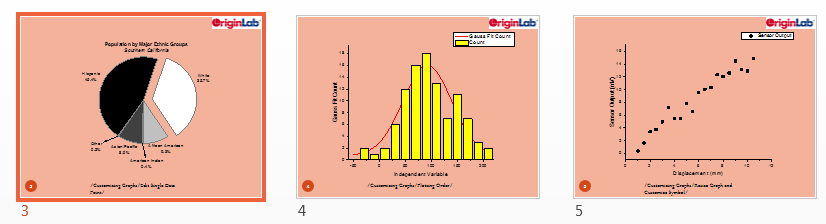
- Click the OK button. The graphs in the project will be sent as embedded objects to the newly-created PowerPoint file. You can browse to and open the output file. Slides 3, 4 and 5 should appear as in the image below. Hint: if you lost track of your output file, you can find the save path by clicking on the Messages Log tab to the left side of your Origin workspace.
Script Solution:
- Run Origin and (a) close any open projects and (b) make sure that your PowerPoint software is not running.
- Copy the following script to the Script Window (Window: Script Window), highlight the entire script and press Enter.
string outname$ = %YMyOriginGraphs.pptx;
string pptname$ = SYSTEM.PATH.PROGRAM$ + "Samples\Import and Export\Column_Plots_in_Sample_OPJ.pptx";
string fname$ = SYSTEM.PATH.PROGRAM$ + "Samples\Graphing\Customizing Graphs.opj";
doc -o %(fname$);
pef_pptslide export:=recursive insert:=pic top:=5 left:=5 bottom:=5 right:=5 keepratio:=0 title:=bottom mode:=path slide:=3 slidemode:=insert srcf:="%(pptname$)" dstf:="%(outname$)";
type -b "Your Script Has Completed!";
After the script runs, you should be able to browse to your \User Files (Help: Open Folder: User Files) and find your pptx file named as MyOriginGraphs.pptx.
Related X-Functions
pef_slideshow,pemp_pptslide, pef_slideshow
Keywords:publishing, export