2.14.11 newHTML
Contents
Brief Information
Create an HTML dialog
Additional Information
Minimum Origin Version Required: Origin 2017 SR2
Command Line Usage
1. newHTML;
2. newHTML -dp; // use Code Builder's frame as HTML dialog parent.
3. newHTML title:=MyExample cname:=MyEx opj:=0;
4. newHTML resize:=1 dlgw:=500 dlgh:=500;
5. newHTML dlgtype:=1 title:=MyGraphExample cname:=MyGrphEx opj:=1 pgshow:=1 pgname:=MyGraph;
X-Function Execution Options
Please refer to the page for additional option switches when accessing the x-function from script
Variables
| Display Name |
Variable Name |
I/O and Type |
Default Value |
Description |
|---|---|---|---|---|
| Type | dlgtype |
Input int |
|
HTML dialog type
|
| Dialog Title | title |
Input string |
|
HTML dialog title |
| Width | dlgw |
Input int |
|
Specify the width of the HTML dialog in pixel. |
| Height | dlgh |
Input int |
|
Specify the height of the HTML dialog in pixel. |
| Resizable | resize |
Input int |
|
Specify whether the HTML dialog could be resizable or not. |
| Save position and size | savesz |
Input int |
|
Specify whether dialog size is remembered in registry |
| Origin C Class Name | cname |
Input string |
|
The name of the user defined HTML dialog class derived from |
| Show | pgshow |
Input int |
|
Specify whether to show graph or image in the dialog.
|
| Page Position | pgpos |
Input int |
|
Position embedded Graph/Image page.
|
| Page Name | pgname |
Input string |
|
Specify the graph or image by name. |
| Origin | ojs |
Input int |
|
Specify whether to use the build-in JavaScript libraries: <Origin EXE folder>\JS\origin.js |
| jQuery | jquery |
Input int |
|
Specify whether to use the build-in JavaScript libraries: <Origin EXE folder>\JS\jquery-2.js
|
| Bootstrap | bootstrap |
Input int |
|
Specify whether to use Bootstrap |
| Write files in project path | opj |
Input int |
|
Specify whether to write the HTML file and the CPP file in project path.
    if(run.LoadOC("%X\name.cpp", 16) == 0)
	OpenNameDlg; //this is the function to open the HTML dialog
    else
	type "Failed to load %X\name.cpp!";
|
| Use CEF | cef |
Input int |
|
Specify whether to use CEF HTML control.
|
Description
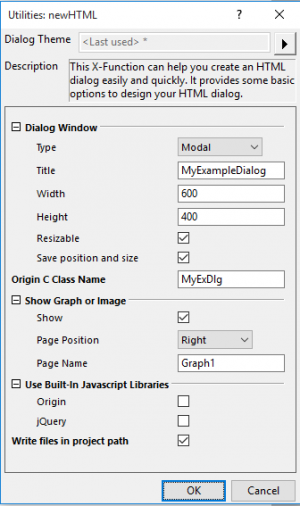
This X-Function can help you create an HTML dialog easily and quickly. It provides some basic options to design your HTML dialog.
For detail about HTML dialog, see these tutorials.
Examples
- New a project, and open Book1.
- Highlight Column A and Column B, and then right click to select Fill Column With: Row Numbers in the context menu.
- Highlight Column B, and then select Plot > Basic 2D : Line from the Origin menu to create Graph1.
- Save the project as MyExample.opj.
- Select Window: Script Window from the Origin menu.
- Type
newHTML –din Script Window and then hit ENTER to bright up the X-Function dialog. - In the X-Function dialog, change the settings as below and click OK to close the dialog.
- Save the project again and exit Origin.
- Go to find MyExample.opj, and then double click to open it.
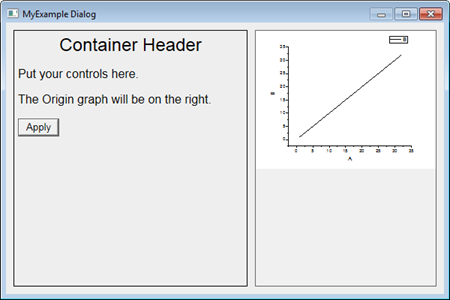
- An HTML dialog will pop up.
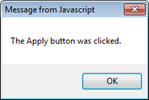
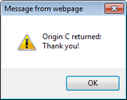
- Click Apply button, an Origin C message box and a website message box will pop up one by one.