2.2.2.2 mCrop
Contents
Brief Information
Crop a matrix to specified region of interest
Additional Information
Minimum Origin Version Required: 8.0 SR5, updated in 8.5.1
Command Line Usage
1. mCrop x:=60 y:=40 w:=200 h:=100;
2. mCrop x:=10 y:=10 w:=50 h:=50 om:=[<input>]<new name:=Cropped>;
X-Function Execution Options
Please refer to the page for additional option switches when accessing the x-function from script
Variables
| Display Name |
Variable Name |
I/O and Type |
Default Value |
Description |
|---|---|---|---|---|
| Left | x |
Input int |
|
Specify the X coordinate (in pixel) of the top-left corner of the rectangle area to be kept. |
| Top | y |
Input int |
|
Specify the Y coordinate (in pixel) of the top-left corner of the rectangle area to be kept. |
| Width | w |
Input int |
|
Specify the width (in pixel) of the rectangle area to be kept. |
| Height | h |
Input int |
|
Specify the height (in pixel) of the rectangle area to be kept. |
| Input Matrix | im |
Input MatrixObject |
|
Specify the matrix to be manipulated. The default input is the active matrix. |
| Output Matrix | om |
Output MatrixObject |
|
Specify the output matrix. By default, the output image is the same as the input image.
See the syntax here. |
Description
This function crops an image.
If your matrix is in Image Mode, you can drag a rectangle by the  button in Tools toolbar, and right-click to crop.
You can also bring up the X-Function dialog (For example, mcrop -d;) to crop an image.
Example
- Select menu Data: Import from File: Image to Matrix to import the file <Origin Installation Directory>\Samples\Image Processing and Analysis\cell.jpg.
- Click the on Tools toolbar, and drag a rectangle area on the image.
- Right-click and select Crop to crop the image.
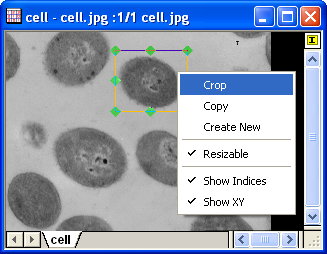
Alternatively, you can also run the following script to crop the image:mcrop 322 62 224 188;
Keywords:pixels, image, ROI