2.7.64 impSPSS
Contents
Menu Information
Data: Import from File: SPSS (SAV)...
SPSS Import option isn't installed by default in Origin.
Please run the Repair or Uninstall Origin or run Setup again. Choose Modify option. When it prompts to change Serial number, choose No. Then on the next page, check SPSS Import and finish the modification. SPSS Import will be installed.
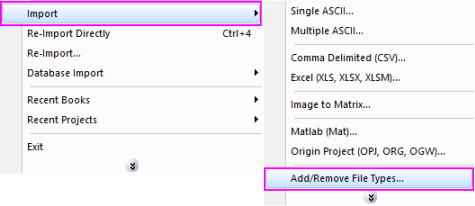
In Origin, choose Data: Import from File: Add/Remove File Types.... Find SPSS on the left and move it to right. This will make the Data: Import from File: SPSS (SAV)... menu available.
 | To add drag & drop support for a file type, see Import Filter Manager. |
This X-Function supports file re-import. See this topic for details.
Brief Information
Import SPSS File
Command Line Usage
1. impSPSS fname:="c:\test.sav";
2. impSPSS fname:="c:\spss_test.sav" options.sparklines:=0 option.bSaveFileInfo:=1;
X-Function Execution Options
Please refer to the page for additional option switches when accessing the x-function from script
Variables
| Display Name |
Variable Name |
I/O and Type |
Default Value |
Description |
|---|---|---|---|---|
| File Name | fname |
Input string |
|
File name of the file to be imported. |
| File Info | trfiles |
Input TreeNode |
|
This is used in the dialog for displaying the basic information of the file. |
| Import Options | options |
Input TreeNode |
|
This is used to tweak the import options in the dialog. Please see the Description part of this document for details. |
| Output | orng |
Output Range |
|
This is used to specify the output range.
See the syntax here. |
| Repeat Import | reimp |
Input int |
Specifies whether or not reimport is allowed. |
Description
This X-Function is used for importing SPSS data files.
Details on Some Dialog Options
- Import Options(options)
- Please see this page for more details.
Examples
The following example shows how to import the SPSS data file (c:\spss_test.sav).
- Create a new project. Select Data: Import from File: SPSS... from the Origin menu. This opens the SPSS file browser. The SPSS menu item is default hidden. To show it to the Import menu list, you will need to select Customize... to turn it on.
- Select C:\spss_test.sav' and then click the Add File(s) button. Make sure that the Show Options Dialog check-box is selected.
- Click the OK button to close the file browser. The Import and Export: impSPSS dialog should now open.
- Expend the File Information : spss_test: Variables branch, select all the check boxes to import all columns.
- Change Output to <new>.
- Click the OK button to import spss_test file.